 CopyPal
How to copy and paste multiple items at once
Copy a name, then an email address, then a phone number, and your computer remembers only the phone number. Windows and macOS both have a clipboard that holds one thing at a time. Here is every practical way around that, on a PC, on a Mac and inside Microsoft Office, and which one to reach for when.
The quick answer
| Where you are | What to use | How it pastes |
|---|---|---|
| Windows 10 or 11, any app | Clipboard history, Win+V | One item per click, from your last 25 copies |
| Word, Excel, PowerPoint or Outlook on Windows | The Office Clipboard | Up to 24 items, all at once with Paste All |
| Word, on Windows or Mac | The Spike | Cuts several passages, pastes them together |
| Mac with macOS 26 or later | Spotlight's clipboard history | One earlier item at a time |
| Any app, Mac or Windows | A clipboard manager with a paste stack | All at once, or one per paste, in the order you pick |
1. Windows: clipboard history with Win+V
Windows 10 and 11 can remember your recent copies. Press Win+V and click Turn on the first time. From then on, copy your items as usual; when you are ready to paste, press Win+V and click the item you want, then do the same for the next one.
It is free and already on your PC, with clear limits: one item per click, no paste-all, the last 25 copies only, and anything you have not pinned is gone after a restart. Our guide to Windows clipboard history covers it in detail.
2. Microsoft Office: the Office Clipboard
Word, Excel, PowerPoint and Outlook on Windows share a second clipboard that holds up to 24 items and can paste them all in one go.
- On the Home tab, click the small arrow in the corner of the Clipboard group. In Outlook, open a message and use the Message tab.
- With the Clipboard pane open, copy your items. They can come from Office documents or from other programs.
- Click where they should go and choose Paste All, or click single items to paste them one by one.
At the bottom of the pane, Options has two useful switches: Collect Without Showing Office Clipboard keeps collecting while the pane is closed, and Show Office Clipboard When Ctrl+C Pressed Twice opens it with a double copy.
The limits: it pastes only inside Office apps, a 25th copy pushes out the oldest, and Office for Mac does not have it.
3. Word: the Spike
Word has an older trick for gathering several passages from a long document. Select some text and press Ctrl+F3 (⌘F3 on a Mac) to send it to the Spike. Repeat for each passage. Then click where they belong and press Ctrl+Shift+F3 (⌘⇧F3 on a Mac) to paste everything you collected and empty the Spike.
One catch: the Spike cuts rather than copies, so the text leaves its original spot. It is for rearranging a document, not for gathering bits from other apps. On a Mac keyboard you may need to hold fn to use F3.
4. Mac: Spotlight's clipboard history
Since macOS 26 Tahoe, Spotlight can keep a history of what you copy. Turn it on in System Settings › Spotlight › Results from Clipboard, then press ⌘Space and ⌘4 to see your recent copies. Select one and press Return to paste it where you were typing, then open Spotlight again for the next.
It keeps copies for 30 minutes, 8 hours or 7 days, pastes one item at a time, and is not there before macOS 26. Our guide to macOS clipboard history goes through every setting.
5. Any app: a paste stack
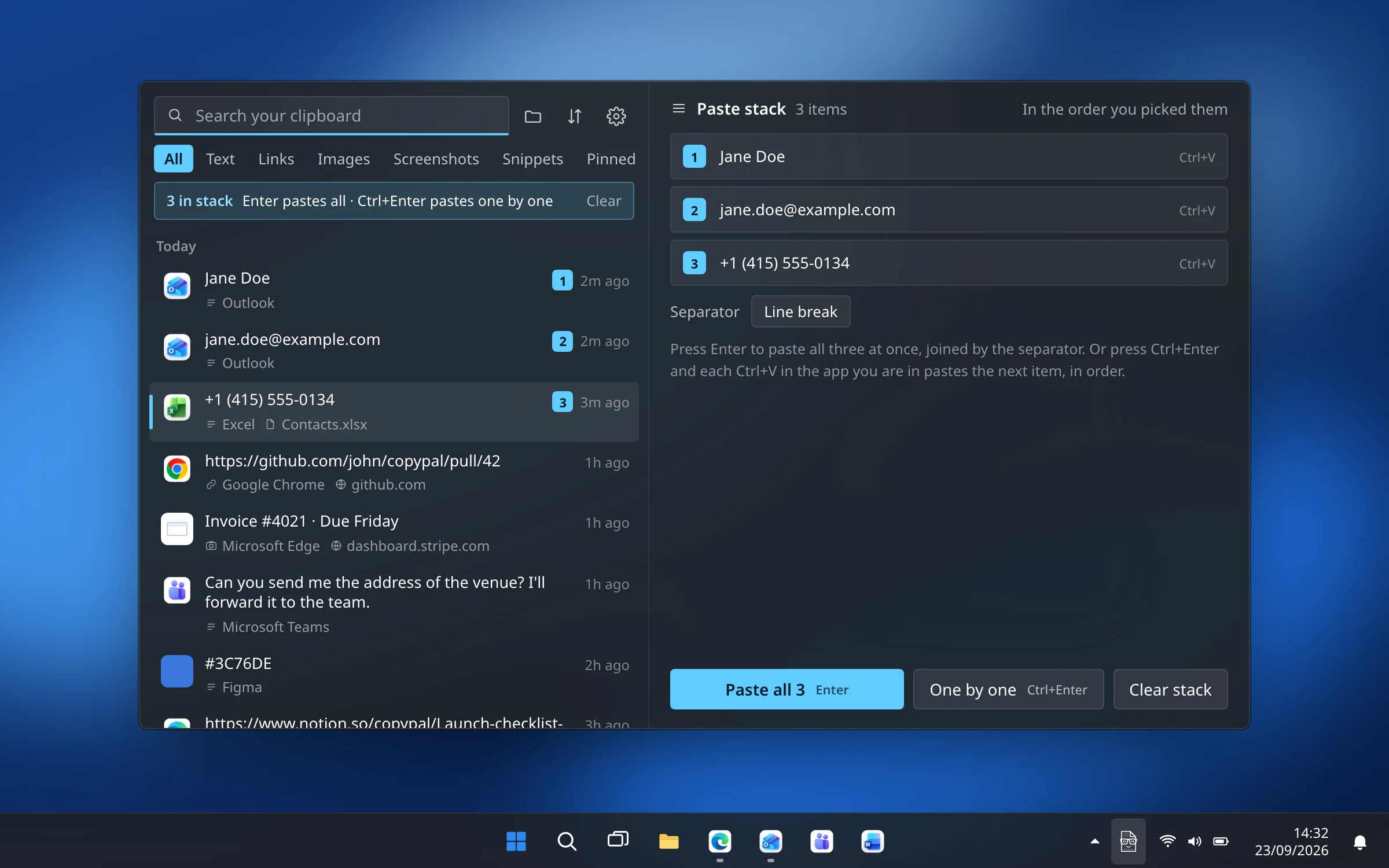
A clipboard manager keeps everything you copy, so copying several things needs no extra effort: you just copy. The question becomes how to get them out again, and the neatest answer is a paste stack. You pick the items in the order you want them, then paste them all at once, or one per paste as you move through a form.
CopyPal, which we make, has a paste stack on both Mac and Windows:
| Step | Mac | Windows |
|---|---|---|
| Open your history | ⇧⌘V | Ctrl+Shift+V |
| Add an item to the stack | ⌘S, or ⌘-click it | Ctrl+S |
| Paste them all together | Return | Enter |
| Paste one per paste, in order | ⌘Return, then ⌘V for each | Ctrl+Enter, then Ctrl+V for each |

When you paste them all at once, you choose what goes between the items in Settings › General › Pasting: a line break, a blank line, a space, a tab or a comma. Tabs drop several values into a spreadsheet row in one go; commas make a quick list.
The one-per-paste mode is made for forms. Stack a customer's name, email and phone in the order the form asks for them, then paste, Tab, paste, Tab. Each paste hands over the next item until the stack is empty.
Which one should you use?
- Rearranging one Word document: the Spike.
- Collecting pieces for an Office document on Windows: the Office Clipboard and Paste All.
- Grabbing an earlier copy now and then: Win+V on Windows, Spotlight on a Mac.
- Moving several things between apps, filling in forms, pasting a list in order: a paste stack in a clipboard manager.
Copying multiple files is a different job
If you meant files rather than text, that is built in everywhere. In File Explorer, Ctrl-click the files, press Ctrl+C, then Ctrl+V in the destination folder. In Finder, ⌘-click them, press ⌘C, then ⌘V, or ⌥⌘V to move them instead of copying. Clipboard managers are about the text, links, images and screenshots you copy inside apps.
Frequently asked questions
Can you copy multiple things at once?
Not with plain copy and paste: every Ctrl+C or ⌘C replaces the item before it. To keep several, use clipboard history (Win+V on Windows, Spotlight on macOS 26 and later), the Office Clipboard inside Microsoft Office, or a clipboard manager.
How do I paste multiple items at once?
Inside Word, Excel, PowerPoint or Outlook on Windows, open the Office Clipboard and click Paste All. In any app on a Mac or PC, use a clipboard manager with a paste stack, such as CopyPal: pick the items, then press Return or Enter to paste them together. Win+V and Spotlight paste one item at a time.
How many items can the Office Clipboard hold?
Up to 24. When you copy a 25th item, the oldest one is removed. It works in Word, Excel, PowerPoint, Outlook, Access and Publisher on Windows.
Does the Office Clipboard work on a Mac?
No. Microsoft notes that in Office for Mac you cannot view or clear the Office Clipboard. Word for Mac does have the Spike: ⌘F3 cuts a selection into it and ⌘⇧F3 pastes everything collected.
What is the shortcut to see everything I copied?
On Windows 10 and 11, press Win+V. On a Mac with macOS 26 or later, press ⌘Space, then ⌘4. With CopyPal it is Ctrl+Shift+V on Windows and ⇧⌘V on a Mac.