 CopyPal
macOS clipboard history: how to turn it on, use it and clear it
For most of its life the Mac clipboard held exactly one thing. Since macOS 26 Tahoe it can hold more: there is a clipboard history built into Spotlight. It is off until you turn it on, it keeps your copies for 30 minutes to seven days, and it is one shortcut away. Here is how it works on Tahoe and on this year's macOS 27, and where it stops.
At a glance
| Question | Answer |
|---|---|
| Which Macs | macOS 26 Tahoe and later, including macOS 27 |
| Open it | ⌘Space, then ⌘4 |
| Turn it on | System Settings › Spotlight › Results from Clipboard |
| Keeps copies for | 30 minutes, 8 hours or 7 days, your choice |
| Clear it | The More button in Spotlight › Clear History |
Which Macs have a clipboard history
The feature arrived with macOS 26 Tahoe in September 2025. The first update, macOS 26.1, added a choice of how long copies are kept and a button to clear them. macOS 27 Golden Gate, released on 14 September 2026, keeps the same feature in the same place.
On macOS 15 Sequoia and earlier there is no history at all. The only built-in view is Finder › Edit › Show Clipboard, which shows the one item on the clipboard right now. Not sure which version you have? Choose Apple menu › About This Mac.
How to turn on clipboard history
There are two ways in, and both switch on the same setting.
In System Settings
- Open System Settings and click Spotlight in the sidebar.
- Turn on Results from Clipboard.
- Choose how long Spotlight keeps your clipboard history: 30 minutes, 8 hours or 7 days.
From Spotlight itself
Press ⌘Space, then ⌘4. The first time, macOS asks whether to allow results from the clipboard. Click Allow.
How to use it
- Press ⌘Space to open Spotlight.
- Press ⌘4, or click the clipboard button to the right of the search field. Your recent copies appear.
- Type to search through them.
- Select an item and press Return, or double-click it, to paste it where you were typing. To copy it instead, press ⌘C or click the copy button to its right, then paste it yourself with ⌘V.
Each item also notes when it was copied and which app it came from, and Control-clicking one offers Paste, Copy, Delete, Share and Open. You can drag an item straight into another app, too. It brings back one item per trip, though: for five items going into a form, that is five round trips through Spotlight.
How long it keeps your copies
You choose in System Settings › Spotlight: 30 minutes, 8 hours or 7 days. Anything older than the window you pick no longer shows up. On macOS 26.0, before the choice arrived, the window was fixed at 8 hours.
There is no "forever", and no way to keep one important item longer than the rest. It is a rolling window, not an archive.
How to clear it, or turn it off
- One item: Control-click it in the list and choose Delete.
- Everything, from Spotlight: click the More button to the right of the search field and choose Clear History.
- From System Settings: go to Spotlight, click Clear Clipboard History, then Clear.
- To stop it altogether: turn off Results from Clipboard in the same place.
A word on privacy
Apple's own guide is frank about it: sensitive information may appear on the clipboard. An account number, an address, a private message: whatever you copy sits in the list until its time runs out, and anyone using your Mac while it is unlocked can press ⌘Space, ⌘4 and scroll. If that matters to you, pick 30 minutes, clear the history after copying something sensitive, and lock your Mac with ⌃⌘Q when you step away.
What it does not do
- Keep anything for longer than seven days, or pin the things you reuse.
- Paste several items together, or hand them out one per ⌘V.
- Expand snippets. For short text you type often, macOS has a separate feature, Text Replacements, under System Settings › Keyboard.
- Run on older Macs. Before macOS 26 there is nothing.
When you need more: a clipboard manager
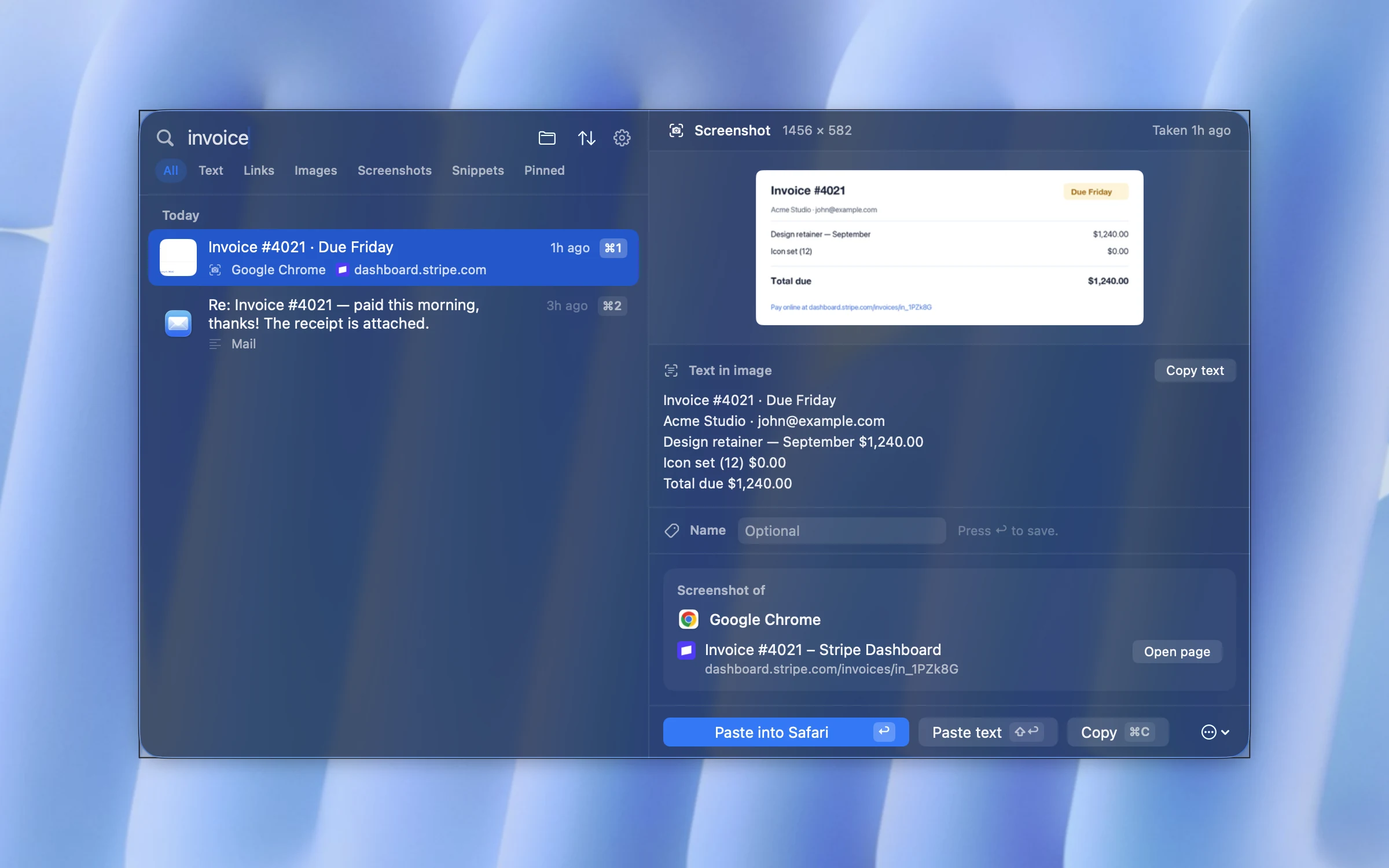
If the built-in history covers you, keep using it. If you copy and paste all day, a clipboard manager picks up where Spotlight stops. We make one, CopyPal, so here is what it adds, and you can judge whether that matters to you.
- History that lasts. The last 1,000 items by default, or 5,000, or unlimited. Pin what you reuse, give it a name, file it in a group.
- Remembers where things came from. Every item is filed with its app and, for browsers, the page title and address, with a button that reopens the page.
- Finds screenshots by their words. Text in screenshots and images is recognised on your Mac, so a search for "invoice" finds the screenshot of one.
- Pastes several at once. Add items to a paste stack with ⌘S, then paste them in one go or one per ⌘V.
- Works on older Macs. macOS 14 Sonoma and later, and on Windows too.
| Spotlight clipboard history | CopyPal | |
|---|---|---|
| Keeps copies for | 30 minutes, 8 hours or 7 days | As long as you like |
| Pin favourites | No | Yes, plus names and groups |
| Several items at once | One at a time | Paste stack |
| Runs on | macOS 26 and later | macOS 14 and later, and Windows |
| Price | Free, built in | $10 once, two devices |
Frequently asked questions
Does macOS have a clipboard history?
Yes, since macOS 26 Tahoe. It lives in Spotlight and is off by default: press ⌘Space, then ⌘4. It keeps copies for 30 minutes, 8 hours or 7 days. macOS 15 Sequoia and earlier keep only the last thing you copied.
How do I turn on clipboard history on a Mac?
Open System Settings, click Spotlight and turn on Results from Clipboard. Or press ⌘Space, then ⌘4, and click Allow when macOS asks whether to show results from the clipboard.
How long does a Mac keep clipboard history?
30 minutes, 8 hours or 7 days, whichever you choose in System Settings › Spotlight. The choice arrived in macOS 26.1; on macOS 26.0 the window was 8 hours. There is no way to keep items longer or pin them.
How do I clear clipboard history on a Mac?
In Spotlight, click the More button to the right of the search field and choose Clear History. Or open System Settings › Spotlight, click Clear Clipboard History, then Clear. To stop recording, turn off Results from Clipboard.
Why can't I see my clipboard history in Spotlight?
Check three things: the Mac runs macOS 26 or later, Results from Clipboard is turned on in System Settings › Spotlight, and the item is not older than the time window you chose. Older copies are no longer shown.
Can I get clipboard history on an older Mac?
Not built in. Before macOS 26, a Mac keeps only the current item, which you can see in Finder under Edit › Show Clipboard. A clipboard manager adds a full history; CopyPal runs on macOS 14 Sonoma and later.