 CopyPal
How to see clipboard history on Windows 11 and 10
Windows has kept a clipboard history since 2018, but it is off until you turn it on, and it forgets more than you would expect. Here is how to open it, what it can and cannot do, and what to use when you need more.
The built-in way: press Win+V
Press Win+V. The first time, a small panel tells you that clipboard history is off; click Turn on. You can also switch it on under Settings › System › Clipboard › Clipboard history.
Once it is on, Win+V shows your recent copies, newest first. Click one and Windows pastes it into the app you were using. The … menu on each item lets you pin it, delete it, or clear the whole list. On Windows 11 the same panel also has tabs for emoji, GIFs, kaomoji and symbols.
What Windows clipboard history keeps, and what it forgets
- 25 items. When you copy the 26th, the oldest one drops off.
- Text, HTML and images up to 4 MB each. Files you copy in File Explorer do not appear.
- Cleared at restart. Everything except pinned items disappears when you restart or sign out.
- No search. You scroll. With 25 short previews that is fine; with a busy day it is not.
- No memory of where a copy came from. A number is a number; there is no way back to the email or page it was in.
- Screenshots are pictures only. A Win+Shift+S screenshot shows up as an image, but you cannot find it by the words in it.
- Sync is optional. The Sync across your devices switch sends your copies through your Microsoft account so other PCs see them. Leave it off if you would rather they stayed on this machine.
Empty list after a restart? That is by design. Pin the items you want to keep, or use a clipboard manager that stores its history on disk.
When 25 items and no search is not enough
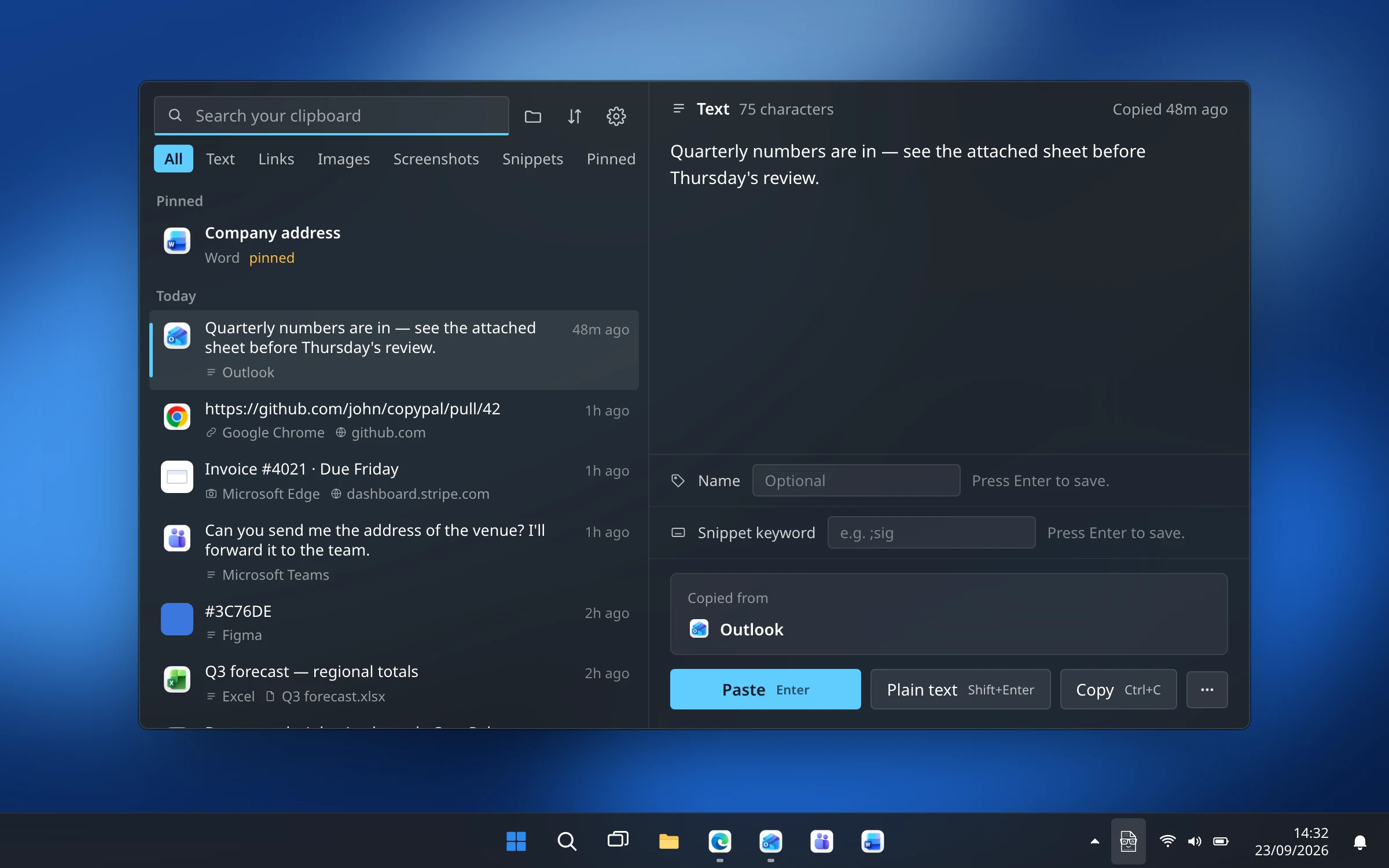
If you copy all day, such as addresses, order numbers, links, error messages, screenshots, the built-in list is too short and too hard to scan. A clipboard manager keeps a longer history and lets you search it. We make one, CopyPal, so here is what it does differently, and you can judge whether it matters to you.
- Everything, for as long as you like. Text, links, images and screenshots. The last 1,000 items by default, or unlimited.
- Where it came from. Every item is filed with the app it came from. Copy from Chrome, Edge, Firefox or Brave and CopyPal also records the page title and address, so one click takes you back.
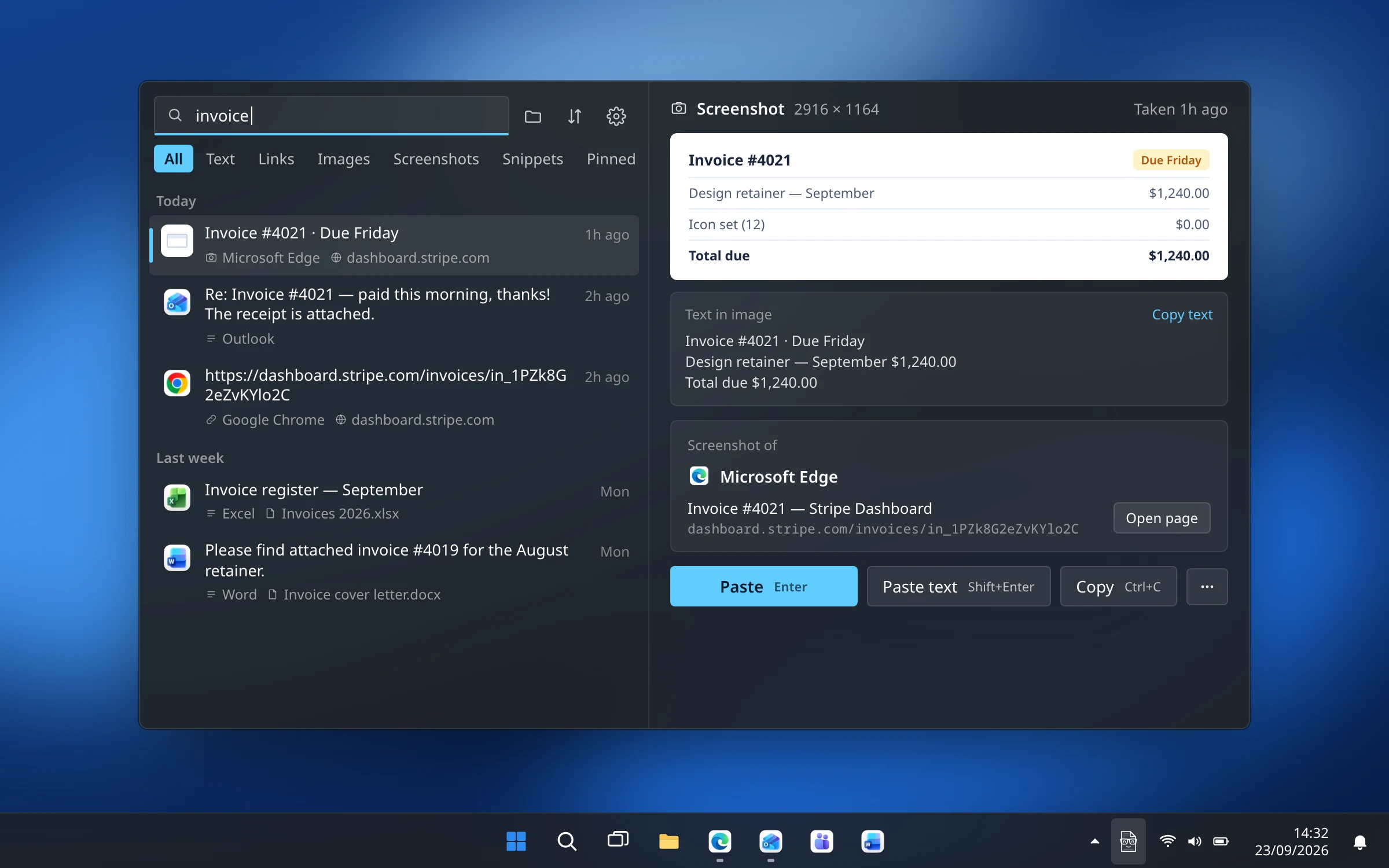
- Search as you type. Type a word and the list narrows. Filters such as
from:chrome,site:github.com,type:linkandtodaywork too. - Screenshots, searchable by their text. The words inside a screenshot are recognised on your PC, so a search for a word finds the screenshot that contains it.
- Snippets, a paste stack, pins and groups. Type
;siganywhere to paste your signature; queue several items and paste them in order; keep the things you reuse at the top. - Stays on your PC. No account, no cloud. Copies from password managers are skipped, and you can exclude any app or website.
Set it up in two minutes
- Download CopyPal for Windows and run the installer. It runs on Windows 10 and 11, on 64-bit and Arm PCs.
- If Windows shows “Windows protected your PC”, choose More info, then Run anyway. SmartScreen shows this for installers it has not seen many downloads of yet.
- Enter your license key. It arrives by email right after purchase, and the same key works on a Mac and a PC.
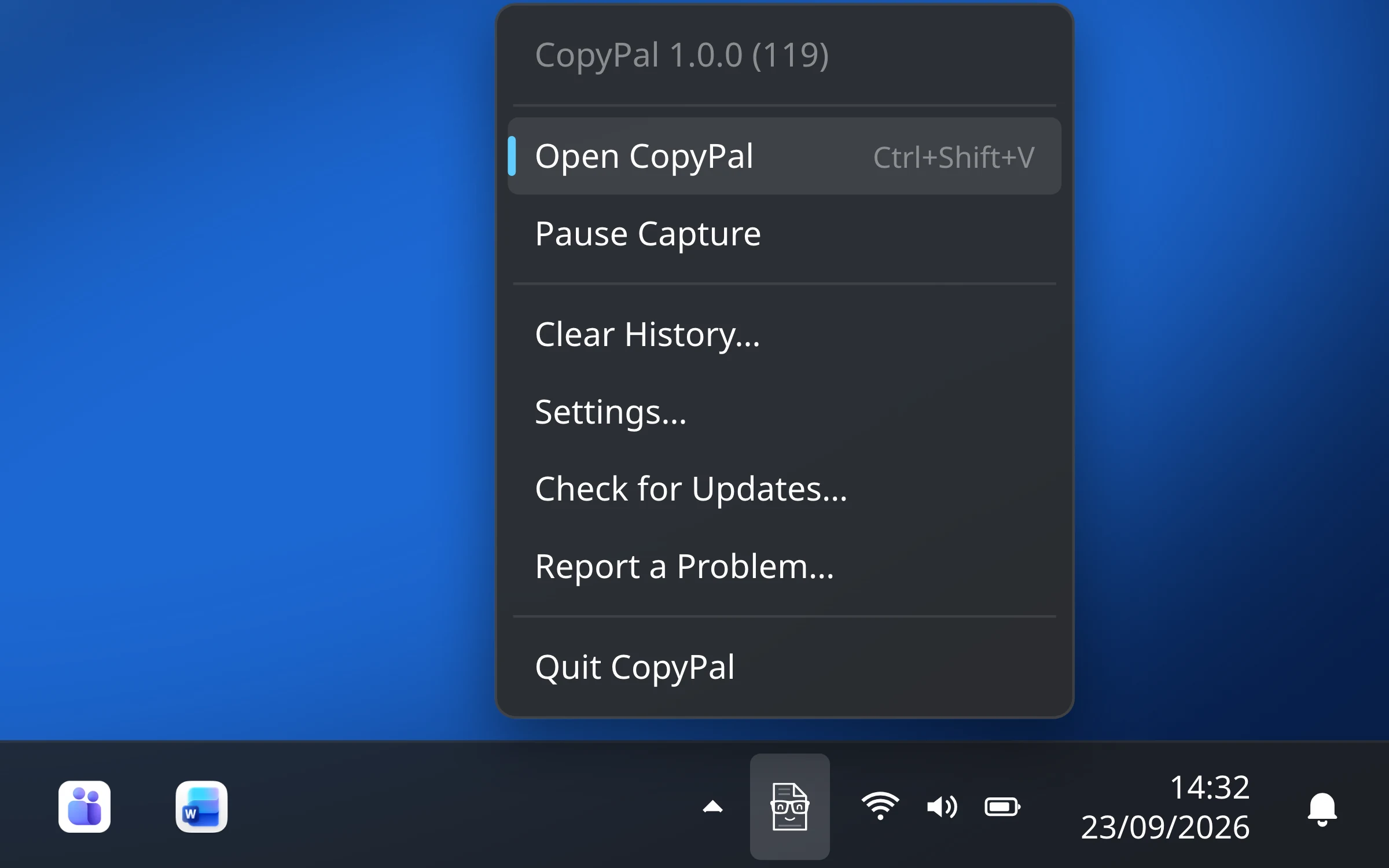
- Press Ctrl+Shift+V. CopyPal lives in the system tray next to the clock: left-click the icon to open the panel, right-click for the menu.
Finding something you copied last week
Press Ctrl+Shift+V and start typing. The list narrows with every letter, and the chips at the top limit it to text, links, images, screenshots, snippets or pinned items. Use the arrow keys to pick a result, then:
- Enter pastes it into the app you were in.
- Shift+Enter pastes it as plain text, without formatting.
- Ctrl+C puts it on the clipboard without pasting.
- Esc closes the panel.
Keeping it private
Everything CopyPal records is stored in a database in your own user folder. The only network requests are a license check about once a week and a daily check for updates. If you need to copy something that should not be recorded, right-click the tray icon and choose Pause Capture, or add the app or website to the ignored list in Settings › Privacy.
Questions
Does Windows have a clipboard history?
Yes. Windows 10 (since version 1809) and Windows 11 have one. Press Win+V to open it. It is off by default and keeps up to 25 items until you restart.
How do I turn on clipboard history in Windows 11?
Press Win+V and choose Turn on, or go to Settings › System › Clipboard and switch Clipboard history on.
Why is my clipboard history empty after a restart?
Windows clears unpinned items when you restart or sign out. Pin the items you want to keep, or use a clipboard manager that stores its history on disk, such as CopyPal.
Can I search my clipboard history on Windows?
Not in the built-in Win+V panel, which you scroll. A clipboard manager such as CopyPal searches everything you copied as you type, including the text inside screenshots.
Does CopyPal work on Windows 10?
Yes. CopyPal runs on Windows 10 and Windows 11, on 64-bit and Arm PCs. One license key works on two devices, Mac or PC.