 CopyPal
How to clear the clipboard on Windows 11 and 10
To clear the clipboard on Windows 11 or 10, press Windows key + V and click Clear all, or go to Settings › System › Clipboard and click Clear next to Clear clipboard data. Both remove everything except pinned items. Here is how to remove those too, delete a single entry, clear synced copies, and stop Windows keeping a history at all.
At a glance
| To clear | Do this |
|---|---|
| Everything except pinned items | Win+V › Clear all, or Settings › System › Clipboard › Clear clipboard data › Clear |
| One item | Win+V, click … next to it › Delete |
| Pinned items | Win+V, click … › Unpin or Delete |
| Synced copies | Settings › System › Clipboard › Clear (clears the cloud too) |
| Just the current item | Copy something harmless, or run cmd /c "echo off | clip" |
| Stop keeping a history | Settings › System › Clipboard › Clipboard history: Off |
How to clear clipboard history with Windows key + V
- Press Windows key + V (Win+V) to open clipboard history.
- Click Clear all at the top of the panel.
Every item disappears except the ones you pinned. If the panel says clipboard history is off, there is no list to clear; only the item you copied last is on the clipboard (see “When clipboard history is off” below). If Win+V doesn't open at all, see how to fix Win+V.
How to clear clipboard data in Settings
- Open Settings › System › Clipboard. On Windows 10 the path is the same: Settings › System › Clipboard.
- Next to Clear clipboard data, click Clear.
Microsoft describes this as clearing everything except pinned items “on your device and the cloud”, which matters if you sync your clipboard (more on that below). Microsoft's own page on the clipboard in Windows covers the same steps.
How to delete one item from clipboard history
To get rid of a single copy, an address or a password you pasted by accident, and keep the rest:
- Press Win+V.
- Click the … (See more) button next to the item.
- Choose Delete (the bin icon).
Why pinned items survive Clear all, and how to remove them
Pinning is how you tell Windows to keep something. Pinned items survive Clear all, Clear clipboard data and restarts, which is the point of them, and also why a “cleared” clipboard can still show something you pinned months ago. To remove a pinned item, press Win+V, click … next to it and choose Unpin (it then goes with the next Clear all) or Delete.
Clearing synced clipboard data across devices
If you switched on Clipboard history across your devices (called Sync across devices on Windows 10), Windows sends your copies through your Microsoft account or work account so your other PCs can paste them.
- Clear the cloud copy: use Settings › System › Clipboard › Clear clipboard data, as above.
- Clear your other PCs: Microsoft doesn't say whether that also empties the list on PCs that already received the items, so press Win+V › Clear all on each of them too.
- Stop syncing: switch off Clipboard history across your devices. Or keep it and choose to sync only the items you pick, rather than Automatically sync text that I copy.
How to clear the clipboard when clipboard history is off
With history off, Windows holds just one item: the last thing you copied. The simplest way to get rid of it is to copy something harmless, such as a single word, which replaces it. Restarting or signing out empties it too. For a clipboard with nothing on it at all, use the command in the next section.
How to clear the clipboard with a command or a desktop shortcut
Windows includes a small command, clip, that puts whatever it is given on the clipboard. Give it nothing and the clipboard is left with nothing to paste.
- Press Windows key + R (Win+R) to open Run.
- Type
cmd /c "echo off | clip"and press Enter. A Command Prompt window flashes up and closes.
Type it exactly like that. If you type just echo off | clip into PowerShell, which is what Windows Terminal opens by default on Windows 11, PowerShell puts the word “off” on your clipboard instead.
To make it one click, turn it into a desktop shortcut:
- Right-click an empty part of the desktop and choose New › Shortcut.
- For the location, type
cmd /c "echo off | clip"and click Next. - Name it Clear clipboard and click Finish.
- Optional: right-click the shortcut › Properties, set Run to Minimized so no window flashes, and choose a Shortcut key.
The command and the shortcut empty the current item only. With clipboard history on, everything you copied earlier is still in Win+V, so use Clear all as well.
How to turn off clipboard history
If you would rather Windows didn't keep a list at all, go to Settings › System › Clipboard and switch off Clipboard history. Windows goes back to holding one item at a time, and Win+V offers to turn it back on. Click Clear first if you want to be sure the old list is gone.
Does restarting the PC clear the clipboard?
Yes. A restart empties the clipboard and clears clipboard history, except pinned items, so if pasting has gone wrong, a restart is also a fair first fix (more in copy and paste not working on Windows). It is also why people go looking for something they copied this morning and find the list empty; see how clipboard history works on Windows and how to get back something you copied earlier.
How to clear a clipboard manager's history
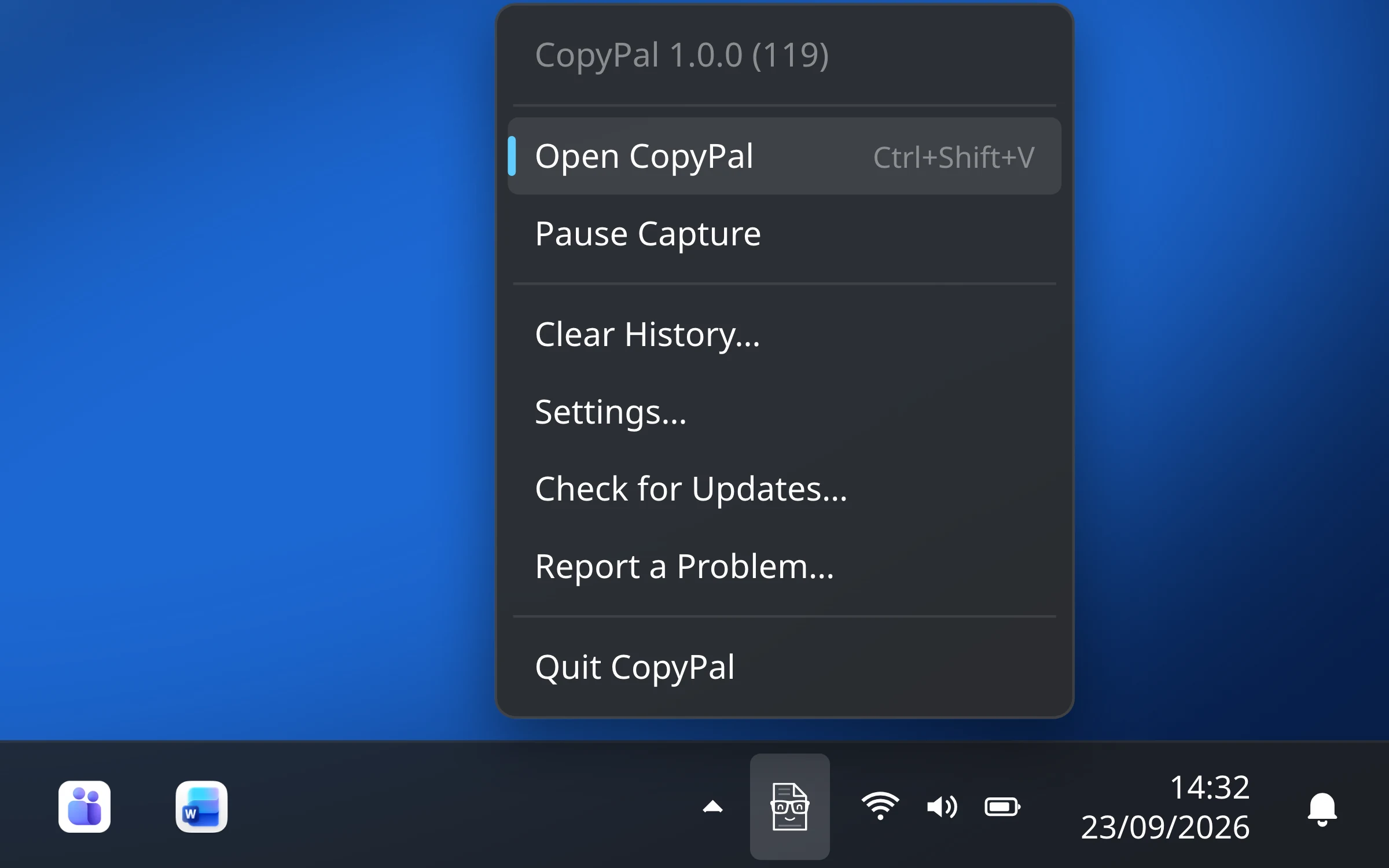
Clipboard managers keep their own history, separate from Windows, and usually on disk so it survives a restart. Clearing Windows' list doesn't clear theirs, so check what yours keeps and how to empty it; are clipboard managers safe? goes through what they record. We make one, CopyPal, so here is how clearing and privacy work there.
- Clear History in the tray menu deletes everything CopyPal has recorded. Right-click the CopyPal icon next to the clock and choose Clear History….
- Pause Capture, in the same menu, stops CopyPal recording until you resume it. Use it before copying something you don't want kept.
- Ignored apps and websites. In Settings › Privacy you choose apps and sites CopyPal should never record, such as your password manager or your bank's website.
- A shorter history. It keeps the last 1,000 items by default; you can set 100 or 500 instead. Pinned, named and grouped items and snippets are never pruned.
Everything stays in a database on your PC, with no account and no cloud. If you also use Win+V, clear that list the Windows way as well.
Frequently asked questions
How do I clear my clipboard on Windows 11?
Press Windows key + V and click Clear all, or go to Settings › System › Clipboard and click Clear next to Clear clipboard data. Both remove everything except pinned items.
Does Clear all delete pinned items?
No. Pinned items survive Clear all, Clear clipboard data and restarts. To remove one, press Windows key + V, click the three dots next to it and choose Unpin or Delete.
Does restarting the PC clear the clipboard?
Yes. A restart empties the clipboard and clears clipboard history, except pinned items. Signing out does the same.
How do I clear clipboard data synced to my Microsoft account?
Go to Settings › System › Clipboard and click Clear next to Clear clipboard data. Microsoft says this clears everything except pinned items on the device and in the cloud. Clear the history on your other PCs too, and switch off Clipboard history across your devices to stop syncing.
Is there a keyboard shortcut to clear the clipboard?
Windows has no dedicated one. The quickest is Windows key + V, then Clear all. You can also make a desktop shortcut that runs cmd /c "echo off | clip" and give it a shortcut key in its Properties; it empties the current item but not the history.