 CopyPal
Are clipboard managers safe? What they record and how to stay private
A reputable clipboard manager is about as safe as the computer it runs on. The real questions are what ends up in its history, where that history is kept, and who can open it. Choose one that stores everything on your own computer, keep your password manager and banking sites out of it, and lock your screen when you step away. Clipboard-hijacking malware is a separate danger, and ordinary security habits deal with it.
The short answer
| Question | Answer |
|---|---|
| What it records | Everything you copy, including passwords and account numbers, unless you exclude them |
| Where it is kept | On your disk, and also in a cloud if the app syncs |
| Who can see it | Anyone using your computer while you are signed in, and the sync service if you use one |
| Biggest real risks | Someone using your computer while you are away, and malware |
| How to stay safe | Local-only app, ignore sensitive apps and sites, pause when needed, lock your screen, encrypt your disk |
What does a clipboard manager record?
Everything that passes through the clipboard: text, links, images, screenshots. That includes things you would never write down, such as a password copied out of a password manager, a bank account number, a one-time code or a private message. To the clipboard, a password is just text.
The built-in histories work the same way. Apple's own guide to Spotlight's clipboard history warns that sensitive information may appear in it, and Windows clipboard history keeps whatever you copy until you restart. Sensitive things do get recorded, unless you tell the app otherwise.
Where is clipboard history stored?
- On your computer. Most clipboard managers keep a database in your user account on your own disk. CopyPal, Maccy, Ditto and CopyQ work this way by default. Raycast says its clipboard history is encrypted on your disk.
- In a cloud, if the app syncs. Windows clipboard history can sync text across your devices through your Microsoft account or work account. Paste syncs through your private iCloud account, and ClipboardFusion Pro through its own service. Sync is convenient, but your copies then exist beyond the one computer in front of you.
- Until restart only. Windows' own history keeps unpinned items only until you restart.
Local storage is not a guarantee by itself. The history is a file, protected by your user account and your disk encryption, which is why the checklist below includes both.
Who can see your clipboard history?
- Anyone using your computer while you are signed in. One shortcut opens the history. A colleague borrowing your laptop for a minute can scroll through your day.
- Other software running as you. A malicious app you install could read the same files and the same clipboard. Where you get software matters more than any one setting.
- The sync provider, and your other devices. Only if you turn sync on.
Clipboard hijacking: the malware worth worrying about
Clipboard hijackers, often called clippers, are malware, not clipboard managers. They watch the clipboard for something valuable, most often a cryptocurrency wallet address, and swap it for the attacker's own. You copy the right address, paste the wrong one, and the money goes to the criminal.
This is not theoretical. In June 2026 Microsoft described a Windows clipper spread through shortcut files on USB drives. It checked the clipboard about twice a second, replaced copied wallet addresses with lookalikes and stole recovery phrases. In 2023 Kaspersky reported a similar clipper hidden in fake Tor Browser installers.
The defence is ordinary security hygiene:
- Install software only from the developer's own website or an official app store.
- Keep your antivirus on. Windows includes Microsoft Defender.
- Do not open files from USB drives you do not recognise.
- After pasting a wallet address, bank details or a payment link, check the whole thing, not just the first and last few characters, before you send money.
Why does a clipboard manager ask for Accessibility on a Mac?
To paste for you, a clipboard manager has to press Command-V (⌘V) in the app you were using. macOS only lets an app control other apps like that after you allow it in System Settings › Privacy & Security › Accessibility. Some apps also use this permission to read details such as the address of the page open in your browser.
It is a powerful permission, and Apple's advice is to grant it only to apps you know and trust. You can see which apps have it, and switch any of them off, in the same place. Windows does not ask for an equivalent permission: desktop apps can use the clipboard freely, which is one more reason to install only software you trust.
Can password managers keep passwords out of clipboard history?
Sometimes, and you should not rely on it.
On the Mac, there is an informal convention described at nspasteboard.org. An app can mark what it copies as concealed (confidential, not to be recorded in plain view) or transient (on the clipboard only for a moment, not to be kept in a history). The site lists apps that support the convention, among them the password manager 1Password (which uses its own marker) and clipboard managers such as Maccy, Paste and ClipBook; Maccy, for example, skips marked items by default.
On Windows, Microsoft gives apps a similar mechanism: an app can mark clipboard data so that it is left out of Win+V history and cloud sync.
Both are voluntary on both sides: the password manager has to add the mark, and the clipboard manager has to respect it. Many password managers also clear the clipboard after a short time, but that does not remove a copy a history app has already saved. The dependable approach is to add your password manager to your clipboard manager's ignore list yourself, then copy a test entry and check it does not appear.
Are the built-in clipboard histories safer?
They are simpler, not automatically safer.
- Windows (Win+V): keeps your last 25 copies until you restart, plus anything pinned. Sync across your devices uploads copied text to the cloud, automatically or item by item; turn it off in Settings › System › Clipboard if you do not need it. Clear clipboard data, on the same Settings page, removes everything except pinned items, on the PC and in the cloud. More in how to clear the clipboard on Windows.
- Mac (Spotlight, macOS 26 and later): keeps copies for 30 minutes, 8 hours or 7 days; the shortest window is the most private. Clear it with the More button › Clear History, or System Settings › Spotlight › Clear Clipboard History. See how to clear the clipboard on a Mac.
A checklist for using a clipboard manager safely
- Choose one that stores history locally. If it syncs, know where to. The Mac and Windows comparisons say which do.
- Exclude your password manager and your banking app and sites. Most clipboard managers have an ignore list for apps; some also ignore websites.
- Pause capture before you copy something sensitive, and resume afterwards.
- Set a history limit. Keep as much as is useful, not everything forever.
- Clear the history after sensitive work, and before you hand a computer to IT or sell it.
- Lock your screen when you step away: Control-Command-Q (⌃⌘Q) on a Mac, Windows key + L (Win+L) on Windows.
- Encrypt your disk. On a Mac, turn on FileVault in System Settings › Privacy & Security › FileVault. On Windows, turn on Device encryption in Settings › Privacy & security › Device encryption, which is available on many PCs including Windows Home, or BitLocker on Windows Pro, Enterprise and Education.
- Keep your apps and system updated.
- Download only from the developer or an official app store.
- Check payment details after you paste them. Every character of a wallet address or account number.
How CopyPal handles your privacy
We make a clipboard manager, CopyPal, so here is plainly what it does and does not do.
- No account, no cloud. Your history is a local database on your computer, protected by your user account and your disk encryption. Nothing is synced or uploaded.
- You decide what it ignores. Add apps, such as your password manager, and websites, such as your bank, and CopyPal does not record what you copy from them.
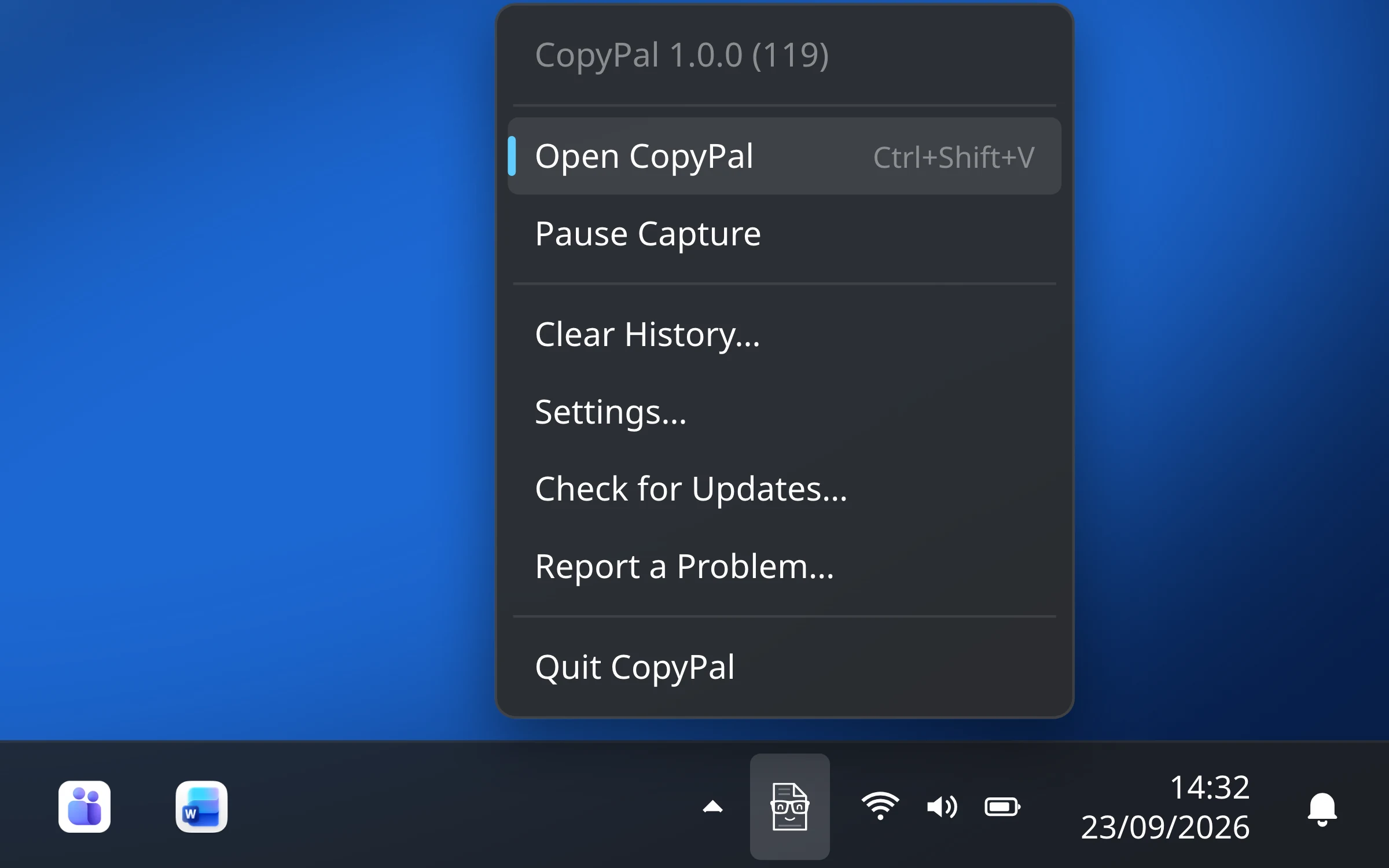
- Pause Capture in the menu stops recording until you resume. On a Mac, Control-Option-P (⌃⌥P) pauses and resumes without opening anything.
- Clear History deletes everything.
- A history limit. The last 1,000 items by default, or 100, 500, 5,000 or unlimited.
- The only network requests: optional website icons, a licence check about once a week (it keeps working for 30 days offline), and a daily update check.
What it does not do is decide for you what is sensitive. If you copy a password from an app you have not told it to ignore, while capture is on, it is saved like any other item. That is why we suggest adding your password manager to the ignore list on day one. On a Mac, CopyPal asks for Accessibility permission to press ⌘V for you and to read the browser's page address.
Frequently asked questions
Are clipboard managers safe?
A reputable clipboard manager from the developer's own website or an official app store is as safe as the computer it runs on. The risk is what ends up in the history, such as passwords and account numbers, and who can see it. Choose one that stores history locally, tell it to ignore your password manager and banking sites, and lock your screen when you step away.
Can a clipboard manager see my passwords?
Yes, if you copy a password while it is recording. Some password managers mark copied passwords so clipboard managers that honour the mark skip them, but this is voluntary on both sides. The safe habit is to add your password manager to the clipboard manager's ignore list yourself.
Is Windows clipboard history safe?
It keeps your last 25 copies until you restart, and anyone using your PC while you are signed in can press Win+V and see them. With Sync across your devices on, copied text is also uploaded through your Microsoft account or work account. Leave sync off if you do not need it.
What is clipboard hijacking?
Clipboard hijacking is done by malware, often called a clipper, that watches the clipboard for something valuable, usually a cryptocurrency wallet address, and swaps it for the attacker's own. It is not a feature of legitimate clipboard managers. Install software only from trusted sources and check payment details after you paste them.
Why does a clipboard manager need Accessibility access on a Mac?
To paste for you, the app has to press Command-V in the app you were using, and macOS only lets an app control other apps that way after you allow it under System Settings › Privacy & Security › Accessibility. Some also use it to read details such as a browser's page address. Grant it only to apps you trust.