 CopyPal
How to clear the clipboard and clipboard history on a Mac
To clear the clipboard on a Mac, copy something harmless, such as a single space, so it replaces what was there. To empty it completely, type pbcopy < /dev/null in Terminal. On macOS 26 Tahoe and later, also clear Spotlight's clipboard history, because it keeps earlier copies even after the clipboard itself is empty.
At a glance
| What you want | How |
|---|---|
| Replace what's on the clipboard | Copy a single space with ⌘C |
| Empty it completely | Terminal: pbcopy < /dev/null |
| Clear clipboard history (macOS 26 and later) | Spotlight › More button › Clear History |
| Delete one item from that history | Control-click it › Delete |
| Stop keeping a history | System Settings › Spotlight › turn off Results from Clipboard |
| Clear a clipboard manager | The app's own Clear History command |
Why clear the clipboard?
The Mac clipboard keeps the last thing you copied until something replaces it. Copy a password, an account number or a private message on a shared Mac, and the next person to press Command-V (⌘V) in any app pastes it. The same goes for a screen share or a presentation, where one wrong paste shows it to everyone. Since macOS 26, Spotlight can also keep a list of recent copies, so a single overwrite is no longer the end of it. Clearing takes seconds. Not sure what's on there now? Click the desktop and choose Edit › Show Clipboard; here is more on where the clipboard lives.
How to clear the clipboard by copying something harmless
The quickest way needs no special tools: put something else on the clipboard.
- Click in any text field, a note or a TextEdit document.
- Type a single space, then select it by pressing Shift-Left Arrow (⇧←).
- Press Command-C (⌘C). The space replaces whatever was on the clipboard.
That is enough for most situations. It doesn't remove the earlier copy from Spotlight's clipboard history if you have it turned on, and it doesn't touch a clipboard manager; both are covered below.
How to clear the clipboard on a Mac with Terminal
If you want the clipboard truly empty, rather than holding a space, use Terminal. It sounds technical, but it's one line.
- Press Command-Space (⌘Space), type Terminal and press Return.
- Type
pbcopy < /dev/nullexactly as shown and press Return. Nothing appears; that means it worked. - Close Terminal.
pbcopy is a built-in command that puts whatever it's given on the clipboard, and /dev/null is an empty input. Together they replace the clipboard's contents with nothing, so ⌘V pastes nothing. We tested it on macOS 26 Tahoe.
Type the command rather than pasting it. Since macOS 26.4, if you don't use Terminal regularly and paste a command copied from a website, your Mac may stop it with a "Possible malware, Paste blocked" alert. This one is harmless, but typing it avoids the alert, and it's a good habit; Apple explains the alert in If your Mac blocks a Terminal command paste or script.
Does restarting the Mac clear the clipboard?
Yes. The clipboard is kept in memory, so shutting down or restarting empties it. It's a slow way to do it, though, and it isn't a dependable way to clear Spotlight's clipboard history: for that, use the Clear History command below.
One more thing that empties it: quitting the process that runs the clipboard, with killall pboard in Terminal. That is really a fix for when copy and paste stops working, and our troubleshooting guide explains it, but it can clear the clipboard as a side effect.
Lock your Mac when you step away
Clearing the clipboard protects you from the next paste. Locking the screen protects everything else. Press Control-Command-Q (⌃⌘Q) before you leave your desk, and nobody can paste, open Spotlight or scroll through anything until you sign back in. On a shared family Mac, give each person their own user account: each account has its own clipboard and its own settings.
How to clear clipboard history on a Mac (macOS 26 and later)
macOS 26 Tahoe added a clipboard history inside Spotlight, and macOS 27 keeps it. It's off unless you turned it on, but if you did, it keeps your recent copies for 30 minutes, 8 hours or 7 days, whatever you chose. Emptying the clipboard doesn't clear this list; it has its own controls.
- Everything, from Spotlight: press ⌘Space, then Command-4 (⌘4). Click the More button to the right of the search field and choose Clear History.
- Everything, from System Settings: go to Spotlight, click Clear Clipboard History, then Clear.
- One item: Control-click it in the list and choose Delete.
- Keep less: in System Settings › Spotlight, pick 30 minutes instead of 7 days.
- Stop it altogether: turn off Results from Clipboard in System Settings › Spotlight.
Our guide to macOS clipboard history covers the rest: turning it on, how long it keeps things and what it leaves out.
Universal Clipboard: your iPhone may have it too
If Handoff is on, something you copy on your Mac is also added to the clipboard of your iPhone or iPad when it's nearby and signed in to the same Apple Account. Apple says it stays there briefly, or until you copy something else on either device. So copying a harmless space on the Mac replaces it on both. If you'd rather your copies never travel, turn off Handoff in System Settings › General › AirDrop & Continuity (AirDrop & Handoff on some versions); Apple's Universal Clipboard guide has the details.
Make a one-key "Clear Clipboard" shortcut
If you clear the clipboard often, the Shortcuts app can do it with a keyboard shortcut of your choice.
- Open Shortcuts and choose File › New Shortcut. Name it Clear Clipboard.
- In the action list on the right, search for Run Shell Script and double-click it to add it.
- Replace the text in the action with
pbcopy < /dev/null. - Choose Shortcuts › Settings, click Advanced and turn on Allow Running Scripts. Apple warns that scripts can cause data loss; this one only empties the clipboard.
- Back in your shortcut, click the details button (ⓘ), click Add Keyboard Shortcut and press a key combination you don't use for anything else.
How to clear a clipboard manager's history
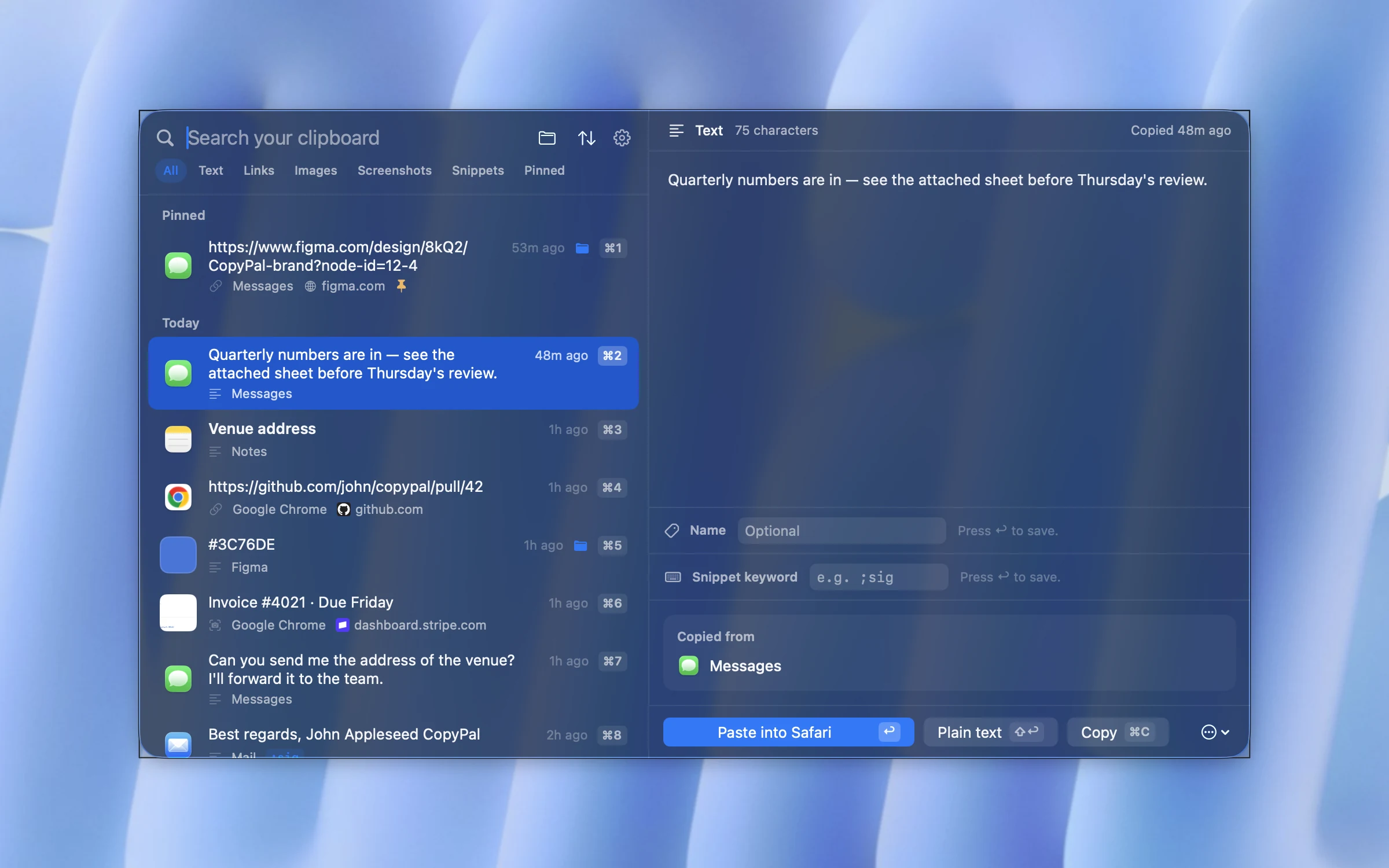
A clipboard manager keeps its own history on your Mac, separate from the system clipboard, so none of the steps above touch it. Look for a Clear History or Delete command in the app. We make one, CopyPal, so here is how it works there.
- Delete everything: click the CopyPal icon in the menu bar and choose Clear History…. CopyPal asks first, then deletes every item, pinned items, snippets and grouped clips included. The same button is in Settings › General.
- Delete one item: press ⇧⌘V to open the panel, select the item and press Command-Delete (⌘⌫), or Control-click it and choose Delete.
- Pause before you copy something private: choose Pause Capture from the menu bar icon, or press ⌃⌥P. CopyPal records nothing until you resume.
- Ignore apps and websites for good: in Settings › Privacy, add your password manager to Ignored apps and your bank to Ignored websites. Copies made there are never recorded.
CopyPal doesn't guess what's private; you decide what it keeps. Everything it does keep stays in a local database on your Mac, with no account and no cloud. For the wider picture, see are clipboard managers safe?
Frequently asked questions
How do I clear my clipboard on a Mac?
Copy something harmless, such as a single space, and it replaces whatever was there. To empty it completely, open Terminal, type pbcopy < /dev/null and press Return. Restarting the Mac also clears it.
How do I clear clipboard history on a Mac?
On macOS 26 and later, open Spotlight with Command-Space, press Command-4, click the More button to the right of the search field and choose Clear History. Or go to System Settings › Spotlight, and click Clear Clipboard History. To delete one item, Control-click it and choose Delete.
Does restarting a Mac clear the clipboard?
Yes. The clipboard is kept in memory, so a restart empties it. To be sure Spotlight's clipboard history is empty too, use its Clear History command rather than relying on a restart.
What does pbcopy < /dev/null do?
pbcopy puts whatever it is given on the clipboard, and /dev/null is an empty input. Together they replace the clipboard's contents with nothing, so Command-V pastes nothing. It is harmless and changes nothing else on your Mac.
Does clearing the clipboard clear my clipboard manager?
No. A clipboard manager keeps its own history on your Mac, so delete the item or clear the history in the app itself. In CopyPal, Clear History in the menu bar menu deletes everything after asking you first.