 CopyPal
Copy and paste not working on a Mac? How to fix it
When copy and paste stops working on a Mac, the cause is nearly always one of three things: the small background process that runs the clipboard has got stuck, one app or website is blocking it, or the keyboard is not sending Command-C. Start with fix 1, which takes under a minute and needs no restart. If that doesn't do it, work down the list.
The short answer
| What you see | Try this first |
|---|---|
| Copy and paste stopped working everywhere | Restart the clipboard process: type killall pboard in Terminal (fix 1) |
| It fails in one app or on one website | Test in TextEdit; the app or site may block copying (fix 2) |
| Edit › Copy works, ⌘C doesn't | The keyboard or a shortcut setting (fixes 3 and 4) |
| Paste puts in the wrong thing | Restart the clipboard process, then quit clipboard and keyboard utilities (fixes 1 and 5) |
| iPhone to Mac doesn't work | Universal Clipboard settings on both devices (fix 6) |
| Nothing helps | Restart, safe mode, update macOS (fixes 7 to 9) |
Why is copy and paste not working on my Mac?
macOS calls the clipboard the pasteboard, and a background process named pboard looks after it. Every app hands its copies to pboard and asks for them back when you paste. If pboard gets stuck, copies stop landing, or paste keeps bringing back something old. The other usual suspects are an app or website that blocks copying, the keyboard, and another utility watching the clipboard or the keys. The clipboard only ever holds one item; here is where it lives and how to look at it.
1. Restart the clipboard process (pboard)
This is the fix that works most often, and it's harmless. Quitting pboard can empty the clipboard, so copy the last thing again afterwards, but nothing else is affected, and macOS starts pboard again by itself the next time anything copies or pastes. We checked that it is still called pboard on macOS 26 Tahoe; if your Mac runs a later version and a search for it finds nothing, move on to fix 2.
With Terminal
- Open Terminal: press Command-Space (⌘Space), type Terminal and press Return.
- Type
killall pboardand press Return. You'll have to type it, since pasting is what's broken. Nothing appears when it works. - Go back to your app and try copying and pasting again.
With Activity Monitor
- Open Activity Monitor from Applications › Utilities.
- Type pboard in the search field at the top right of the window.
- Select pboard in the list, click the Stop button (an X) in the toolbar, then click Force Quit.
2. Check whether it's only one app or website
Open TextEdit, type a few words, select them, press Command-C (⌘C), click at the end of the line and press Command-V (⌘V). If that works, the Mac's clipboard is fine and the problem is the place you were copying from or pasting into.
- Some websites block copying. They stop you selecting text, or swallow the copy. A way round it is to take a screenshot and copy the words out of the image with Live Text; here is how to copy text from a screenshot.
- Some documents are protected. The owner of a PDF can require a password before anyone copies its text, and Preview respects that.
- Terminal may block a paste on purpose. Since macOS 26.4, if you don't use Terminal regularly and paste a command copied from a website, chat or email, your Mac can show a "Possible malware, Paste blocked" alert. Apple explains it in If your Mac blocks a Terminal command paste or script; only click Paste Anyway if you know exactly what the command does.
- The app itself is misbehaving. Quit it with Command-Q (⌘Q), open it again, and check the App Store or the developer's site for an update.
If paste works but the text arrives in the wrong font or colour, that is a formatting problem rather than a broken clipboard: see how to paste without formatting on a Mac.
3. Test with the Edit menu
This tells you whether the problem is the clipboard or the keyboard. Select some text, choose Edit › Copy from the menu bar, click where you want it, then choose Edit › Paste.
- The menu works, but the shortcuts don't: the clipboard is fine. Go to fix 4.
- Copy is grey: nothing is selected, or the app won't let you copy that content.
- Paste is grey: the clipboard is empty, or holds something this spot can't accept, such as a picture in a plain-text field. To see what's on it, click the desktop and choose Edit › Show Clipboard.
4. Check the keyboard
- Try the other Command key. There is one on each side of the space bar. If only one works, the key itself is faulty.
- Watch the Keyboard Viewer. Click the Input menu in the menu bar and choose Show Keyboard Viewer. No Input menu? Go to System Settings › Keyboard, click Edit next to Text Input and turn on "Show Input menu in menu bar". Press Command and see whether the key reacts in the viewer.
- Check Modifier Keys. In System Settings › Keyboard, click Keyboard Shortcuts, then Modifier Keys. Make sure Command is set to Command for your keyboard, or click Restore Defaults.
- Check App Shortcuts. In the same window, App Shortcuts lists any custom shortcuts. One that uses ⌘C or ⌘V for another menu command changes what those keys do.
- Check Sticky Keys and Slow Keys. In System Settings › Accessibility › Keyboard. Slow Keys makes the Mac wait before it accepts a key press, which can make shortcuts seem dead.
- Look for a stuck key. A Shift, Option or Control key that is stuck down turns Command-V into a different shortcut.
- Wireless keyboard? Charge it, switch it off and on, and check it shows as connected in System Settings › Bluetooth. Then try the Mac's built-in keyboard, if it has one.
- Windows keyboard? Apple says to use the Windows logo key or Ctrl in place of Command. Our guide to Mac copy and paste shortcuts covers the layout.
5. Quit clipboard managers, text expanders and key remappers
Apps that watch the clipboard or the keyboard can get in the way when they go wrong: clipboard managers, text expanders, and apps that remap keys. Quit them one at a time from their menu bar icons and test after each. If one turns out to be the cause, check for an update before reopening it.
That includes ours. If you use CopyPal, choose Quit CopyPal from its menu bar icon and test. And if copying works but CopyPal's Return doesn't paste into the app you were in, check that CopyPal is still turned on in System Settings › Privacy & Security › Accessibility; that permission is what lets it press ⌘V for you.
6. Copy and paste between iPhone and Mac not working
That's Universal Clipboard, and Apple lists four conditions in its guide to Universal Clipboard:
- The devices are near each other.
- Each is signed in with the same Apple Account.
- Each has Bluetooth and Wi-Fi turned on.
- Each has Handoff turned on. On the Mac: System Settings › General › AirDrop & Continuity (called AirDrop & Handoff on some versions), then "Allow Handoff between this Mac and your iCloud devices". On the iPhone: Settings › General › AirPlay & Continuity (or AirPlay & Handoff), then Handoff.
Paste soon after you copy: Apple says the copy stays on the other device only briefly, or until you copy something else on either one. If it still fails, Apple's advice is to update and restart both devices.
7. Restart your Mac
Choose Apple menu › Restart. A restart clears the clipboard and starts every background process fresh. Turn off "Reopen windows when logging back in" in the dialog, so an app that is causing trouble doesn't open again by itself.
8. Start up in safe mode
Safe mode starts the Mac without login items and other extra software, which tells you whether something you installed is to blame. Apple's steps, from Start up your Mac in safe mode:
- Mac with Apple silicon: shut down. Press and hold the power button until you see "Loading startup options". Select your startup disk, then hold Shift and click Continue in Safe Mode.
- Intel-based Mac: turn it on and immediately press and hold Shift until you see the login window.
Test copy and paste. If it works in safe mode, restart normally. If the problem comes back, a login item is the likely cause: go to System Settings › General › Login Items & Extensions, remove items one at a time and restart after each.
9. Update macOS
Open System Settings › General › Software Update and install anything that's waiting. Copy and paste problems have been reported after big macOS releases before, and updates are where Apple fixes bugs. While you're at it, update your apps from the App Store too.
Once it works again: don't lose a copy twice
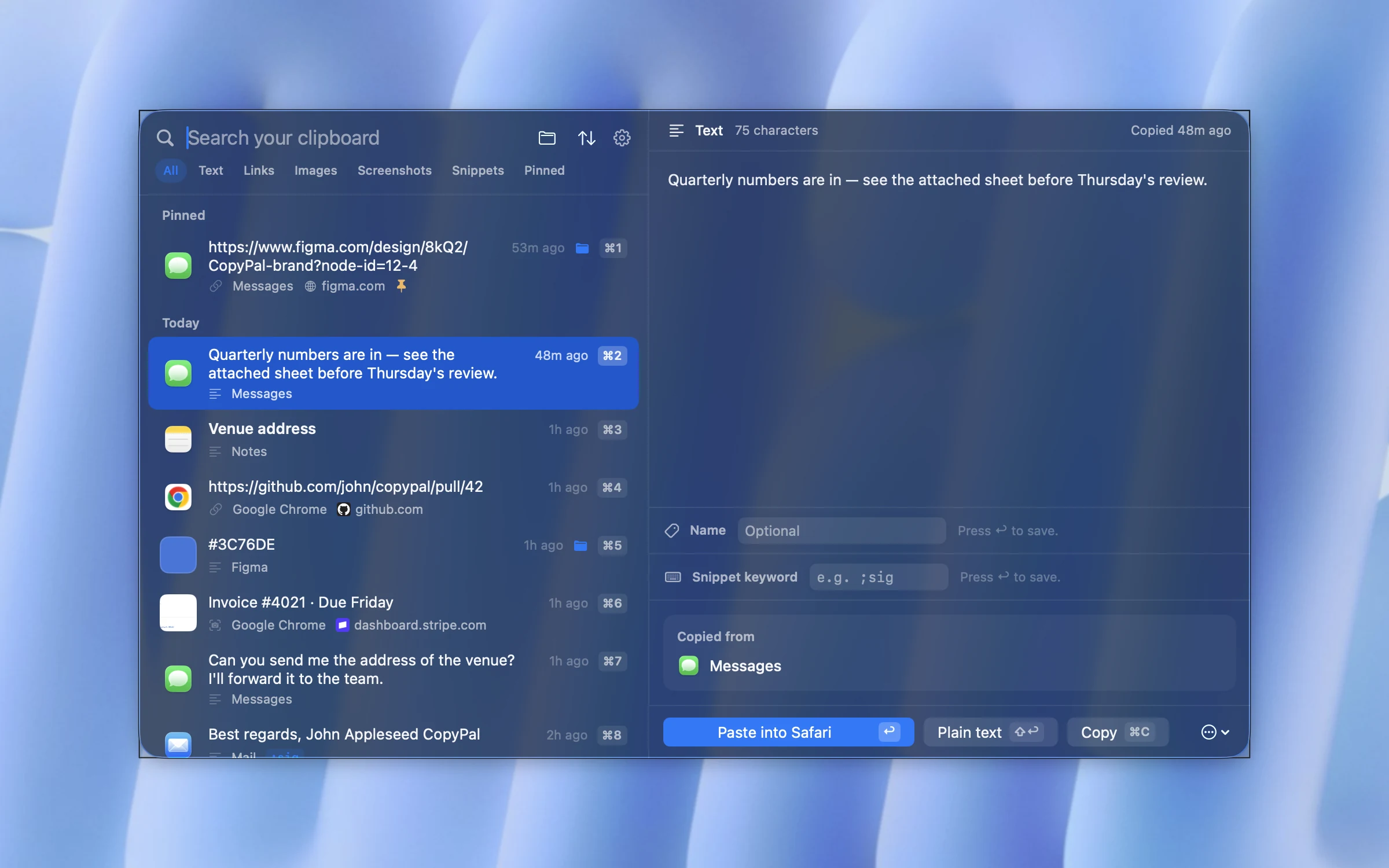
The worst part of a broken clipboard is the copy you lose. On macOS 26 Tahoe and later, Spotlight can keep recent copies for up to seven days; here is how to turn on clipboard history. If you want more than that, a clipboard manager keeps everything. We make one, CopyPal, so here is what it would have done for you.
- Every copy is kept. Text, links, images and screenshots, the last 1,000 items by default, in a local database on your Mac.
- Getting one back takes a second. Press ⇧⌘V, type a word to search, press Return to paste it.
- The copy before last is one shortcut away. ⌃⌥B pastes it without opening anything.
- You know where it came from. Each item shows the app and, for browsers, the page it was copied from.
Frequently asked questions
Why is Command-C not working on my Mac?
Either the clipboard process is stuck, the app or website blocks copying, or the keyboard is not sending the shortcut. Choose Edit › Copy from the menu bar: if that works, check the keyboard and its settings; if it does not, restart the clipboard process with killall pboard in Terminal.
How do I reset the clipboard on a Mac?
Open Terminal, type killall pboard and press Return. That quits the process that runs the clipboard, and macOS starts it again the next time anything copies or pastes. You can do the same in Activity Monitor by searching for pboard and choosing Force Quit.
Does quitting pboard delete anything?
It can empty the clipboard, so copy the last thing again afterwards. Your files and documents are not touched, and nothing else needs restarting.
Why does paste put in something I copied earlier?
Your latest copy never reached the clipboard. The app or website may block copying, or the clipboard process is stuck. Check what is on the clipboard with Finder › Edit › Show Clipboard, then try fixes 1 and 2.
Why can't I copy and paste from my iPhone to my Mac?
Universal Clipboard needs both devices near each other, signed in with the same Apple Account, with Bluetooth, Wi-Fi and Handoff turned on. The copy stays available only briefly, so paste soon after copying. If it still fails, update and restart both devices.