 CopyPal
How to paste without formatting on a Mac
You copy a sentence from a web page, paste it into an email, and it arrives in the wrong font, the wrong size and a colour you never asked for. Here is the shortcut that fixes it, the apps that do it differently, and two ways to make plain text the default.
The shortcut: Shift-Option-Command-V
In most Mac apps the Edit menu has a second paste command, Paste and Match Style, with the shortcut ⇧⌥⌘V. It drops the formatting that came with the text and makes it look like whatever surrounds it. Safari, Mail, Notes, Pages, Keynote, Messages and TextEdit all have it, and so do most well-behaved third-party apps.
Four keys is a stretch for one hand, so it is worth learning the position: hold ⇧, ⌥ and ⌘ with your thumb and two fingers, then tap V.
Apps that do it their own way
- Google Docs, Sheets and Slides in the browser use ⇧⌘V, and so does Slack. Some other web-based apps borrow the same shortcut.
- Microsoft Word ignores the macOS shortcut. Use Edit › Paste Special and choose Unformatted Text, or paste normally and click the small paste options button that appears, then Keep Text Only. Outlook and PowerPoint work the same way.
- Excel and Numbers copy formulas and cell formatting along with values. In Excel use Paste Special › Values; in Numbers, Edit › Paste and Match Style keeps the numbers and drops the styling.
- Terminal only understands plain text, so a normal ⌘V is already unformatted there.
The Command-V remap trick
If you almost never want formatting, tell macOS that ⌘V should mean Paste and Match Style everywhere:
- Open System Settings › Keyboard › Keyboard Shortcuts › App Shortcuts.
- Click +, leave All Applications selected, and type the menu title exactly:
Paste and Match Style. - Press ⌘V in the shortcut field and click Done.
From now on, in every app that has a menu item with that exact name, ⌘V pastes plain and the old shortcut pastes with formatting. Apps that call it something else, Word for example, are unaffected.
The TextEdit wash
The oldest trick still works: paste into a plain-text document, then copy from there. In TextEdit choose Format › Make Plain Text (⇧⌘T) first, paste, select all, copy again. Slow, but it works in any app.
Make plain text the default with a clipboard manager
CopyPal, which we make, keeps a history of everything you copy and has plain-text pasting built in at two levels. In the panel (⇧⌘V), ⇧↩ pastes the selected item as plain text, whether you copied it a second ago or last week. And in Settings › General there is a switch, Paste as plain text by default, which makes every paste from CopyPal plain; hold ⇧ when pasting to get the formatting back for that one item.
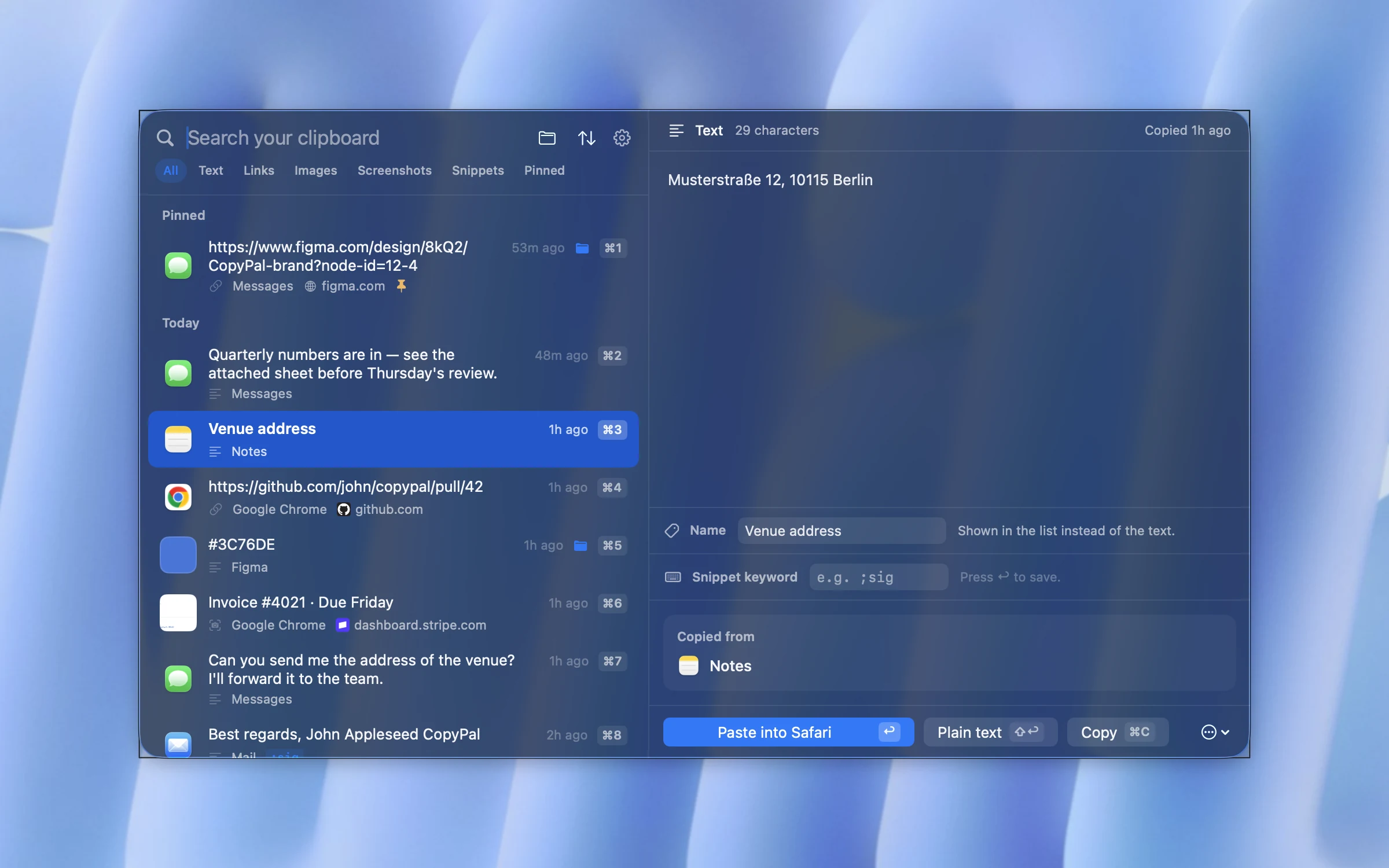
One thing to know: CopyPal takes ⇧⌘V for its own panel by default. If you rely on that shortcut for plain-text pasting in Google Docs or Slack, either use ⇧↩ inside the panel instead, or give CopyPal a different shortcut in Settings › Shortcuts.
Questions
What is the shortcut to paste without formatting on a Mac?
⇧⌥⌘V, called Paste and Match Style in the Edit menu of most Mac apps. Google Docs and Slack use ⇧⌘V instead, and Word uses Paste Special.
Why does Shift-Option-Command-V not work in Word?
Word has its own paste commands. Use Edit › Paste Special and choose Unformatted Text, or click the paste options button that appears after pasting and choose Keep Text Only.
Can I make Command-V always paste plain text on a Mac?
Yes, two ways. In System Settings › Keyboard › Keyboard Shortcuts › App Shortcuts, add a shortcut for the menu item Paste and Match Style with ⌘V for all applications. Or use a clipboard manager such as CopyPal with its Paste as plain text by default setting.