 CopyPal
How to copy and paste on a Mac: every shortcut
On a Mac, copy is Command-C, paste is Command-V and cut is Command-X. The Command key (⌘) sits right next to the space bar and does the job Ctrl does on Windows. Here is every copy and paste shortcut worth knowing, including the ones that work differently on a Mac, like moving files in Finder.
Mac copy and paste shortcuts at a glance
| To do this | On a Mac | On Windows it was |
|---|---|---|
| Copy | ⌘C Command-C | Ctrl+C |
| Paste | ⌘V Command-V | Ctrl+V |
| Cut | ⌘X Command-X | Ctrl+X |
| Paste without formatting | ⌥⇧⌘V Option-Shift-Command-V | Ctrl+Shift+V in many apps |
| Select all | ⌘A Command-A | Ctrl+A |
| Undo | ⌘Z Command-Z | Ctrl+Z |
| Redo | ⇧⌘Z Shift-Command-Z | Ctrl+Y |
| Move a file in Finder | ⌘C, then ⌥⌘V Option-Command-V | Ctrl+X, then Ctrl+V |
| Duplicate a file | ⌘D Command-D | Copy and paste in the same folder |
| Copy a screenshot of an area | ⌃⇧⌘4 Control-Shift-Command-4 | Win+Shift+S |
| Find | ⌘F Command-F | Ctrl+F |
| Right-click | Control-click, or click with two fingers | Right-click |
| Clipboard history | ⌘Space, then ⌘4 (macOS 26 and later) | Win+V |
In menus, Apple writes keys as symbols: ⌘ is Command, ⇧ is Shift, ⌥ is Option (labelled Alt on some keyboards) and ⌃ is Control. Apple's full list is in Mac keyboard shortcuts.
How to copy and paste on a Mac
- Select what you want: drag across the text, or double-click a word. In Finder, click a file.
- Copy it with Command-C (⌘C): hold Command with your thumb and tap C.
- Click where you want it to go.
- Paste with Command-V (⌘V).
Coming from Windows, the most common slip is pressing Control-C out of habit. In most Mac apps it does nothing, so if a paste brings back something old, check which key you pressed. The Command key is the one closest to the space bar, on both sides.
To select with the keyboard, hold Shift and use the arrow keys. Add Option to select a word at a time (⌥⇧→), or Command to select to the end of the line (⇧⌘→). On a Mac, Command-Left Arrow and Command-Right Arrow do the job of Home and End.
How to cut and paste on a Mac
For text, it's the same as Windows: select it, press Command-X (⌘X) to cut, click where it should go and press ⌘V.
Files are different. Finder has no cut for files, so Command-X does nothing when a file is selected. Instead:
- Select the file and press ⌘C.
- Open the folder you want it in.
- Press Option-Command-V (⌥⌘V). The file moves rather than being copied.
If you prefer the menu, open Finder's Edit menu and hold Option: Paste Item changes to Move Item Here.
How to paste without formatting on a Mac
Text copied from a web page brings its font, size and colour with it. To paste just the words, press Option-Shift-Command-V (⌥⇧⌘V), which the Edit menu calls Paste and Match Style. The text takes on the style of whatever you paste it into. Google Docs and Slack use Shift-Command-V (⇧⌘V) instead, and Word has its own Paste Special. Our guide to pasting without formatting on a Mac covers every app and how to make plain text the default.
Select all, undo and redo
- Select all: Command-A (⌘A) selects everything in a document, or every file in a Finder window.
- Undo: Command-Z (⌘Z). Pasted the wrong thing? This takes it back.
- Redo: Shift-Command-Z (⇧⌘Z). Windows users reach for Ctrl+Y; on a Mac, redo is Shift-Command-Z in most apps.
How to right-click and copy on a Mac
Macs call a right-click a secondary click. Any of these opens the shortcut menu, with Copy and Paste in it:
- On a trackpad: click with two fingers.
- With any mouse or trackpad: hold Control and click.
- On an Apple mouse: click the right side, once secondary click is turned on.
To change how it works, open System Settings, click Trackpad or Mouse, and choose an option from the Secondary click menu.
Forgot a shortcut? Use the Edit menu
Almost every Mac app has an Edit menu in the menu bar at the top of the screen, with Cut, Copy, Paste, Paste and Match Style and Select All, and the shortcut for each written next to it in symbols. It is the best place to learn them, and the quickest way to check whether a shortcut is the problem when paste doesn't seem to work. If it really has stopped working, see copy and paste not working on a Mac.
Copy by dragging
Select some text or a file and drag it to where you want it. Dragging moves an item; to copy it instead, hold Option (⌥) while you drag, and the pointer changes to show you're copying. Dragging works between apps too, for example an image from Safari into a Mail message.
Copy a screenshot straight to the clipboard
Press Control-Shift-Command-4 (⌃⇧⌘4) and drag across part of the screen. The picture goes to the clipboard instead of the desktop, ready for ⌘V in an email or a chat. Control-Shift-Command-3 (⌃⇧⌘3) copies the whole screen. Without Control, the screenshot is saved as a file instead. Here is everything about copying screenshots on a Mac.
Copy on iPhone, paste on Mac
Apple calls this Universal Clipboard. Copy on your iPhone as usual, then press ⌘V on your Mac, or the other way round. It works when both devices are near each other, signed in with the same Apple Account, and have Bluetooth, Wi-Fi and Handoff turned on. Paste soon: the copy is only kept on the other device briefly. Apple's Universal Clipboard guide has the details.
Using a Windows keyboard with a Mac
A keyboard made for Windows works with a Mac, but there is no key labelled Command. Apple's guidance is to press Alt in place of Option, and the Windows logo key or Ctrl in place of Command. So on most Windows keyboards, copy is Windows key + C and paste is Windows key + V.
The catch is the layout: on a Mac keyboard Command sits next to the space bar, while on a Windows keyboard Alt does. If that trips you up, open System Settings › Keyboard, click Keyboard Shortcuts, then Modifier Keys, choose your keyboard at the top and swap the keys around. Restore Defaults puts them back.
See what you copied, and get back earlier copies
The Mac clipboard holds one thing at a time. To see it, click the desktop and choose Edit › Show Clipboard; here is more on where the clipboard is. On macOS 26 and later, Spotlight can also keep recent copies for up to seven days: press ⌘Space, then ⌘4. Our guide to macOS clipboard history shows how to turn it on.
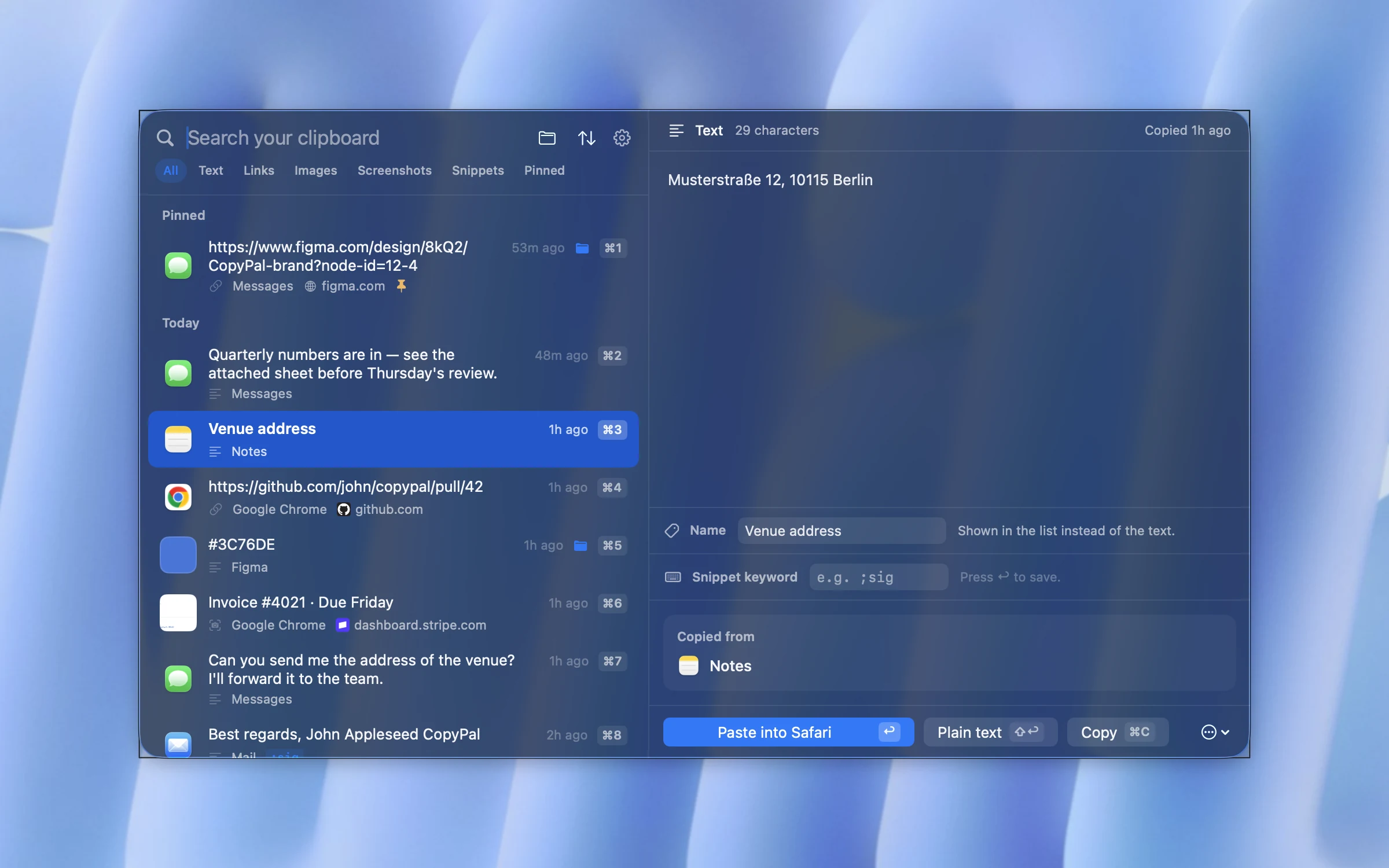
If you copy and paste all day, a clipboard manager keeps every copy, for as long as you like. We make one, CopyPal, so here are its shortcuts, and you can judge whether they'd save you time.
| CopyPal shortcut | What it does |
|---|---|
| ⇧⌘V Shift-Command-V | Open your clipboard history, newest first |
| Return | Paste the selected item into the app you were in |
| ⇧↩ Shift-Return | Paste it as plain text |
| ⌘1 to ⌘9 | Paste one of the first nine items |
| ⌘S | Add an item to the paste stack, to paste several in order |
| ⌃⌥V Control-Option-V | Paste your last copy without opening anything |
| ⌃⌥B Control-Option-B | Paste the copy before that |
Every item is filed with the app it came from and, for browsers, the page, and text inside screenshots is searchable. To paste several things in one go, see how to copy and paste multiple items at once on a Mac. Note that CopyPal uses ⇧⌘V for its panel by default; if you use that shortcut for plain-text pasting in Google Docs or Slack, give CopyPal a different one in Settings › Shortcuts.
Frequently asked questions
What is the shortcut for copy and paste on a Mac?
Command-C copies, Command-V pastes and Command-X cuts. The Command key is the one next to the space bar, marked with the ⌘ symbol. It does the job that Ctrl does on Windows.
How do I cut and paste a file on a Mac?
Finder has no cut for files. Select the file and press Command-C, open the folder you want it in, then press Option-Command-V. The file moves instead of being copied. Or hold Option while the Edit menu is open and choose Move Item Here.
Why doesn't Ctrl+C work on my Mac?
On a Mac, copy and paste use the Command key, not Control. Press Command-C and Command-V instead. On a keyboard made for Windows, Apple says to use the Windows logo key or Ctrl in place of Command.
How do I right-click to copy on a MacBook?
Click the trackpad with two fingers, or hold Control and click. A shortcut menu opens with Copy and Paste. You can change how secondary click works in System Settings › Trackpad.
Which key is Command on a Windows keyboard?
Apple says to use the Windows logo key or Ctrl in place of Command, and Alt in place of Option. If the keys feel the wrong way round, change them in System Settings › Keyboard › Keyboard Shortcuts › Modifier Keys.
How do I paste without formatting on a Mac?
Press Option-Shift-Command-V, called Paste and Match Style in the Edit menu. The text takes on the style of the document you paste it into. Google Docs and Slack use Shift-Command-V instead.