 CopyPal
How to copy a screenshot to the clipboard on a Mac
To copy a screenshot to the clipboard on a Mac, add the Control key to the usual shortcut: Control-Shift-Command-4 copies the part of the screen you select, and Control-Shift-Command-3 copies the whole screen. Nothing is saved to the desktop. Click where you want the picture and press Command-V.
At a glance
| What you want | Press |
|---|---|
| Copy part of the screen | ⌃⇧⌘4, then drag |
| Copy one window | ⌃⇧⌘4, then Space, then click the window |
| Copy the whole screen | ⌃⇧⌘3 |
| Always copy, never save a file | ⇧⌘5 › Options › Save to › Clipboard |
| Paste it | ⌘V |
1. Hold Control to copy a screenshot instead of saving it
The screenshot shortcuts you may already know, Shift-Command-3 (⇧⌘3) and Shift-Command-4 (⇧⌘4), save a file to the desktop. Add Control and the same shortcut puts the picture on the clipboard instead; Apple describes it in Take a screenshot on Mac. An easy way to remember it: Control for clipboard.
Copy part of the screen
- Press Control-Shift-Command-4 (⌃⇧⌘4). The pointer turns into a crosshair.
- Drag across the area you want. Hold the Space bar while dragging to move the selection without changing its size.
- Release. The screenshot is on the clipboard; no file is saved.
- Click in an email, a chat, a note or a document and press Command-V (⌘V).
Copy one window
Press ⌃⇧⌘4, then tap the Space bar. The pointer becomes a camera. Click the window you want. Hold Option while you click to leave out the window's shadow.
Copy the whole screen
Press Control-Shift-Command-3 (⌃⇧⌘3). The whole screen goes to the clipboard, menu bar included.
Changed your mind halfway? Press Esc to cancel.
2. Make the clipboard the default with the Screenshot toolbar
If you almost never want screenshot files, make the clipboard the destination and forget about Control.
- Press Shift-Command-5 (⇧⌘5). The Screenshot toolbar appears at the bottom of the screen.
- Click Options.
- Under Save to, choose Clipboard.
- Press Esc to close the toolbar.
From now on, screenshots go to the clipboard instead of the desktop, whether you take them from the toolbar or with ⇧⌘4. To switch back, open the same menu and choose Desktop. The Options menu also has the timer, Show Mouse Pointer and, on macOS 26 and later on supported Macs, a Capture Format choice between SDR and HDR.
3. Drag the floating thumbnail into a document
After a normal Shift-Command-4 (⇧⌘4), a small thumbnail of the screenshot floats in the bottom-right corner of the screen for a few seconds before the file is saved. While it's there, you can:
- Drag it straight into a document, an email, a note or a Finder window.
- Control-click it and choose Save to Clipboard, which copies it instead of saving a file.
- Click it to mark it up or share it first.
Hold the pointer over the thumbnail and it stays on screen until you move away. No thumbnail? Press ⇧⌘5, click Options and turn on Show Floating Thumbnail.
4. Copy a screenshot you've already saved
Saved screenshots are files whose names begin with "Screenshot" followed by the date and time. To get one back onto the clipboard:
- Double-click it to open it in Preview.
- Press Command-A (⌘A) to select the whole image, then Command-C (⌘C).
- Paste it wherever you need it.
You can also select the file in Finder and press ⌘C. That copies the file rather than the picture, which works well for attaching it to an email or a message, but some apps won't treat it as an image. If that happens, use Preview.
It works the other way round too. To turn a copied screenshot into a file, open Preview and choose File › New from Clipboard, then save it.
Why won't my screenshot paste?
- It was saved, not copied. Without Control, the screenshot went to the desktop (or wherever Save to points). Look there, or take it again with Control.
- You copied something since. The clipboard holds one item. The next thing you copy, even a word, replaces the screenshot.
- The app only takes text. Plain-text fields, Terminal and a TextEdit document in plain-text mode can't hold a picture, so paste does nothing. Paste into Notes or Mail to check the screenshot is on the clipboard; in TextEdit, choose Format › Make Rich Text first.
- The shortcut was changed. Check System Settings › Keyboard › Keyboard Shortcuts › Screenshots.
- The app blocks screenshots. Apple notes that some apps, such as the Apple TV app, don't let you capture their windows.
- Paste doesn't work for anything. Then the clipboard itself is the problem: see copy and paste not working on a Mac.
One more, for saved files rather than copies: if a website or app refuses a screenshot file, check Capture Format in the toolbar's Options. Apple labels SDR "Most Compatible", and it saves a PNG; HDR saves a HEIF file, which not every app accepts.
How to keep more than one screenshot
Copying screenshots is quick, but each one replaces the last. Take three in a row for a bug report and only the third is left to paste. On macOS 26 and later there is a partial way out: if you've turned on Spotlight's clipboard history, copied images show up there too, for up to seven days. Press ⌘Space, then ⌘4; here is how to turn it on. It brings back one item at a time, though, and nothing older than the window you chose.
Saved files pile up on the desktop with names nobody can search, and Finder can't look inside them. To pull the text out of one you already have, Live Text does it; here is how to copy text from a screenshot on a Mac. For the general picture of what the Mac keeps, see where the clipboard is on a Mac.
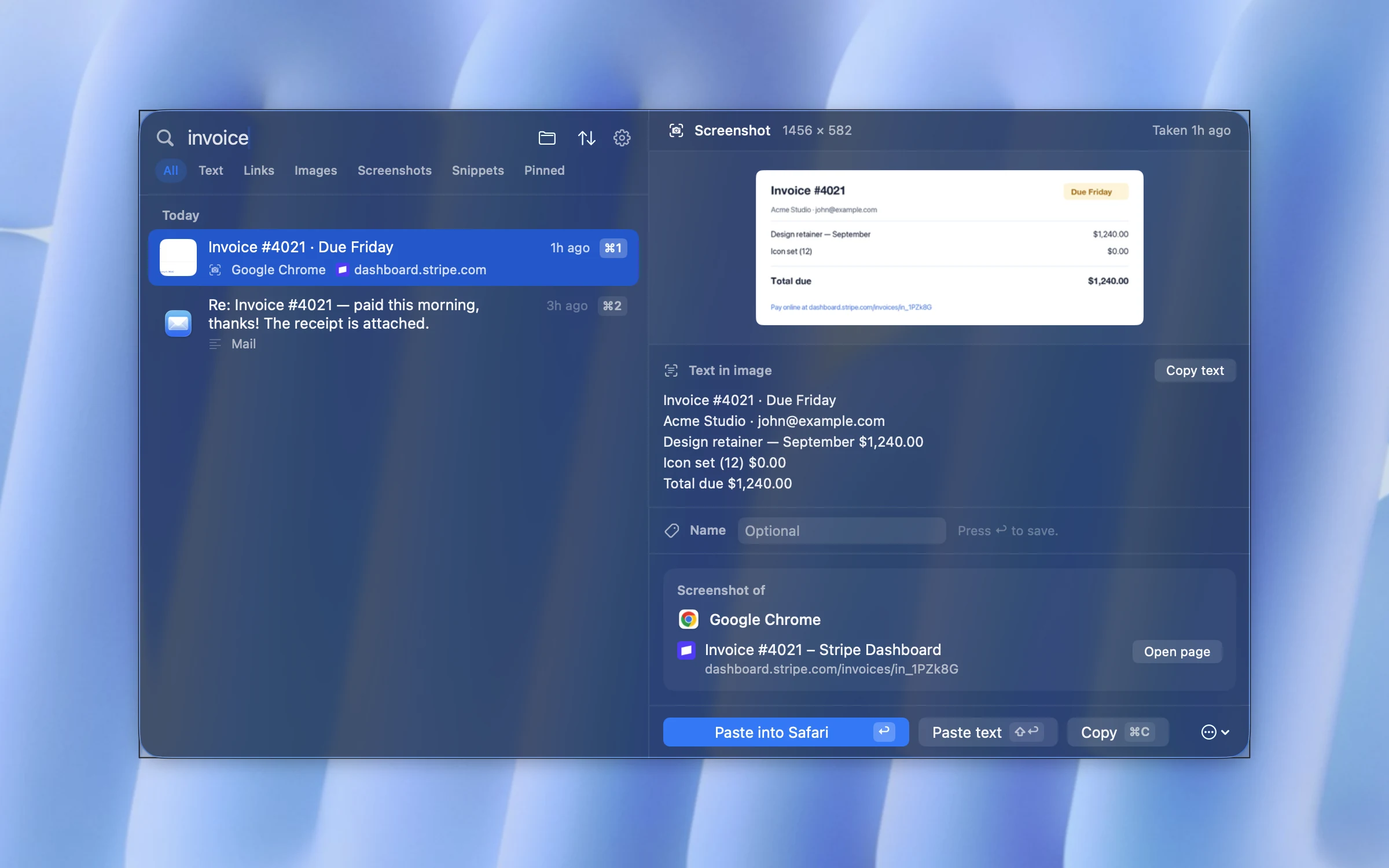
A clipboard manager solves the bigger problem. We make one, CopyPal, so here is what it does with screenshots, and you can judge whether that is worth it to you.
- Keeps every screenshot. Saved to the desktop or copied to the clipboard, each one goes into your history, along with everything else you copy.
- Remembers where it was taken. Each screenshot is filed with the app it was taken in and, for browsers, the web page.
- Reads the text inside. Words in screenshots are recognised on your Mac, nothing is uploaded, so searching "invoice" finds the screenshot of one.
- Pastes the picture or the words. Press ⇧⌘V, find it, then Return pastes the image and ⇧↩ pastes the recognised text.
- Drags out as a file. Drag a screenshot from the panel into another app and it arrives as a PNG.
Frequently asked questions
How do I copy a screenshot to the clipboard on a Mac?
Hold Control as you take it. Control-Shift-Command-4 copies the part of the screen you drag across, and Control-Shift-Command-3 copies the whole screen. Nothing is saved to the desktop; press Command-V to paste it.
How do I make Mac screenshots go to the clipboard by default?
Press Shift-Command-5, click Options and choose Clipboard under Save to. From then on, screenshots go to the clipboard instead of the desktop. Choose Desktop in the same menu to switch back.
Where do screenshots go when copied to the clipboard?
Nowhere on disk. The picture stays on the clipboard until you copy something else or restart the Mac. To keep it as a file, open Preview and choose File › New from Clipboard, then save it.
Why can't I paste a screenshot on my Mac?
Usually because it was saved as a file rather than copied, because you copied something else since, or because the place you are pasting into only accepts text. Try pasting into Notes or Mail to check the screenshot is on the clipboard.
Can the clipboard hold more than one screenshot?
No. The clipboard holds one item, so each screenshot you copy replaces the one before. A clipboard manager such as CopyPal keeps every screenshot, saved or copied, and lets you search them by the text inside.