 CopyPal
Windows + Shift + S: where screenshots go and how to paste them
Press Windows key + Shift + S, drag over part of the screen, and the screenshot goes to the clipboard: press Ctrl+V to paste it. On Windows 11, Snipping Tool also saves a copy in Pictures › Screenshots. Here is where each screenshot shortcut puts its picture, why Print Screen sometimes saves nothing, and how to get back a screenshot you took earlier.
Where each screenshot shortcut puts the picture
| Shortcut | Captures | Where it goes |
|---|---|---|
| Win+Shift+S | An area, a window or the whole screen, your choice | The clipboard. On Windows 11, also a file in Pictures › Screenshots |
| PrtScn | Windows 11: opens the same snipping toolbar. Windows 10: the whole screen | Windows 11: same as above. Windows 10: the clipboard only |
| Win+PrtScn | The whole screen | A file in Pictures › Screenshots |
| Alt+PrtScn | The window you are using | The clipboard only |
Where does Windows + Shift + S save screenshots?
First, to the clipboard. The picture sits there until you copy something else, ready to paste with Ctrl+V.
On Windows 11, also to a file. Snipping Tool saves each screenshot automatically in the Screenshots folder inside Pictures, usually C:\Users\your name\Pictures\Screenshots. Open File Explorer, click Pictures and you'll find it there.
Can't see it there? If OneDrive backs up your Pictures folder, the Screenshots folder lives inside OneDrive: File Explorer › OneDrive › Pictures › Screenshots. And if automatic saving is off in Snipping Tool, there is no file at all, only the copy on the clipboard (how to switch it back on is below).
On Windows 10, the clipboard only. More on Windows 10 at the end.
How to take a screenshot to the clipboard with Win+Shift+S
- Press Windows key + Shift + S (Win+Shift+S). The screen dims and a small toolbar appears at the top.
- Pick a mode in the toolbar: rectangle, window, full screen or freeform.
- Drag over the part you want, or click a window. Press Esc to cancel.
- Click where you want the picture, in an email, a Teams chat, a Word document or Paint, and press Ctrl+V.
For the rest of the keys, see every copy and paste shortcut on Windows.
How to edit or save it from the notification
After each snip, a small preview appears in the corner of the screen. Click it to open the screenshot in Snipping Tool, where you can crop it, draw on it, highlight part of it or save a copy somewhere else. On Windows 11, Text actions in the same window picks out the words in the picture so you can copy them; how to copy text from a screenshot on Windows covers that and the alternatives. Missed the preview? Click the date and time on the taskbar to open your notifications.
How to turn Snipping Tool's auto-save on or off
- Open Snipping Tool from the Start menu.
- Click See more (the … button) and choose Settings.
- Switch Automatically save screenshots on or off. Some versions call it Automatically save original screenshots.
The same settings page lets you choose a different folder. Microsoft's guide to Snipping Tool has the rest of its options.
What the Print Screen key does on Windows 11
Since an update in 2023, pressing Print Screen (PrtScn) on Windows 11 opens the same snipping toolbar as Win+Shift+S, rather than copying the whole screen straight away. You still have to drag or click to take the screenshot.
The switch for this is in Settings › Accessibility › Keyboard; on some builds it is under Settings › Bluetooth & devices › Keyboard. Its wording has changed between versions, but it starts “Use the Print screen key to open…” (screen capture, Snipping Tool or screen snipping). Turn it off and Print Screen goes back to copying the whole screen to the clipboard, without saving a file.
Print Screen not saving? Use Windows key + Print Screen
To save the whole screen as a file every time, press Windows key + Print Screen (Win+PrtScn). The screen dims for a moment and the picture is saved in Pictures › Screenshots. If Print Screen seems to do nothing:
- Look in the right folder: Pictures › Screenshots, or OneDrive › Pictures › Screenshots if OneDrive backs up your Pictures.
- Check Snipping Tool's auto-save (above). With it off, Print Screen and Win+Shift+S only copy to the clipboard.
- On a laptop, try Fn+PrtScn. On many laptops Print Screen shares a key with something else.
- Another app may have taken the key. Screenshot tools such as Snagit, and some cloud storage apps, can take over Print Screen. Check their settings.
How to screenshot just one window: Alt + Print Screen
Click the window you want, then press Alt + Print Screen (Alt+PrtScn). Windows copies just that window to the clipboard, with no file saved. Paste it with Ctrl+V.
How to get an earlier screenshot back with Win+V
Each new screenshot replaces the last one on the clipboard. If clipboard history is on, press Windows key + V (Win+V): recent screenshots appear in the list as small pictures, and clicking one pastes it. The history holds 25 items, each up to 4 MB, so a very large capture may be missing, and it empties when you restart, apart from pinned items. On Windows 11, the file in Pictures › Screenshots is the safer place to look. More in how to see clipboard history on Windows, and if Win+V shows nothing, how to fix it.
On Windows 10: Snip & Sketch, and no automatic file
Win+Shift+S works on Windows 10 too, with the same toolbar, but the screenshot goes only to the clipboard. Click the notification to open it in Snip & Sketch, where you can mark it up and save it; otherwise there is no file. Print Screen copies the whole screen to the clipboard, unless you have turned on Use the PrtScn button to open screen snipping in Settings › Ease of Access › Keyboard. Win+PrtScn saves a file in Pictures › Screenshots, as on Windows 11.
When you need more: keep every screenshot, searchable
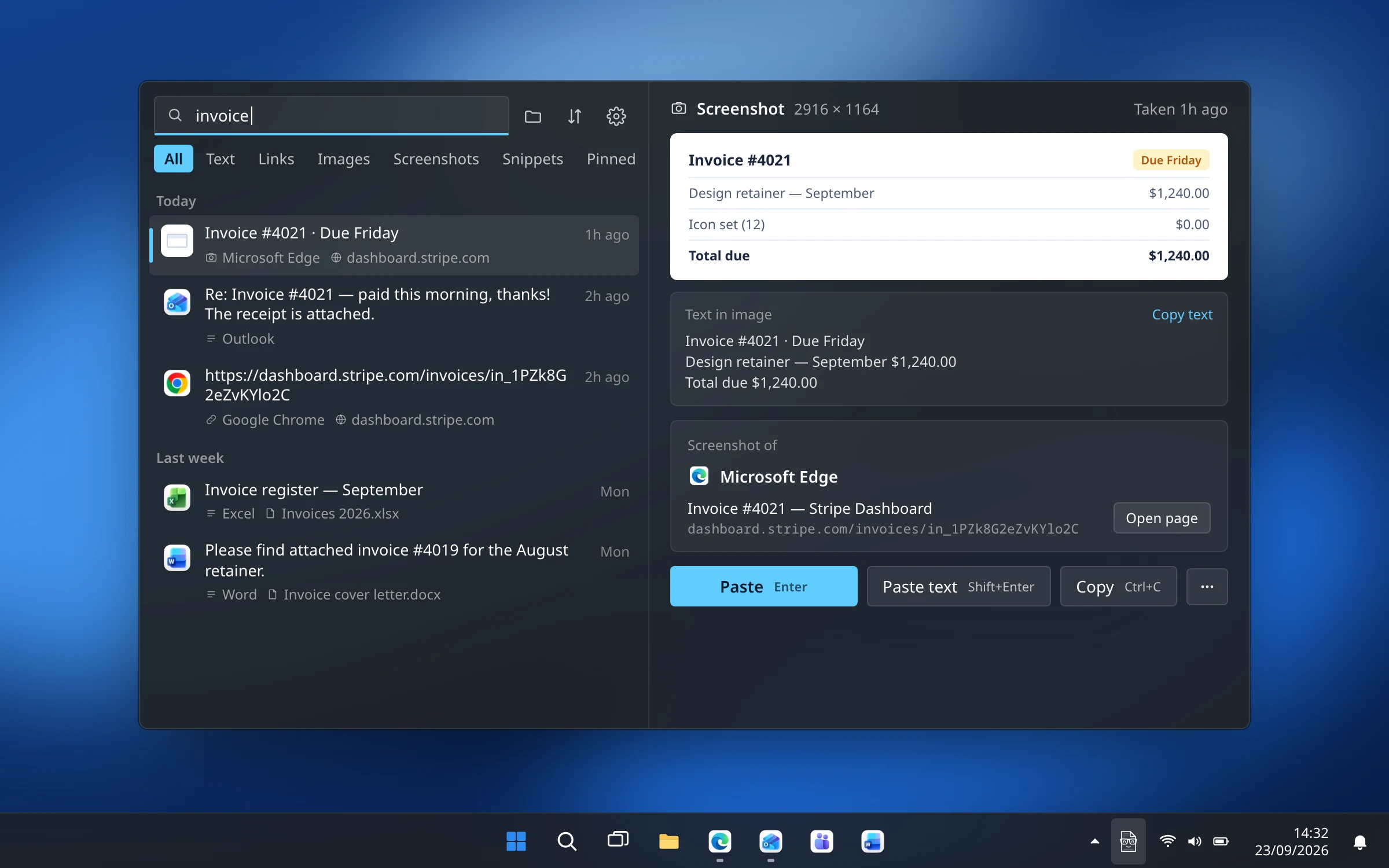
Windows gives you a folder of files named by date and a clipboard that forgets at every restart. Finding “the screenshot of that invoice from last Tuesday” means opening them one by one. We make CopyPal, a clipboard manager, partly for this, so here is what it does with screenshots.
- Keeps every screenshot. Take them the usual way, with Win+Shift+S. CopyPal keeps each one alongside the text, links and images you copy, and a restart doesn't empty it.
- Files it with where it came from: the app, and for Chrome, Edge, Firefox and Brave the page title and address, with an Open page button.
- Finds it by the words inside. The text in each screenshot is recognised on your PC, nothing uploaded, so a search for “invoice” finds the screenshot of one.
- Paste the picture or just the words. Enter pastes the image; right-click it and choose Paste text to paste only the words in it.
Frequently asked questions
Where does Windows + Shift + S save screenshots?
First to the clipboard, so you can paste it with Ctrl+V. On Windows 11, Snipping Tool also saves a copy in Pictures › Screenshots unless you have turned off automatic saving in its settings. On Windows 10 it goes to the clipboard only.
Where do screenshots go on Windows 11?
Screenshots saved by Snipping Tool and by Windows key + Print Screen go to the Screenshots folder inside Pictures. If OneDrive backs up your Pictures folder, look in OneDrive › Pictures › Screenshots. Alt + Print Screen copies to the clipboard only.
Why is Print Screen not saving my screenshots?
On Windows 11, Print Screen opens the snipping toolbar, and the screenshot is saved only if Snipping Tool's automatic saving is on. If the Print Screen setting is off, the key copies the screen to the clipboard without saving a file. Press Windows key + Print Screen to save the whole screen as a file every time.
How do I paste a screenshot?
Click where you want it, in an email, a chat, a document or Paint, and press Ctrl+V. To paste a screenshot you took earlier, press Windows key + V and pick it from clipboard history, or insert the file from Pictures › Screenshots.
Can I copy the text from a screenshot?
Yes. On Windows 11, open the screenshot in Snipping Tool and click Text actions, then copy the text. A clipboard manager such as CopyPal reads the text in every screenshot automatically, so you can search for it later.