 CopyPal
Windows clipboard history not working? How to fix Win+V
You press Win+V and get nothing, or an empty list, or a panel that will not turn on. Here are the causes, roughly in the order they turn out to be the problem, and what to do about each.
1. It is switched off
Clipboard history is off by default on every Windows install. Press Win+V and click Turn on, or open Settings › System › Clipboard and switch Clipboard history on. Copies made before you turned it on are not there; only new ones are recorded.
2. It is empty because you restarted
This is the one that catches most people. Windows clears every unpinned item when you restart or sign out. It is not a bug. If you want something to survive, open Win+V, click the … on the item and choose Pin. Pinned items also survive Clear all.
3. The item was too big, or the wrong kind
History keeps text, HTML and images up to about 4 MB each. A large screenshot or a chunk of formatted text from a big document can exceed that and is simply not stored. Files and folders copied in File Explorer never appear, and neither does anything some apps mark as private: password managers and Remote Desktop, for example, tell Windows not to keep their copies.
4. The oldest items dropped off
The list holds 25 entries. When you copy the 26th, the first is gone. On a busy day that is an hour or two of copies. Pin what matters, or use a longer history (see below).
5. The Windows key is blocked
If Win+V does nothing at all, the Windows key itself may be the problem. Gaming keyboards often have a Win Lock key or a game mode that disables it; look for a padlock light or a key with the Windows logo crossed out. In a Remote Desktop or virtual machine window, the shortcut may be going to the remote PC instead of yours. And if the key works but opens the Start menu, another app has claimed Win+V for itself; check any clipboard or macro tools you have installed.
6. A work policy has turned it off
If the switch in Settings is greyed out, your PC is managed and an administrator has disabled clipboard history through Group Policy (Allow Clipboard History, under Computer Configuration › Administrative Templates › System › OS Policies) or the matching registry value. There is no way round it on your side; ask IT, and expect a “no” on machines that handle sensitive data.
7. Windows 10 is too old
Clipboard history arrived in Windows 10 version 1809, the October 2018 Update. Press Win+R, type winver and press Enter to see your version. Anything older needs Windows Update first.
8. Sync is not syncing
The Sync across your devices option (called Clipboard history across your devices in newer builds) only works when both PCs are signed in with the same Microsoft account, both have the option on, and you chose whether to sync automatically or only items you pick. Work and school accounts may not be allowed to sync at all. If everything is set and it still does not appear, sign out and back in on both machines; a full restart clears most stuck states.
If you keep running into the limits
Turning it on and pinning things solves the panic cases. If the pattern is that you need something from yesterday, cannot find it among 25 previews, or lose a screenshot's text every restart, the built-in history is the wrong tool rather than a broken one. A clipboard manager keeps everything on disk, survives restarts, and lets you search.
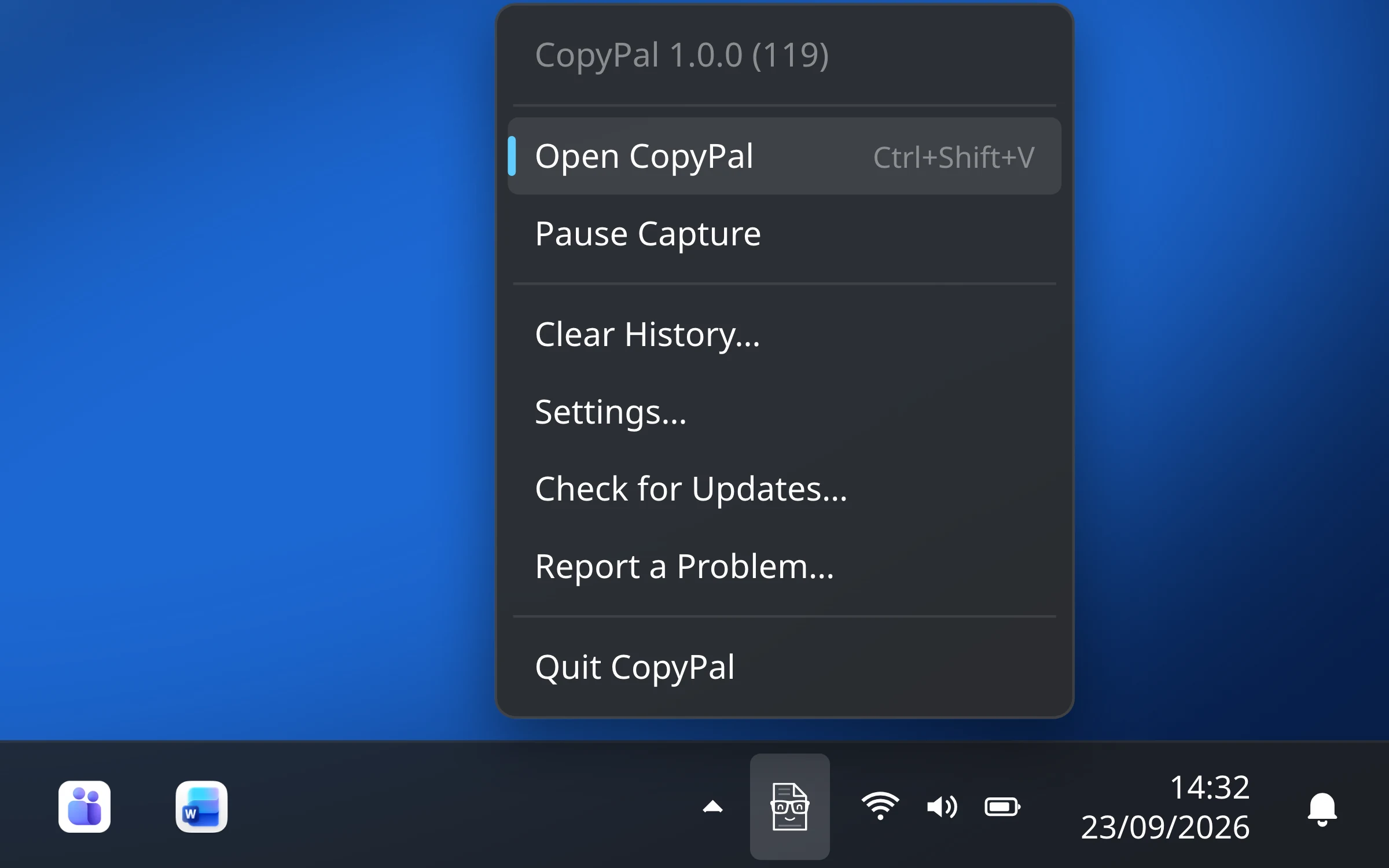
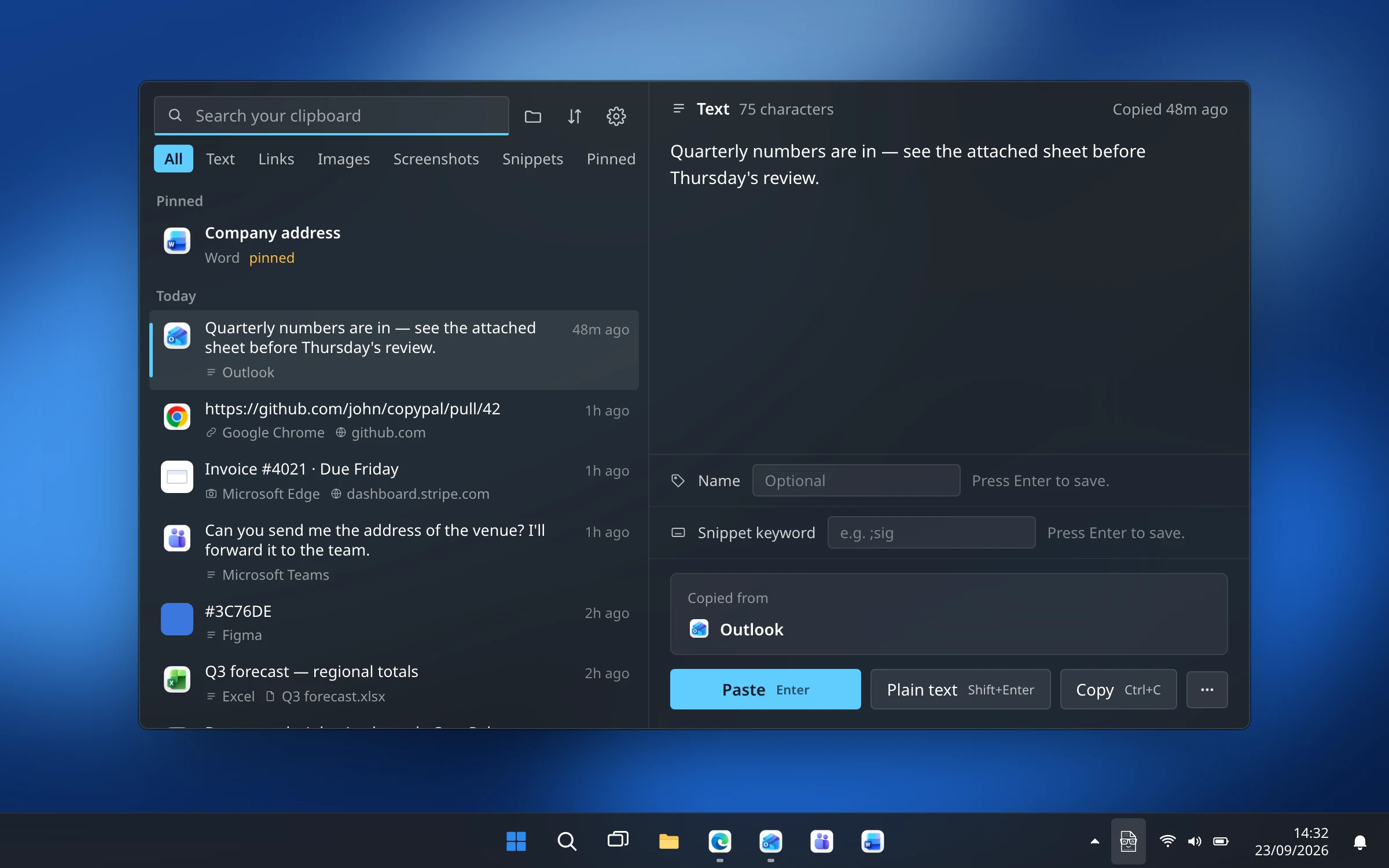
We make one, CopyPal. It records every text, link, image and screenshot you copy, files each with the app and page it came from, and opens with Ctrl+Shift+V. Type to search; the text inside screenshots is searchable too. It does not depend on the Windows setting or on your Microsoft account, and nothing leaves your PC. It does need to be installed, so on a locked-down work machine, ask first.
Questions
Why is Win+V not showing my clipboard history?
Usually because clipboard history is off. Press Win+V and click Turn on, or switch it on under Settings › System › Clipboard. If the switch is greyed out, a work policy has disabled it; if nothing opens at all, the Windows key may be locked by your keyboard or a remote-desktop session.
Why does my clipboard history disappear?
Windows clears unpinned items whenever you restart or sign out, and keeps only the last 25. Pin the items you want to keep, or use a clipboard manager that stores its history on disk.
Does clipboard history work on Windows 10?
Yes, on Windows 10 version 1809 (October 2018) and later. Press Win+R, type winver and press Enter to check your version.
Can I get back something that was cleared from clipboard history?
Not from Windows; once the history is cleared or the PC restarts, unpinned items are gone. A clipboard manager such as CopyPal keeps everything on disk until you delete it.