 CopyPal
How to copy text from a screenshot or image on Windows 11 and 10
An error message, an order number, a paragraph someone sent as a picture. Windows can read the text out of an image with tools you may already have, and a clipboard manager can do it for every screenshot you take, automatically, so you can search them later.
Snipping Tool: Text actions (Windows 11)
- Press Win+Shift+S and drag over the text, or open Snipping Tool and take a snip there.
- Click the notification to open the snip in Snipping Tool.
- Click Text actions in the toolbar. The recognised text becomes selectable: drag over the part you want and copy it, or use Copy all text.
The same menu can redact email addresses and phone numbers before you share the picture. Text actions is a Windows 11 feature that arrived with the 2023 versions of Snipping Tool; if you do not see the button, update the app from the Microsoft Store.
PowerToys Text Extractor (Windows 10 and 11)
Microsoft's free PowerToys includes Text Extractor. Once installed, press Win+Shift+T, drag a rectangle over any text on screen, and it goes straight to the clipboard, no screenshot needed. It reads whatever is on screen, including text in video calls and locked PDFs, and it uses the recognition languages installed on your PC.
OneNote: Copy Text from Picture
If you have Office, paste or insert the image into a OneNote page, right-click it and choose Copy Text from Picture. OneNote runs recognition in the background, so on a fresh image the option can take a moment to appear.
The catch: you have to know which screenshot
All three work when the picture is in front of you. They do nothing for the screenshot you took three days ago, saved as Screenshot 2026-09-21 140211.png in a folder with forty others. File Explorer cannot search inside images, so you open them one by one.
Read every screenshot automatically, and search them
This is the part we built CopyPal for. It is a clipboard manager: it keeps everything you copy, and it also records every screenshot you take with Win+Shift+S or Win+PrtScn. The text inside each one is recognised on your PC, offline, the moment it is captured, and stored alongside the image. From then on, a search for a word finds the screenshot that contains it, even if you never named the file.
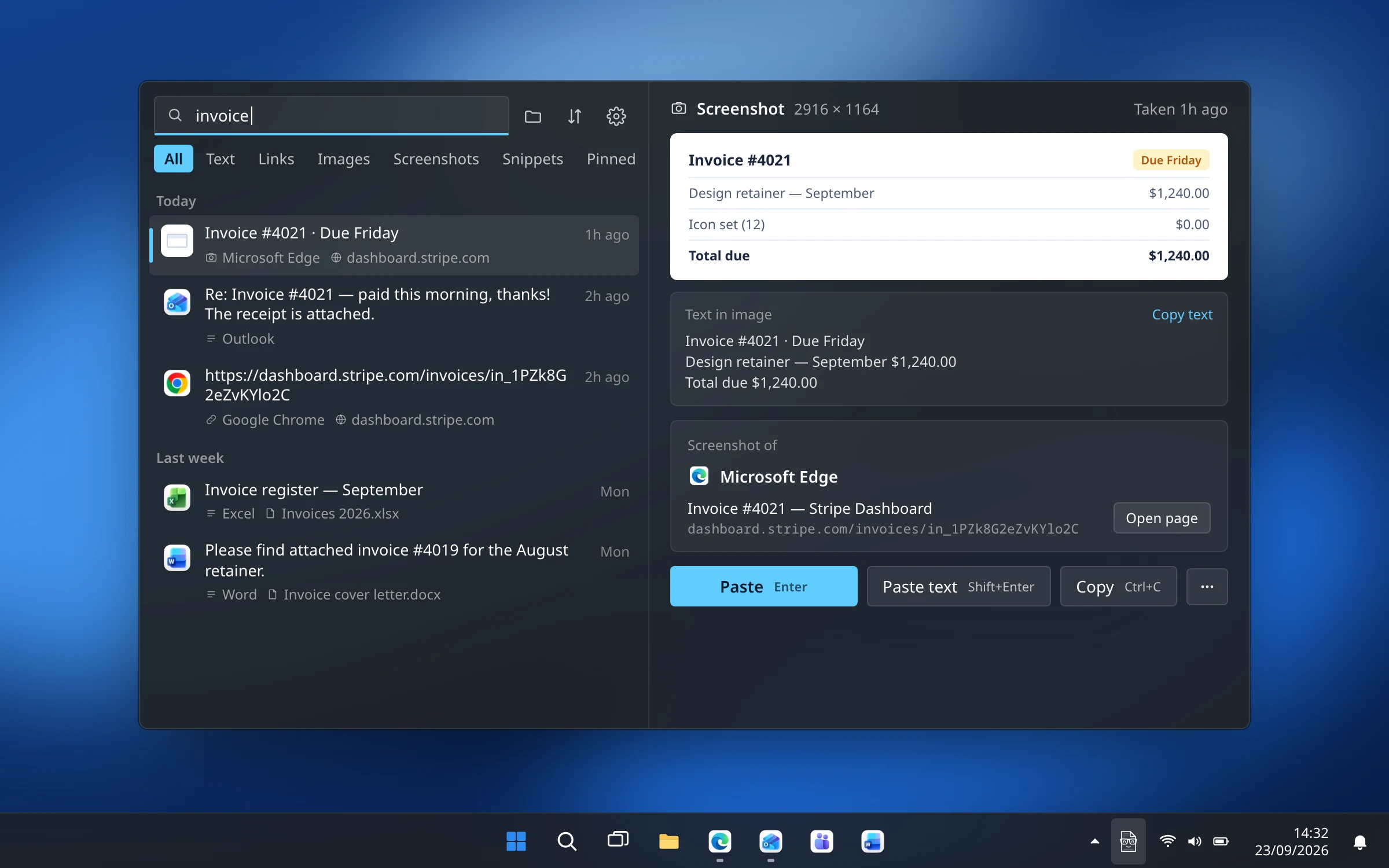
Press Ctrl+Shift+V, type a word from the screenshot, and pick it. Then:
- Enter pastes the image itself.
- Shift+Enter pastes the recognised text instead, with no image involved.
- Copy text puts just the words on the clipboard, for a message or a form.
- Open page takes you back to the web page the screenshot was taken of, because CopyPal also records the app and page behind every screenshot.
Recognition uses the text recognition built into Windows, on your PC. Nothing is uploaded, there is no account, and the images and their text live in a local database in your user folder.
Getting cleaner text out of a screenshot
- Capture a region around the text rather than the whole screen, so the recogniser is not reading a hundred unrelated words.
- Zoom the page to 125 percent before capturing small type.
- Dark text on a light background reads better than light on dark. If a dark-mode app gives poor results, switch it to light for the capture.
- Expect the odd mistake with codes that mix letters and digits, such as O and 0 or l and 1. Check those before you paste them into a form.
Questions
Can I copy text from a screenshot on Windows 11?
Yes. Take the screenshot with Win+Shift+S, open it in Snipping Tool, and click Text actions. You can then select and copy the text, or use Copy all text.
How do I extract text from an image on Windows 10?
Windows 10's Snipping Tool has no text recognition. Install Microsoft's free PowerToys and press Win+Shift+T to select any area of the screen and copy its text, or paste the image into OneNote, right-click it and choose Copy Text from Picture.
Does Snipping Tool have OCR?
On Windows 11, yes: the Text actions button in Snipping Tool recognises the text in a snip so you can copy it or redact parts of it. The feature arrived in the 2023 versions of the app.