 CopyPal
Copy and paste not working on Windows 11 or 10? How to fix it
When Control + C or Control + V stops working, the clipboard itself is rarely what's broken. More often the shortcut isn't reaching the app, a Windows process has got stuck, or the app you're copying from is cancelling the copy. Work down the fixes below, quickest first, and stop when copy and paste works again.
The short answer
| What you see | Try this first |
|---|---|
| Ctrl+C and Ctrl+V do nothing, but right-click Copy and Paste work | Check the keyboard, Sticky Keys and Filter Keys (fix 3) |
| Nothing pastes anywhere, even from the right-click menu | Restart Windows Explorer, then the PC (fix 2) |
| It only fails in a Remote Desktop window | Restart rdpclip.exe on the remote PC (fix 5) |
| Paste does nothing in Excel | Copy again and paste straight away (fix 6) |
| It only fails on one website or document | The page or file is blocking copying (fix 6) |
| It started after you installed something | Quit that app, or do a clean boot (fixes 7 and 10) |
| Win+V is empty or won't open | A different problem: see how to fix Win+V |
1. Does right-click Copy work? Tell a keyboard problem from a clipboard problem
Select some text, right-click it and choose Copy. Then right-click where you want it to go and choose Paste. In Word, Excel and Outlook you can also use the Copy and Paste buttons on the Home tab.
- If that works, the clipboard is fine and the problem is the shortcut: a key, a keyboard setting, or an app that has taken over Ctrl+C or Ctrl+V. Go to fix 3.
- If nothing pastes even from the menu, the clipboard is stuck. Go to fix 2.
Try two apps, say Notepad and your browser. If only one fails, the problem is that app (fix 6).
2. Restart Windows Explorer in Task Manager
Windows Explorer runs the taskbar, the desktop and File Explorer. Restarting it clears many stuck copy and paste problems, especially with files. Your open apps stay open; only File Explorer windows close.
- Press Control + Shift + Escape (Ctrl+Shift+Esc) to open Task Manager. If it opens as a small window, click More details.
- On the Processes tab, find Windows Explorer.
- Right-click it and choose Restart. The taskbar disappears for a moment and comes back.
Still stuck? Restart the PC from Start › Power › Restart. A full restart resets the clipboard completely. It also empties clipboard history, apart from pinned items, so pin anything you need in Win+V first.
3. Ctrl+C and Ctrl+V not working? Check the keyboard
- Try the other Ctrl key. If the right one works, the left key is the problem.
- Make sure it is Ctrl. On some laptops, Lenovo ThinkPads for example, the bottom-left key is Fn, with Ctrl next to it.
- Turn off Sticky Keys and Filter Keys. Both change how key presses register, and both are easy to switch on by accident: pressing Shift five times turns on Sticky Keys, and holding the right Shift key for eight seconds turns on Filter Keys, which makes Windows ignore brief keystrokes. Press Windows key + U (Win+U), choose Keyboard, and check that Sticky keys and Filter keys are off (on Windows 10: Settings › Ease of Access › Keyboard).
- Test with the On-Screen Keyboard. Press Windows key + Ctrl + O (Win+Ctrl+O). Select some text, click Ctrl on the on-screen keyboard, then C, and paste it somewhere. If that works, your physical keyboard is at fault.
- Try another keyboard, or fresh batteries in a wireless one.
- Check keyboard software. Your keyboard maker's app, macro tools and remappers such as PowerToys Keyboard Manager can all reassign keys.
Microsoft's page on keyboard accessibility settings shows where each switch lives.
4. Clear the clipboard and reset clipboard history
Clearing the clipboard is harmless and sometimes unsticks it.
- Open Settings › System › Clipboard.
- Next to Clear clipboard data, click Clear. Pinned items are kept.
- Switch Clipboard history off, wait a few seconds, and switch it back on.
If your problem is specifically that Windows key + V shows nothing, stays empty or won't switch on, that has its own causes: see Windows clipboard history not working? How to fix Win+V. For every way to empty the clipboard, see how to clear the clipboard on Windows.
5. Copy and paste not working in Remote Desktop: restart rdpclip.exe
Copying between your PC and a remote one goes through a small program on the remote PC called rdpclip.exe. When it hangs, copy and paste stops working in both directions while everything else carries on. Restarting it is the usual fix.
- Inside the remote session, open Task Manager: right-click the remote taskbar, or press Ctrl+Alt+End and choose Task Manager.
- On the Details tab, find rdpclip.exe, right-click it and choose End task.
- Click Run new task (File › Run new task in older versions), type
rdpclipand press Enter.
Still failing? Reconnect, and check that Clipboard is ticked in Remote Desktop Connection under Show Options › Local Resources. On a work connection, an administrator can block clipboard sharing on the server; only IT can change that.
6. Copy and paste not working in Excel, or on one website or document
- Excel. Excel draws a moving border around cells you copy, and the copy lasts only while that border is there. Pressing Esc cancels it, and starting to type in a cell usually does too. Copy the cells again and paste straight away. For values without formulas or formatting, use Paste Special with Ctrl+Alt+V.
- Websites and PDFs. Some sites block selecting or copying text, and a PDF can be protected so Copy is greyed out. That is the page or file, not your PC.
- Work documents and apps. Office files and emails with restricted access (Information Rights Management) can block copying, and a managed work PC can block pasting from work apps such as Outlook into personal ones. Both are deliberate; ask IT.
7. Quit clipboard managers, password managers and keyboard tools
Anything that watches the clipboard or listens for shortcuts can get in the way when it misbehaves: clipboard managers (ours included), remote-control apps, macro tools and key remappers. Quit them one at a time from the system tray next to the clock, and test after each.
Two things look like faults but aren't:
- Some password managers clear the clipboard on purpose a short while after you copy a password, so a slow paste finds nothing. Check its settings.
- If Ctrl+Shift+V opens a panel instead of pasting plain text, a clipboard manager has claimed that shortcut. CopyPal does this by default; give it a different shortcut in Settings › Shortcuts if you prefer the browser's version.
8. Repair Windows with DISM and SFC
If copy and paste is broken in every app and nothing above helps, damaged system files may be the cause. Windows has two built-in repair tools, and Microsoft says to run DISM first.
- Search for cmd, right-click Command Prompt and choose Run as administrator.
- Type
DISM.exe /Online /Cleanup-image /Restorehealthand press Enter. It can take several minutes. - Then type
sfc /scannowand press Enter. Leave the window open until it reaches 100 percent. - Restart the PC.
If SFC “did not find any integrity violations”, your system files are fine. Microsoft's guide to the System File Checker explains the other results.
9. Install Windows updates
Clipboard bugs arrive in updates and get fixed in later ones. Go to Settings › Windows Update and click Check for updates (on Windows 10: Settings › Update & Security › Windows Update). Install what is offered and restart. Windows 10 support ended on 14 October 2025, so a Windows 10 PC may not receive a fix.
10. Do a clean boot to find the app that's interfering
If copy and paste works for a while after a restart and then stops, or it started failing after you installed something, a program that starts with Windows may be to blame. A clean boot starts Windows with only Microsoft's own services, so you can see whether the problem goes away.
- Search for msconfig and open System Configuration.
- On the Services tab, tick Hide all Microsoft services, click Disable all, then Apply.
- On the Startup tab, click Open Task Manager and disable each startup app. Note which ones you turned off.
- Close Task Manager, click OK and restart.
If copy and paste works now, turn things back on a few at a time until it breaks again; the last batch contains the culprit. To return to normal, choose Normal startup on the General tab and Enable all on the Services tab, and re-enable your startup apps. Microsoft's clean boot guide has the full steps.
When you need more: a clipboard manager
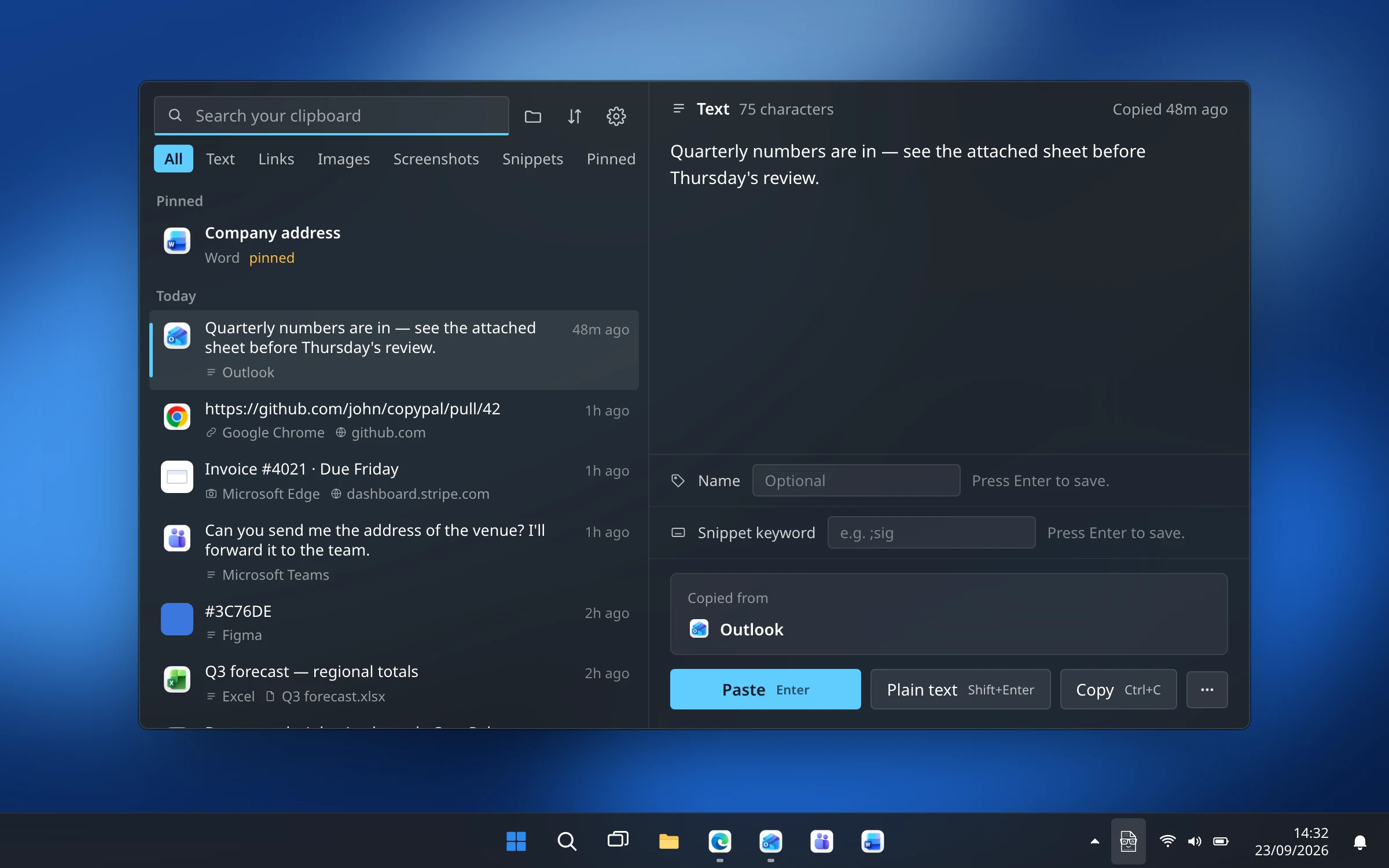
A clipboard manager won't fix a broken clipboard; it uses the same Windows clipboard as every other app. Where it helps is the other half of the problem: the thing you copied an hour ago and lost when you restarted to fix this. We make one, CopyPal, so here is what it does, and you can judge whether that matters to you.
- Keeps what you copy. Text, links, images and screenshots, the last 1,000 items by default, on your PC, so a restart doesn't empty it. Search covers the words inside screenshots too.
- Remembers where each item came from: the app, and for Chrome, Edge, Firefox and Brave the page title and address.
- You decide what it keeps. Pause Capture from the tray menu, and list apps and websites it should ignore.
Already lost something? See how to get back something you copied earlier for what Windows can still recover.
Frequently asked questions
Why is copy and paste not working on my PC?
Usually the shortcut is not getting through (a faulty key, Sticky Keys or Filter Keys, or a tool that has taken over Ctrl+C), a Windows process has got stuck, or the app you are in is blocking the copy. Try right-click Copy and Paste first: if that works, check the keyboard; if it does not, restart Windows Explorer in Task Manager, then the PC.
How do I reset the clipboard in Windows 11?
Go to Settings › System › Clipboard, click Clear next to Clear clipboard data, then switch Clipboard history off and on again. Restarting the PC also empties the clipboard and its history, apart from pinned items.
Why does copy and paste stop working in Remote Desktop?
The program that carries the clipboard between the two PCs, rdpclip.exe, has stopped responding. In the remote session, open Task Manager, end rdpclip.exe on the Details tab, then start it again with Run new task. Also check that Clipboard is ticked under Local Resources in Remote Desktop Connection.
Why can't I paste in Excel?
Excel cancels a copy when you press Esc, and usually when you start typing in a cell; the moving border around the copied cells disappears. Copy the cells again and paste before doing anything else.
Will a clipboard manager fix copy and paste?
No. A clipboard manager uses the same Windows clipboard, so if the clipboard is stuck, it is stuck too, and a misbehaving one can be the cause. What it adds is a history kept on disk, so what you copied is still there after you restart.