 CopyPal
How to recover something you copied earlier (Mac and Windows)
The clipboard holds one thing. Copy something new and the old copy is gone, unless something was keeping a history. So the honest answer has two parts: check whether your Mac or PC kept one, then go back to where the text came from. Here is every place to look, most likely first.
The short answer
| Where to look | Mac | Windows |
|---|---|---|
| Built-in clipboard history | ⌘Space, then ⌘4 (macOS 26 and later, if it was on) | Win+V (if it was on, and no restart since) |
| You cut it, not copied it | ⌘Z in that document | Ctrl+Z in that document |
| Another device | Your iPhone or iPad, only briefly | Another PC, if clipboard sync was on |
| Elsewhere on the computer | Earlier versions: File › Revert To › Browse All Versions | The Office Clipboard, if it was collecting; Version history for OneDrive files |
| The source | The email, chat, document or web page it came from; browser history finds the page | |
Can you recover copied text after copying something else?
Usually not from the clipboard itself. On both a Mac and a Windows PC the clipboard is a single slot in memory: every Command-C or Ctrl+C replaces what was there, and there is no Undo for it. No recovery tool can bring back a copy that nothing recorded.
The exceptions are the ones that kept a record: the clipboard history built into macOS 26 and Windows, if it was switched on before you copied, a clipboard manager, or the original text sitting wherever you copied it from. The sections below check each.
Before anything else: stop copying, and do not restart. Every new copy pushes older ones further down the history, and a restart clears Windows clipboard history except for pinned items.
How to find something you copied earlier on a Mac
1. Spotlight clipboard history (macOS 26 and later)
If you turned on Results from Clipboard in System Settings › Spotlight, your Mac has been keeping recent copies. Press Command-Space (⌘Space) to open Spotlight, then Command-4 (⌘4). Type a word you remember to narrow the list, select the item and press Return to paste it, or Command-C (⌘C) to copy it again.
It only goes back as far as the window you chose: 30 minutes, 8 hours or 7 days. If the feature was off, Spotlight has nothing from before, and turning it on now only helps from here on. Our guide to macOS clipboard history covers every setting.
2. Check what is on the clipboard right now
Click the desktop, then choose Edit › Show Clipboard in Finder's menu bar. It shows only the current item, but it tells you for certain what Command-V would paste. More on that in where the clipboard is on a Mac.
3. Undo, if you cut it
Cut a paragraph with Command-X (⌘X), copy something else before pasting, and the paragraph is not on the clipboard any more. It is still in the document's undo history, though. Go back to that document and press Command-Z (⌘Z), or choose Edit › Undo, until it reappears. This works as long as the document is still open.
Already saved and closed it? Many Mac apps keep earlier versions: open the document and choose File › Revert To › Browse All Versions to find one from before the cut.
4. Your iPhone or iPad
With Universal Clipboard, something copied on one Apple device can be pasted on another nearby. It is still one item, though, and Apple says it stays there only briefly, or until you copy something else on either device. It is worth a look only if you copied the text on your iPhone or iPad and have not copied anything since: paste into a note on that device.
5. Find the web page again
If it came from a website, the page is easier to find than the copy. In Safari choose History › Show All History, or press ⌘Y, and search for a word from the page title. Chrome has the same under its History menu.
How to find something you copied earlier on Windows
1. Windows clipboard history (Win+V)
Press Windows key + V (Win+V). If clipboard history was on, your last 25 copies are there, newest first. There is no search, so scroll. Click an item to paste it.
Two catches. If the panel asks you to turn the feature on, it was off and nothing earlier was recorded. And if you have restarted since, only pinned items are left. Our guides to Windows clipboard history and its 25-item limit explain why.
2. Another PC, if you sync
If Sync across your devices was on, text you copied may also be in the Win+V list on your other PCs signed in to the same Microsoft account or work account. It syncs text, not images.
3. The Office Clipboard
Word, Excel, PowerPoint and Outlook have a second clipboard that holds up to 24 items, including things copied in other programs. Whether it caught your copy depends on whether its pane was open or it was set to collect in the background, so it is a long shot, but it takes seconds to check: open Word or Excel and, on the Home tab, click the small arrow in the corner of the Clipboard group.
4. Undo, if you cut it
Go back to the document and press Ctrl+Z until the cut text reappears. If the file has been saved to OneDrive or SharePoint, click its title in Word, Excel or PowerPoint and choose Version history to open an earlier version.
5. Find the web page again
Press Ctrl+H in Chrome, Edge or Firefox to open your browsing history, then search for a word from the page title.
On both: go back to where it came from
- An email. Search your mailbox for a word or name you remember from the text.
- A chat. Teams, Slack and most chat apps can search a conversation.
- A document. Reopen it; if it changed since, use its version history.
- A note. If you sometimes paste things into Notes or OneNote to keep them, look there.
- A person. If someone sent it to you, asking again takes ten seconds.
How to make sure it never happens again
Turn on the built-in history today. It is free and takes a minute:
- Mac (macOS 26 and later): System Settings › Spotlight › Results from Clipboard, and choose 7 days.
- Windows 11 and 10: Settings › System › Clipboard › Clipboard history, or press Win+V and choose Turn on. Pin anything you must not lose.
Or use a clipboard manager. The built-in histories expire, after seven days at most on a Mac and at the next restart on Windows, and neither tells you where a copy came from. We make a clipboard manager, CopyPal, so here is what it adds, and you can judge whether you need it.
- Keeps everything you copy: text, links, images and screenshots. The last 1,000 items by default, or up to unlimited, in a local database that survives restarts.
- Finds it by a word. Press Shift-Command-V (⇧⌘V) on a Mac or Ctrl+Shift+V on Windows and type. Search covers the text inside screenshots and images too, recognised on your computer.
- Remembers where it came from. Every item is filed with its app and, for browsers, the page title and address, with an Open page button that takes you back.
- You decide what it keeps. Tell it which apps and websites to ignore, such as your password manager or your bank, and use Pause Capture before copying something private.
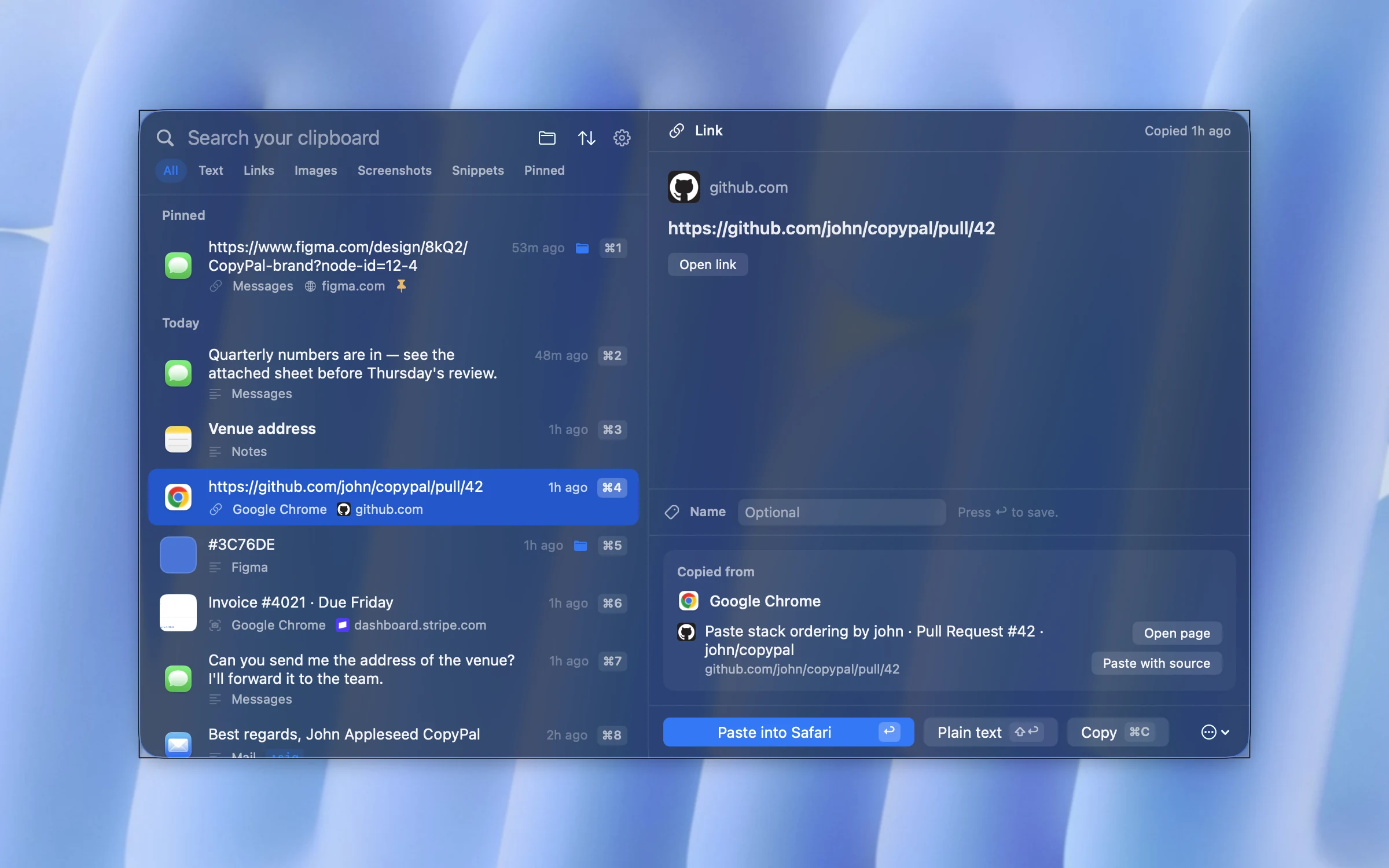
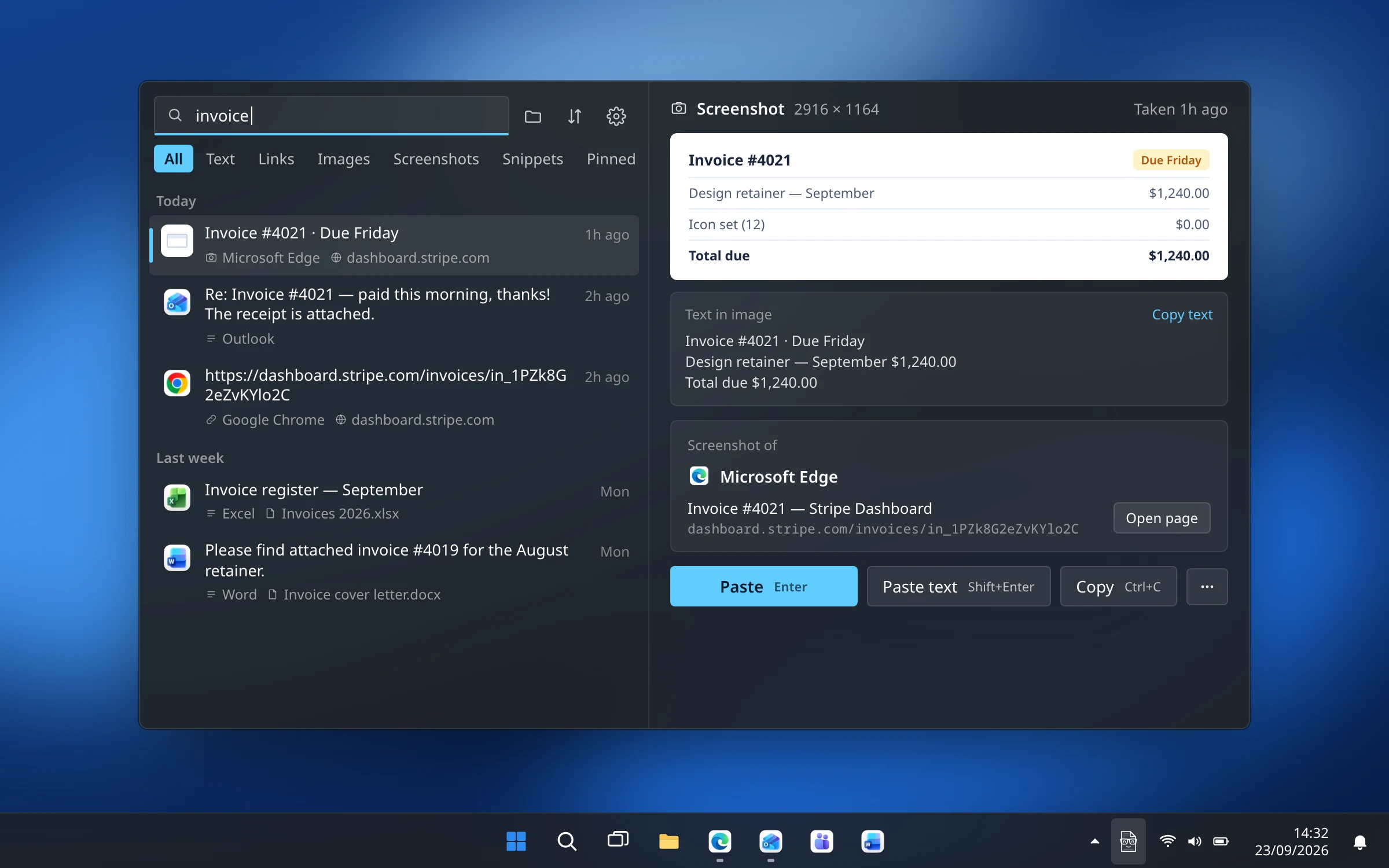
It cannot rescue anything copied before you install it; nothing can. It costs $10 once for two devices, Mac or PC. If you are unsure whether you need one at all, read what a clipboard manager is first.
Frequently asked questions
Can I recover something I copied before?
Only if something kept a history. On a Mac with macOS 26 or later, press ⌘Space, then ⌘4, if clipboard history was turned on. On Windows, press Win+V, if clipboard history was on and you have not restarted. Otherwise go back to where the text came from.
I accidentally copied over my clipboard. Can I undo it?
There is no undo for the clipboard itself. If you cut the text rather than copied it, go back to that document and press ⌘Z on a Mac or Ctrl+Z on Windows to put it back. Otherwise check your clipboard history.
Can I recover clipboard history after restarting Windows?
No. Windows clears every unpinned item from clipboard history when you restart, and there is no way to bring them back. Pinned items survive. A clipboard manager stores its history on disk, so it survives restarts.
Is there software that recovers overwritten clipboard contents?
No tool can bring back a copy that nothing recorded. A clipboard manager keeps everything you copy from the moment you install it, but it cannot see copies made before then.
How do I find something I copied yesterday?
On a Mac with macOS 26 or later, Spotlight's clipboard history keeps copies for up to 7 days if you chose that setting. On Windows, Win+V keeps only the last 25 items until a restart. A clipboard manager such as CopyPal keeps everything and finds it by a word.