 CopyPal
What is a clipboard manager, and do you need one?
A clipboard manager is a small app that remembers everything you copy, not just the last thing, so you can find an earlier copy and paste it again. Your Mac or PC holds one item at a time; a clipboard manager keeps a searchable history of your text, links and images. If you copy and paste between apps all day, it is worth having. If you copy a few things a week, the history built into Windows and macOS is probably enough.
The short answer
| Question | Answer |
|---|---|
| What it is | An app that keeps a history of everything you copy |
| What it adds | Search, pins, snippets, pasting several items at once, images and screenshots, where each copy came from |
| Built into Windows | Win+V: the last 25 items, cleared at restart unless pinned |
| Built into the Mac | Spotlight on macOS 26 and later: copies kept for up to 7 days |
| Who needs one | Anyone who copies between email, spreadsheets, forms and chat many times a day |
| Cost | Free, a one-time purchase, or a subscription |
What is the clipboard?
The clipboard is the short-term memory your computer uses for copy and paste. When you press Command-C (⌘C) on a Mac or Ctrl+C on Windows, whatever you selected goes onto the clipboard. When you press Command-V (⌘V) or Ctrl+V, a copy of it comes out wherever your cursor is. There is no window and no icon for it; we explain where it lives in where is the clipboard on a Mac.
The catch is that it holds one thing. Copy something new and the previous item is gone, which is how a phone number you copied ten minutes ago disappears when you copy a link in between.
What does a clipboard manager do?
A clipboard manager runs in the background, usually in the Mac menu bar or the Windows system tray, and saves a copy of everything that lands on the clipboard. Press its shortcut, a list of your recent copies appears, and the one you pick is pasted where you were typing. Most add some of the following:
- A long history. Hundreds or thousands of items, kept across restarts, instead of one.
- Search. Type a word from something you copied last week and it comes back.
- Pins and favourites. Keep the things you paste every week, such as the office address or a standard reply, at the top.
- Snippets. Type a short keyword such as
;sigand it is replaced with your full email signature. - Pasting several items. Collect a name, an email address and a phone number, then paste them one after another into a form. Our guide to copying and pasting multiple items shows how.
- Images and screenshots. Keep pictures as well as text, and in some apps find a screenshot by the words inside it.
- Where it came from. Some record which app, and even which web page, each copy came from, so you can go back to it.
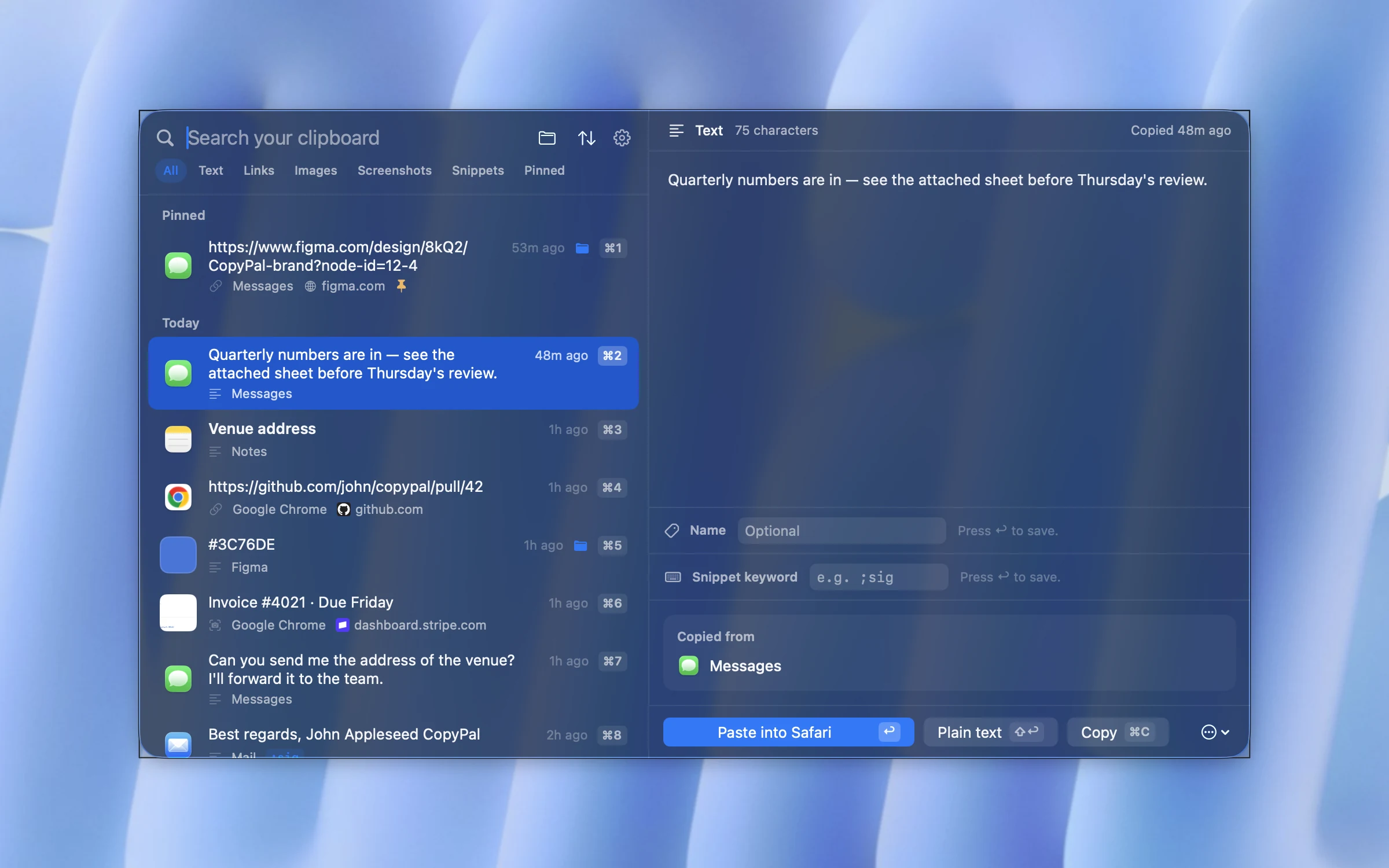
Our comparisons of the best clipboard managers for Mac and for Windows show which app does what.
Does my computer already have a clipboard manager?
Both Windows and macOS now include a basic clipboard history, and for many people it is enough.
On Windows: press Win+V
Press Windows key + V (Win+V). The first time, click Turn on, or switch it on in Settings › System › Clipboard. Windows then keeps your last 25 copies of text, HTML and images under 4 MB each, according to Microsoft's own guide. You can pin items; everything else is cleared when you restart. There is no search. Our guide to clipboard history on Windows covers it step by step, and why Windows stops at 25 items explains the limit.
On a Mac: Spotlight, on macOS 26 and later
Since macOS 26 Tahoe, Spotlight keeps a clipboard history. Turn it on in System Settings › Spotlight › Results from Clipboard, then press Command-Space (⌘Space) followed by Command-4 (⌘4). It keeps copies for 30 minutes, 8 hours or 7 days, shows the app each one came from, and lets you search. You cannot pin anything, and macOS 15 Sequoia and earlier keep only the current item. The full walkthrough is in macOS clipboard history.
Built-in clipboard history vs a clipboard manager
| Windows (Win+V) | Mac (Spotlight) | A clipboard manager | |
|---|---|---|---|
| How much it keeps | Last 25 items; cleared at restart except pinned items | Copies from the last 30 minutes, 8 hours or 7 days | Hundreds, thousands or unlimited |
| Search | No | Yes | Yes |
| Pin favourites | Yes | No | Usually |
| Shows where a copy came from | No | The app | Varies: the app, and in a few the web page too |
| Paste several at once | One at a time | One at a time | Many have a paste stack |
| Snippets | No | No (Text Replacements is a separate feature) | Many do |
| Runs on | Windows 10 and 11 | macOS 26 and later | Depends on the app |
| Price | Free | Free | Free, one-time or subscription |
Who needs a clipboard manager?
You will probably notice the difference within a day if you:
- Copy between apps all day. Order numbers from email into a spreadsheet, addresses into a form, links into chat.
- Work in support or sales. The same replies and links many times a day. Pins and snippets save the retyping.
- Do admin or data entry. Filling in forms from another document is where pasting several items in order pays off.
- Study or write. Collect quotes and links as you research, and still know where each came from.
- Develop software. Commands, error messages and bits of code you need again an hour later.
- Take a lot of screenshots. Some clipboard managers read the text in them, so you can find one by searching (how that works on a Mac).
You probably do not need one if you copy a few things a day and rarely look back; the built-in history covers that. And if something you copied earlier has just vanished, read how to get back something you copied earlier first.
How to choose a clipboard manager
Five questions sort out most of the choice:
- Does it run on your computer? Some are Mac-only, some Windows-only, a few run on both. Check the minimum system version.
- Where does your history go? An app that keeps everything on your computer is the private choice; sync means your copies travel through someone's cloud. More in are clipboard managers safe?
- Can you keep things out? Look for a way to ignore apps, such as your password manager, and to pause recording.
- How will you find things? Search is the minimum. Filters, text inside screenshots and the source of each copy make a long history usable.
- What does it cost, and for how long? Free, a one-time purchase, or a subscription. One-time does not always include future versions, so read what the price covers.
Free or paid?
The free options are good. Ditto and CopyQ on Windows and Maccy on the Mac are free, open source and searchable. What you usually pay for is the layer on top: screenshots you can search by their text, the app and page each copy came from, snippets, a paste stack, and more polish.
Paid apps are either one-time purchases or subscriptions, which often include sync to a phone. If you would rather pay once, our guide to clipboard managers without a subscription lists every option with its current price, and the Paste subscription explained shows what the best-known subscription costs.
How to start using one
- Install it from the developer's own website or the official app store.
- On a Mac, allow Accessibility when asked. Clipboard managers need it to paste into other apps for you. You will find it in System Settings › Privacy & Security › Accessibility.
- Learn one shortcut: the one that opens your history. Most apps let you choose your own.
- Tell it what to ignore. Add your password manager and your banking app or site to its ignore list on day one.
- Let it run for a week. The first time you need something you copied yesterday, you will see the point.
- Pin the few things you paste every day. Your address, your signature, a link you share often.
When you want more than the built-in history: CopyPal
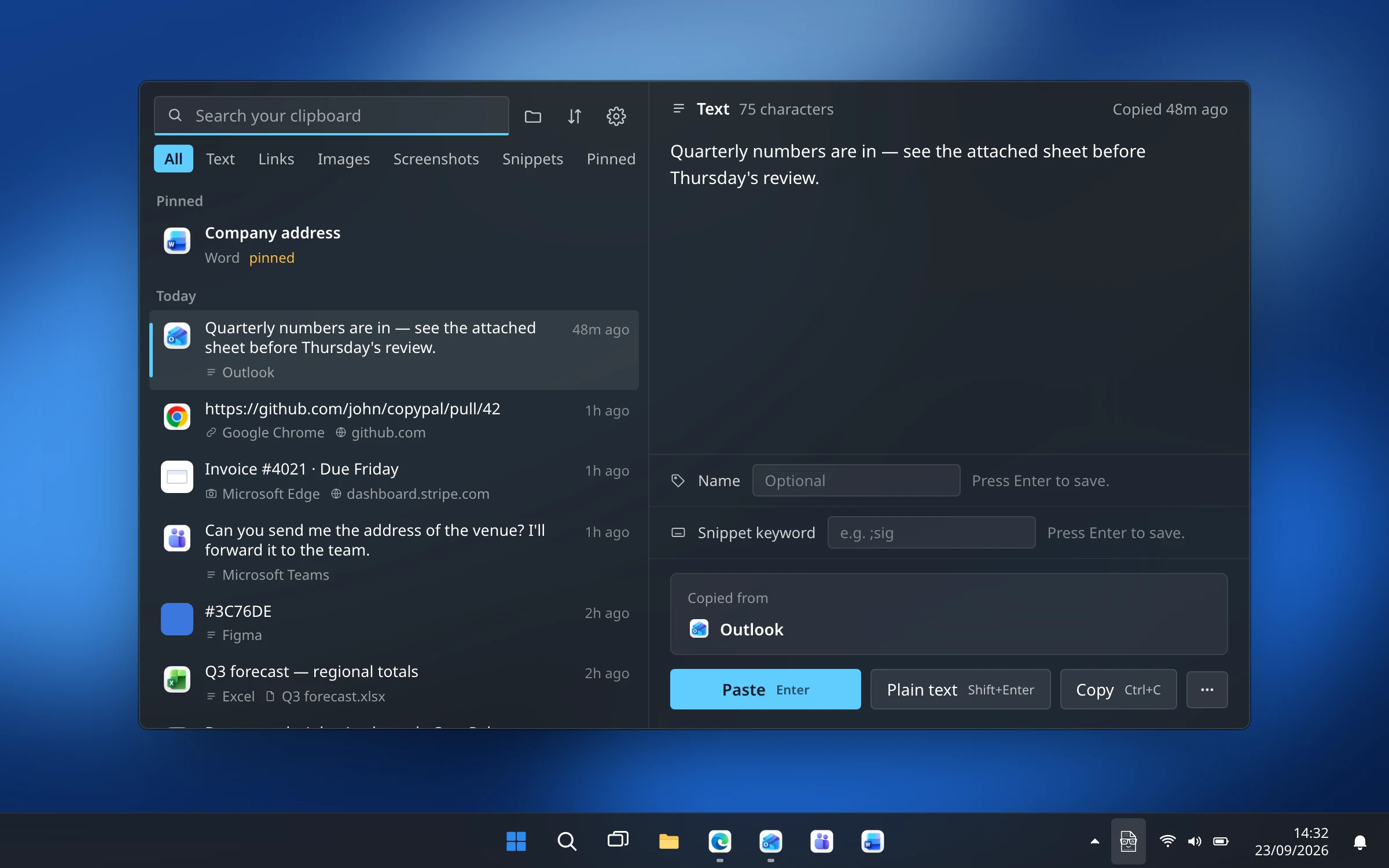
We make a clipboard manager, CopyPal, so here is what it does, and you can judge whether that matters to you.
- Mac and Windows. macOS 14 Sonoma and later, and Windows 10 and 11. $10 once covers two devices, Mac or PC, with no subscription and no account.
- A history that lasts. The last 1,000 items by default, or 5,000, or unlimited. Pinned, named and grouped items are never pruned.
- Remembers where things came from. The app, and for browsers the page title and address, with a button that reopens the page.
- Finds screenshots by their words. Text in screenshots and images is recognised on your computer, so a search for "invoice" finds the screenshot of one.
- Pastes several at once. Add items to a paste stack and paste them together or one per paste.
Frequently asked questions
What is a clipboard manager?
A clipboard manager is a small app that keeps a history of everything you copy, so you can find an earlier copy and paste it again. The normal clipboard on a Mac or PC holds only the last thing you copied.
What does a clipboard manager do?
It saves every text, link and image you copy so you can search the history and paste any item again. Many also add pins, snippets, pasting several items in order, and a record of which app or page each copy came from.
Do I need a clipboard manager?
If you copy between email, spreadsheets, forms and chat many times a day, a clipboard manager saves time and lost copies. If you copy a few things a week, the free history built into Windows (Win+V) or macOS 26 and later (Spotlight) is probably enough.
Do Windows and macOS have a built-in clipboard manager?
A basic one. Windows 10 and 11 keep your last 25 copies when you press Win+V, cleared at restart unless pinned. macOS 26 and later keep a searchable history in Spotlight for up to 7 days. macOS 15 and earlier keep one item only.
Are clipboard managers free?
Many are. Ditto and CopyQ on Windows and Maccy on the Mac are free and open source. Paid apps are either a one-time purchase, such as CopyPal at $10 for two devices, or a subscription, such as Paste at $3.99 a month.
Are clipboard managers safe?
A reputable one is, if you set it up sensibly. It records everything you copy, including passwords, so choose one that keeps the history on your computer, tell it to ignore your password manager and banking sites, and lock your screen when you step away.