 CopyPal
How to copy and paste on Windows: every shortcut
To copy on Windows, select something and press Control + C (Ctrl+C). To cut it instead, press Control + X. Click where you want it and press Control + V to paste. That works in almost every app on Windows 11 and 10; below are the other shortcuts, the mouse, touchpad and touchscreen, and the places where the rules change.
Copy and paste shortcuts at a glance
| Shortcut | In words | What it does |
|---|---|---|
| Ctrl+C | Control + C | Copy the selection |
| Ctrl+X | Control + X | Cut: copy it and remove it |
| Ctrl+V | Control + V | Paste |
| Ctrl+Shift+V | Control + Shift + V | Paste as plain text, in many apps |
| Win+V | Windows key + V | Clipboard history: paste something you copied earlier |
| Ctrl+A | Control + A | Select all |
| Ctrl+Z / Ctrl+Y | Control + Z / Control + Y | Undo / redo |
| Ctrl+Insert / Shift+Insert | Control + Insert / Shift + Insert | Older alternatives for copy / paste |
| Ctrl+Alt+V | Control + Alt + V | Paste Special in Excel, Word and Outlook |
| Win+Shift+S | Windows key + Shift + S | Screenshot of part of the screen, to the clipboard |
How to copy and paste with the keyboard
- Select what you want. Drag over text with the mouse, double-click a word, hold Shift and use the arrow keys, or press Ctrl+A to select everything.
- Copy it with Ctrl+C. Nothing visible happens; Windows has put a copy on the clipboard.
- Click where it should go, in the same app or another one.
- Paste with Ctrl+V. You can paste the same thing as many times as you like.
The clipboard holds one thing at a time. Copy something new and it replaces the last copy, unless clipboard history is on (more on that below).
How to cut and paste on Windows 11 and 10
Cutting moves something instead of copying it. Select it, press Control + X (Ctrl+X), click where it should go and press Ctrl+V. Cut text disappears straight away and reappears when you paste. Cut files in File Explorer stay where they are, shown faded, until you paste them. Cut by mistake? Ctrl+Z undoes it.
How to copy and paste with the mouse: the right-click menu
Select the text, right-click it and choose Copy or Cut. Right-click where you want it and choose Paste. In Word, Excel and Outlook the same commands are buttons on the Home tab.
In File Explorer on Windows 11, the right-click menu shows Cut, Copy, Paste, Rename, Share and Delete as a row of small icons rather than words. Hover over one to see its name. Show more options opens the older, longer menu.
How to copy and paste on a touchpad or touchscreen
- Touchpad: select text as you would with a mouse, then tap the touchpad with two fingers, or press down in its lower-right corner, to right-click. Choose Copy, then do the same where you want to paste.
- Touchscreen: double-tap a word to select it and drag the small handles to widen the selection. Then press and hold the selection, which works like a right-click, and choose Copy. Press and hold where you want it and choose Paste.
How to paste without formatting: Ctrl+Shift+V
A normal paste brings the font, size and colour along. Control + Shift + V (Ctrl+Shift+V) pastes just the words, so they match where you put them. Microsoft's list of Windows keyboard shortcuts calls it “paste as plain text” and notes it doesn't work in every app. It works in Chrome, Edge, Firefox, Teams and Google Docs, and in recent Microsoft 365 versions of Word. In older versions of Word, and in Outlook, use Ctrl+Alt+V and choose Unformatted Text. The details, app by app, are in how to paste without formatting on Windows.
How to copy and paste files in File Explorer
The same shortcuts work on files and folders. Select them, press Ctrl+C to copy or Ctrl+X to move, open the destination folder and press Ctrl+V. You can also drag them: hold Ctrl while you drop to make a copy, or Shift to move them. Copied files don't appear in Win+V clipboard history, which keeps text and images only.
How to copy and paste in Command Prompt and Windows Terminal
Command lines have their own habits, because Ctrl+C has long meant “stop the running command” there.
- Copy: select text with the mouse, then press Ctrl+C. With nothing selected, Ctrl+C still stops the running command. In Windows Terminal, Ctrl+Shift+C and Ctrl+Insert copy too.
- Paste: Ctrl+V. Windows Terminal also accepts Ctrl+Shift+V and Shift+Insert.
- Right-click: in Windows Terminal, right-clicking a selection copies it, and right-clicking again pastes.
Paste Special in Excel: Ctrl+Alt+V
In Excel, a normal paste brings everything: values, formulas, formatting and comments. Copy the cells, then press Control + Alt + V (Ctrl+Alt+V) to choose what to paste: just the values, just the formats, the column widths, and more. Excel shows a moving border round copied cells; pressing Esc cancels the copy. If pasting stops working there, or anywhere else, see copy and paste not working on Windows.
How to copy a screenshot: Windows key + Shift + S
Press Windows key + Shift + S (Win+Shift+S), drag over part of the screen, and the picture goes to the clipboard. Paste it with Ctrl+V into an email, a chat or a document. On Windows 11 it is also saved as a file; where screenshots go explains where.
How to paste something you copied earlier: Win+V
Windows can remember more than one copy. Press Windows key + V (Win+V) and, the first time, click Turn on. From then on it shows your recent copies; click one to paste it. It keeps the 25 most recent items, and a restart clears everything you haven't pinned. How to see clipboard history on Windows covers it in full.
When you need more: a clipboard manager
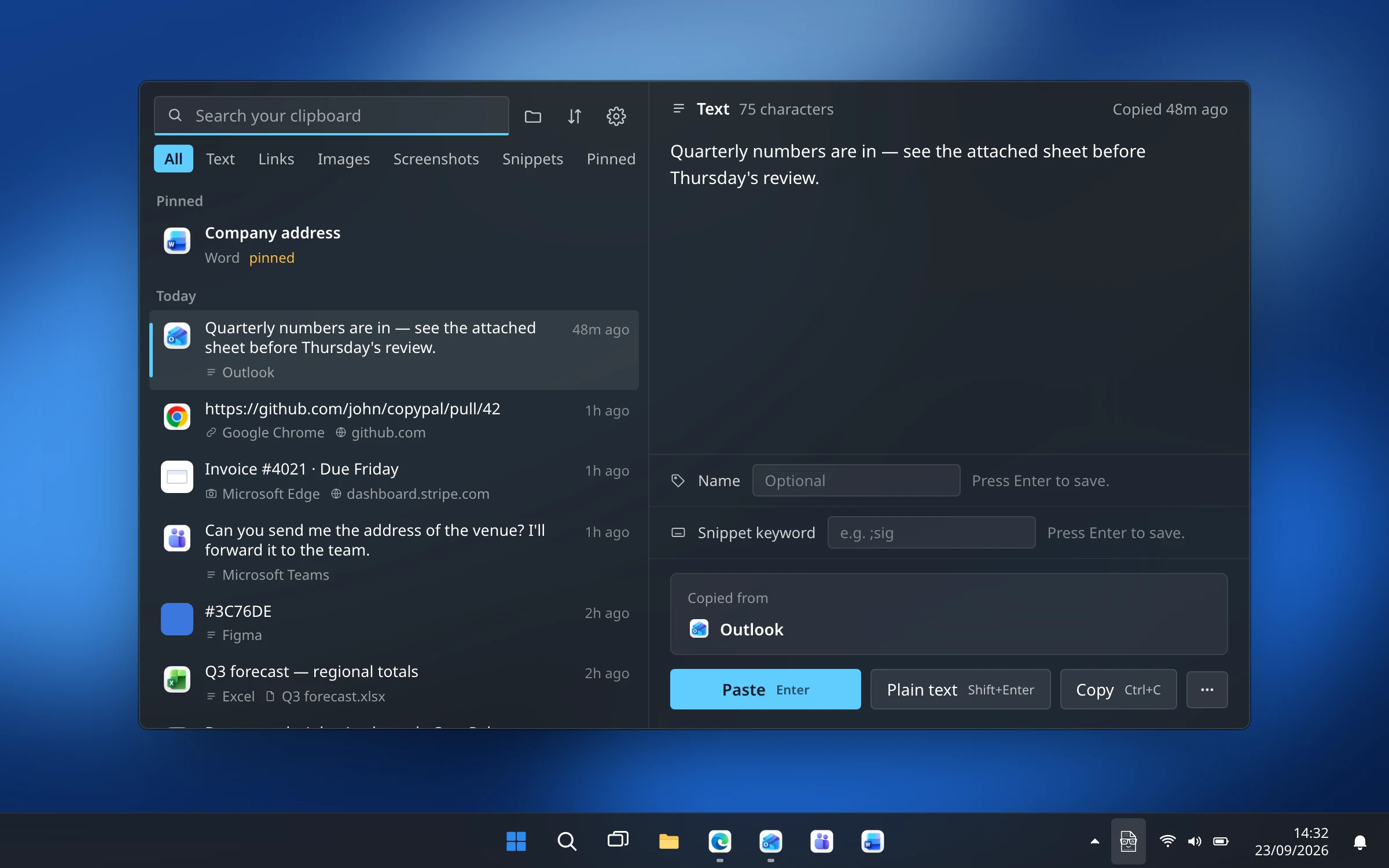
If 25 items and a list that empties at every restart isn't enough, a clipboard manager keeps a longer history and lets you search it. We make one, CopyPal, so here are its shortcuts, and you can judge whether it fits the way you work.
| In CopyPal | What it does |
|---|---|
| Ctrl+Shift+V | Opens your history. Type to search, including the words inside screenshots |
| Enter | Pastes the selected item into the app you were in |
| Shift+Enter | Pastes it as plain text |
| Ctrl+C | Copies it without pasting |
| Ctrl+1 to Ctrl+9 | Pastes one of the first nine items |
| Ctrl+S | Adds it to the paste stack; paste the stack all at once, or one item per Ctrl+V, in order |
It keeps text, links, images and screenshots, the last 1,000 items by default, with the app each one came from. One thing to know: CopyPal takes over Ctrl+Shift+V by default, the shortcut browsers use for plain-text pasting. If you'd rather keep the browser's version, give CopyPal another shortcut in Settings › Shortcuts.
Frequently asked questions
What is the keyboard shortcut for copy and paste on Windows?
Ctrl+C copies, Ctrl+X cuts and Ctrl+V pastes. They work in almost every Windows app, on Windows 11 and Windows 10. Ctrl+Insert and Shift+Insert are older alternatives for copy and paste.
How do I cut and paste on Windows 11?
Select the text or files, press Ctrl+X, click where you want them and press Ctrl+V. Cut text disappears straight away; cut files stay where they are until you paste. If you cut something by mistake, Ctrl+Z puts it back.
How do I copy and paste without a keyboard?
Right-click the selection and choose Copy, then right-click where you want it and choose Paste. On a touchpad, tap with two fingers to right-click. On a touchscreen, press and hold to get the same menu.
What does Ctrl+Shift+V do?
In many apps it pastes as plain text, without the original font, size and colour: Chrome, Edge, Firefox, Teams and Google Docs among them, and recent Microsoft 365 versions of Word. In Windows Terminal it is an ordinary paste, and some clipboard managers use it to open their history.
How do I paste something I copied earlier?
Press Windows key + V to open clipboard history and click the item. You have to turn clipboard history on first, and it keeps only the 25 most recent items until you restart, apart from pinned ones.