 CopyPal
Text replacement on a Mac: how to create text shortcuts
Your Mac has a text expander built in. It is called Text Replacements: open System Settings › Keyboard, click Text Replacements, and add a keyword such as ;addr with your full address as the replacement. Type the keyword and a space, and macOS types the whole thing. Here is how to set it up, where it stops, and which apps go further, with prices checked in October 2026.
The short answer
| Question | Answer |
|---|---|
| Where it lives | System Settings › Keyboard › Text Replacements |
| Add a shortcut | Click the Add button (+), type the keyword under Replace and the full text under With, click Add, then Done |
| Use it | Type the keyword, then a space or punctuation |
| Syncs to | Your iPhone and iPad, through iCloud Drive and the same Apple Account |
| Limits | Plain text only, and not every app supports it (Microsoft Word, for one) |
| Need more | A text expander app, or a clipboard manager with snippets |
How to create a text shortcut on a Mac
These steps are the same on macOS 26 Tahoe and macOS 27, and close to identical on earlier versions.
- Choose Apple menu › System Settings, then click Keyboard in the sidebar. You may need to scroll down.
- Click the Text Replacements button.
- Click the Add button (+).
- Under Replace, type your keyword, for example ;addr. Under With, type or paste the full text.
- Click Add, then Done.
Now open Notes or Mail, type ;addr and press the Space bar. The keyword turns into your address. Your Mac already ships with one example: type omw and a space, and it becomes "On my way!".
You can also reach the same list from inside many apps: choose Edit › Substitutions › Show Substitutions, then click Text Settings. And to apply your shortcuts to text you have already typed, tick Text Replacement in that Substitutions window and click Replace All. Apple's guide to replacing text and punctuation covers the details.
A Mac keyboard shortcut for your email address
This is the most common reason people go looking. macOS has no key that types your email address, but a text replacement does the same job:
- Replace @@ (or ;em) With jane.doe@example.com.
Type @@ and a space in any supporting app and the address appears. The same trick works for your phone number, a postal address, a meeting link or a stock reply.
More than one line? For a signature or an address on several lines, write the text in Notes or TextEdit first, copy it with Command-C (⌘C), and paste it into the With field with Command-V (⌘V). The line breaks come along; formatting does not, because text replacements are always plain text. Every other copy and paste shortcut is in our Mac shortcut guide.
Good keyword ideas that never fire by accident
A replacement fires whenever you type its keyword as a word. Choose sig as a keyword and one day you will type it on purpose and get a signature instead. Two habits avoid that:
- Start with a semicolon. ;sig, ;addr, ;ph. On English keyboards the semicolon sits right under your little finger, and it almost never comes before a letter in real writing.
- Or double a letter. sigg, addrr, phh. Real words rarely end that way.
| Keyword | Becomes |
|---|---|
| @@ or ;em | Your email address |
| ;ph | Your phone number |
| ;addr | Your postal address, on several lines |
| ;sig | Your sign-off: name, job title, company |
| ;meet | The link to your video-call room |
| ;ty | "Thanks for getting back to me." |
Keep passwords, card numbers and other secrets out of text replacements. They sync to your other devices, and anyone who sits down at your Mac can open the list.
How to sync text replacements to your iPhone and iPad
Turn on iCloud Drive on your Mac, iPhone and iPad, signed in to the same Apple Account on each. After that, a replacement you add on the Mac works on your other devices, and the other way round. To copy them to a Mac that uses a different Apple Account, select the replacements in the list and drag them to the desktop; that makes a file you can drag into the list on the other Mac. Apple explains both in back up and share text replacements.
Why text replacement is not working on your Mac
- The app does not support it. Apple says text replacements are not available in all apps. Microsoft Word is the best-known example: it uses its own AutoCorrect list instead, so you have to add your shortcuts there too.
- It is switched off in that app. In the app's menu bar, choose Edit › Substitutions and make sure Text Replacement is ticked. If it already is, untick it and tick it again.
- You did not finish the word. The swap happens when you type a space or punctuation after the keyword, not before.
Even when it works, Text Replacements is a basic tool. It types plain text only, so no bold, links or pictures. It cannot insert today's date or ask you to fill in a name. And it lives on Apple devices only, so it will not follow you to a Windows PC at work. If you have one of those too, see our guide to text shortcuts on Windows.
Text expander apps for Mac, compared
A text expander does the same job with more power: formatting, dates, fill-in fields, or a shared library for a team. These are the main options, with prices from each app's own website in October 2026.
| App | Price | Runs on | Best for |
|---|---|---|---|
| Text Replacements | Free, built in | Mac, iPhone, iPad | A handful of plain-text shortcuts |
| TextExpander | Free plan with 5 active snippets; Pro $6 a month or $60 a year per user | Mac, Windows, iPhone, iPad, Chrome | Teams sharing one snippet library |
| Raycast | Snippets free; Pro $10 a month or $96 a year for extras | Mac, Windows | People who want a launcher as well |
| Alfred | Powerpack £34 one-time, or £59 with lifetime upgrades | Mac | Launcher fans who want snippets with placeholders |
| aText | $4.99 for a year, or $29.99 for life (personal) | Mac, Windows | The cheapest paid option |
| Typinator | $59.99 one-time (Mac, private use), or $39.99 a year with iPhone and iPad | Mac, iPhone, iPad | Paying once for a full-featured expander |
| Espanso | Free, open source | Mac, Windows, Linux | Anyone happy to edit a text file |
| CopyPal | $10 one-time, two devices (Mac or PC) | Mac, Windows | Snippets plus a full clipboard history |
Prices exclude tax and change often; Typinator's are listed before VAT. Check each site before you buy.
- TextExpander is the name most people know, and it is built for teams: shared snippet libraries that sync across Mac, Windows, iPhone and iPad. The free plan keeps only five snippets active. Pro is a subscription, so you pay for as long as you use it.
- Raycast includes snippets with keyword expansion in its free plan. On the Mac it is a launcher that replaces Spotlight, so you get a lot more than snippets, wanted or not.
- Alfred puts snippets and auto-expansion in its Powerpack, a one-time licence for the Alfred launcher. Alfred's site says buying now includes a free upgrade to Alfred 6.
- aText is a small, cheap expander for Mac and Windows. Its site lists support up to macOS 15, so use the 21-day trial to check it on macOS 26 or 27 first.
- Typinator has a one-time Basic licence for Mac, for private use and the current major version only. Work use needs the Business plan, from $79.99 a year.
- Espanso is free and open source and runs on Mac, Windows and Linux. There is no settings window yet: you write snippets in a text file, two lines each, a trigger and a replacement.
When you need more: snippets in a clipboard manager
If Text Replacements covers you, keep using it. If you also lose things you copied an hour ago, a clipboard manager with snippets solves both problems in one app. We make one, CopyPal, so here is how its snippets work, and you can judge whether that matters to you.
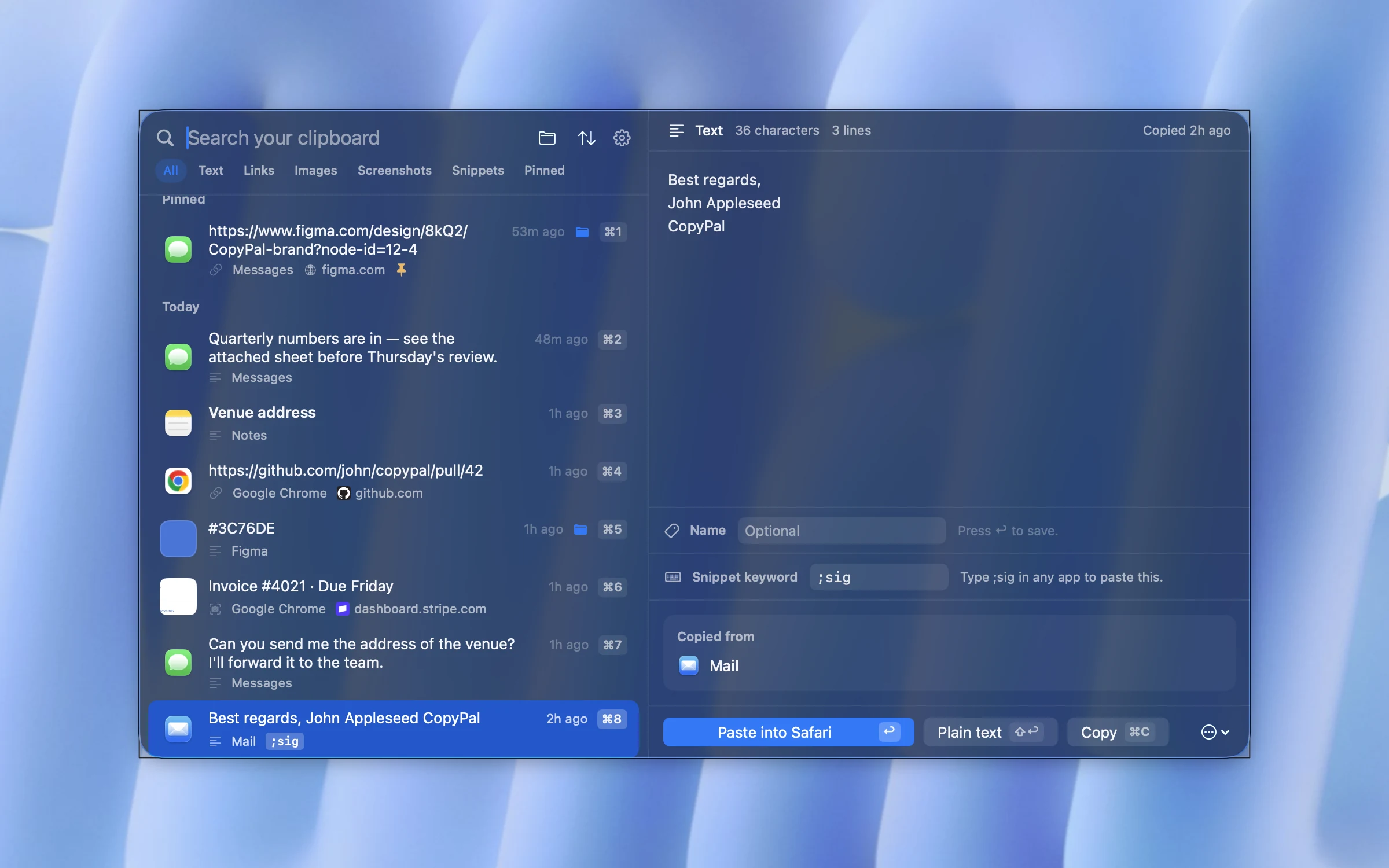
- Any text you copied can become a snippet. Press Shift-Command-V (⇧⌘V) to open CopyPal, select the item, type a keyword such as ;sig in the Snippet keyword field and press Return.
- Type the keyword in any app and CopyPal replaces it with the full text. What you type is matched in memory only and never stored.
- Snippets are never pruned. They stay put however long your history grows, alongside pinned, named and grouped items.
- It also works on Windows. One $10 purchase covers two devices, Mac or PC, so the same habit works on both. Each computer keeps its own snippets; nothing goes through a cloud.
- And it keeps everything you copy: text, links, images and screenshots, searchable, with the app and page each came from.
What it does not try to be: a team snippet library or a form builder. If you need fill-in fields, dates that update themselves or snippets on your iPhone, a dedicated text expander is the better fit. Our clipboard manager comparison covers the rest of CopyPal, and copying several items at once shows the paste stack.
Frequently asked questions
How do I create a text shortcut on a Mac?
Open System Settings, click Keyboard, then Text Replacements. Click the Add button (+), type the keyword in Replace and the full text in With, click Add, then Done. Type the keyword followed by a space and macOS replaces it.
Does a Mac have a text expander built in?
Yes. Text Replacements, in System Settings › Keyboard, is a basic text expander. It handles plain text, works in many apps, and syncs to your iPhone and iPad through iCloud Drive. For formatting, dates or shared libraries you need a text expander app.
Why is text replacement not working on my Mac?
Three usual causes. The app does not support it: Microsoft Word, for example, uses its own AutoCorrect list instead. It is switched off in that app: check Edit › Substitutions › Text Replacement. Or you did not type a space or punctuation after the keyword.
Can a Mac text replacement have more than one line?
Yes. The easiest way is to write the text in Notes or TextEdit, copy it, and paste it into the With field. The line breaks come with it, and the shortcut syncs to your iPhone and iPad like any other.
Is there a keyboard shortcut for my email address on a Mac?
Not out of the box, but you can make one in a minute. Add a text replacement that replaces @@ or ;em with your email address. Typing it followed by a space then types the whole address.
What is the best text expander for Mac?
For a few plain shortcuts, the built-in Text Replacements. Free apps: Espanso, and Raycast's snippets. One-time purchases: Alfred's Powerpack, Typinator Basic and aText. TextExpander suits teams that share snippets, on a subscription. CopyPal, which we make, adds snippets to a full clipboard history for $10 once.