 CopyPal
How to make text shortcuts on Windows 11 and 10 (text expander)
Unlike a Mac, Windows has no built-in text replacement that works in every app. Inside Word and Outlook, AutoCorrect and Quick Parts do the job for free. For shortcuts that work everywhere, you install a text expander: AutoHotkey, Espanso and Beeftext cost nothing, TextExpander and PhraseExpress are paid. Here is how each one works, with prices checked in October 2026.
The short answer
| You want | Use |
|---|---|
| A few shortcuts in Word and Outlook | AutoCorrect: File › Options › Proofing › AutoCorrect Options |
| Longer blocks of text in Office | Quick Parts and AutoText; My Templates in the new Outlook |
| A key combination that types a phrase | PowerToys Keyboard Manager, free from Microsoft |
| Typed shortcuts in every app, free | AutoHotkey, Espanso or Beeftext |
| A polished app with sync | TextExpander or PhraseExpress |
| Snippets plus a clipboard history | A clipboard manager with snippets, such as CopyPal |
Does Windows 11 have text replacement built in?
No. The typing settings in Settings › Time & language › Typing can fix misspelled words and suggest the next one, but there is no list where you add your own shortcuts. The emoji panel, Windows key + period (Win+.), inserts emoji and symbols. Clipboard history, Windows key + V (Win+V), pastes recent copies, but you pick each one by hand and it forgets them when you restart; our guide to Windows clipboard history covers it.
PowerToys, Microsoft's free add-on toolkit, has no text expander either, as of October 2026. Its nearest feature is a shortcut that types text, covered below. So you have three routes: Office's own tools, PowerToys, or a text expander app.
How to make text shortcuts in Word and Outlook with AutoCorrect
AutoCorrect fixes typos, but it will just as happily turn addrr into your full address.
- In Word, select the text you want to reuse, up to 255 characters.
- Choose File › Options › Proofing › AutoCorrect Options.
- On the AutoCorrect tab, make sure Replace text as you type is on.
- Type your keyword under Replace. The text you selected is already under With.
- Click Add, then OK twice.
Type the keyword and press the Space bar or Enter, and Word swaps it in. Microsoft shares the AutoCorrect list across the Office programs that support it, so the same entry works in desktop Outlook. The limits: it only works inside Office, not in your browser or other apps, and Outlook on the web uses AutoCorrect but will not let you add entries of your own.
Quick Parts, AutoText and My Templates for longer text
- Word. Select a block of text, press Alt+F3 and give it a short, unique name. To insert it, choose Insert › Quick Parts › AutoText, or type the name and press F3. AutoText keeps formatting and is not available in Word for the web. Microsoft's guide to reusable text snippets covers AutoText and AutoCorrect.
- Classic Outlook. The same Quick Parts sit on the Insert tab of a new message: select text and save it to the gallery, then insert it from there.
- New Outlook and Outlook on the web. Use My Templates: in a new message, on the Message tab, choose My Templates, then +Template, give it a title and the text, and save. Templates are stored in your mailbox, so they appear on the web too. They hold short text with basic styling, and if My Templates is missing, your organisation may have turned add-ins off.
PowerToys: a keyboard shortcut that types text
If you search for "how to make keyboard shortcuts for text on Windows", this is Microsoft's own answer. Install PowerToys, which is free, then:
- Open PowerToys Settings and choose Keyboard Manager.
- Choose Remap a shortcut, then add a new remapping.
- Under Select, press a combination nothing else uses, such as Ctrl+Alt+Shift+E.
- Under To send, choose Text and type your email address. Click OK.
It works in every app as long as PowerToys is running, though not in windows running as administrator unless PowerToys does too. It suits three or four phrases; after that, remembering which chord types what gets hard. Microsoft's Keyboard Manager guide has the details. PowerToys also handles pasting without formatting.
How to make text shortcuts that work in every app, for free
AutoHotkey
AutoHotkey is a free, open-source automation tool for Windows, and its "hotstrings" are text shortcuts. After installing AutoHotkey v2, open Notepad and type one shortcut per line, the keyword between two pairs of colons and the text after it:
::sigg::Best regards,{Enter}Jane Doe::addrr::1 Example Street, London
Save the file as text-shortcuts.ahk (set Save as type to All files) and double-click it. Now typing sigg followed by a space, Enter or punctuation types the sign-off, and {Enter} starts the new line. Careful in chat apps, where Enter may send the message. To start it with Windows, press Windows key + R, type shell:startup, and put a shortcut to the file in the folder that opens.
Espanso
Espanso is free, open source and runs on Windows, Mac and Linux, so one set of shortcuts can follow you between computers. There is no settings window yet: run espanso edit and your snippets file opens in Notepad. Each snippet is a pair of lines, such as trigger: ";sig" and replace: "Best regards,\nJane Doe", where \n is a new line. Press Alt+Space to search your snippets instead of typing a keyword.
Beeftext
Beeftext is the friendliest of the free three: a normal Windows app where you add "combos", a keyword and the text it becomes. It is free and open source. Its makers say it is now in maintenance mode, and the last release, version 16.0, came out at the end of 2022, so do not expect new features.
Text expanders for Windows, compared
| Tool | Price | Works in | Good to know |
|---|---|---|---|
| Office AutoCorrect | Included with Office | Word, Outlook and other Office desktop apps | Up to 255 characters per entry |
| PowerToys | Free | Every app | Key combinations, not typed keywords |
| AutoHotkey | Free, open source | Every app | You edit a script file |
| Espanso | Free, open source | Every app; Mac and Linux too | You edit a text file |
| Beeftext | Free, open source | Every app | Simple; in maintenance mode |
| PhraseExpress | Free for personal use; one-time licence for work | Every app; Mac too | Forms, macros and team sharing in paid editions |
| aText | $4.99 for a year, or $29.99 for life (personal) | Every app; Mac too | Cheapest paid option |
| TextExpander | Free plan with 5 active snippets; Pro $6 a month or $60 a year per user | Every app; Mac, iPhone, iPad, Chrome | Shared team libraries; subscription |
| CopyPal | $10 one-time, two devices (Mac or PC) | Every app; Mac too | Snippets plus a full clipboard history |
Prices are from each tool's own website in October 2026 and exclude tax. PhraseExpress counts any paid work, a managed work PC or a work account as professional use, which needs a licence after 30 days.
Good keyword ideas
A shortcut fires whenever you type its keyword as a word, so sig on its own will one day ambush you. Two habits prevent that:
- Start with a semicolon: ;sig, ;addr, ;ph. Real words almost never begin with one.
- Or double the last letter: sigg, addrr, phh, as in the AutoHotkey example. Plain letters are accepted by every tool here, so this is the safe choice for Office AutoCorrect.
Then stick to one pattern for everything: ;em for your email address, ;ph for your phone number, ;meet for your meeting link, ;ty for a thank-you line. Keep passwords and card numbers out; a snippet is not a safe.
When you need more: snippets plus clipboard history
If a free expander covers you, use it. If you also want back the things you copied an hour ago, a clipboard manager with snippets does both in one app. We make one, CopyPal, so here is how its snippets work, and you can decide whether that matters to you.
- Any text you copied can become a snippet. Press Ctrl+Shift+V, select the item and give it a keyword such as ;sig. No script, no text file.
- Type the keyword in any app and CopyPal replaces it with the full text. What you type is matched in memory only and never stored.
- Snippets are never pruned, however long your history grows.
- The same on a Mac. One $10 purchase covers two devices, Mac or PC. Each computer keeps its own snippets; nothing goes through a cloud.
- Everything you copy is kept too: text, links, images and screenshots, searchable, with the app and page each came from.
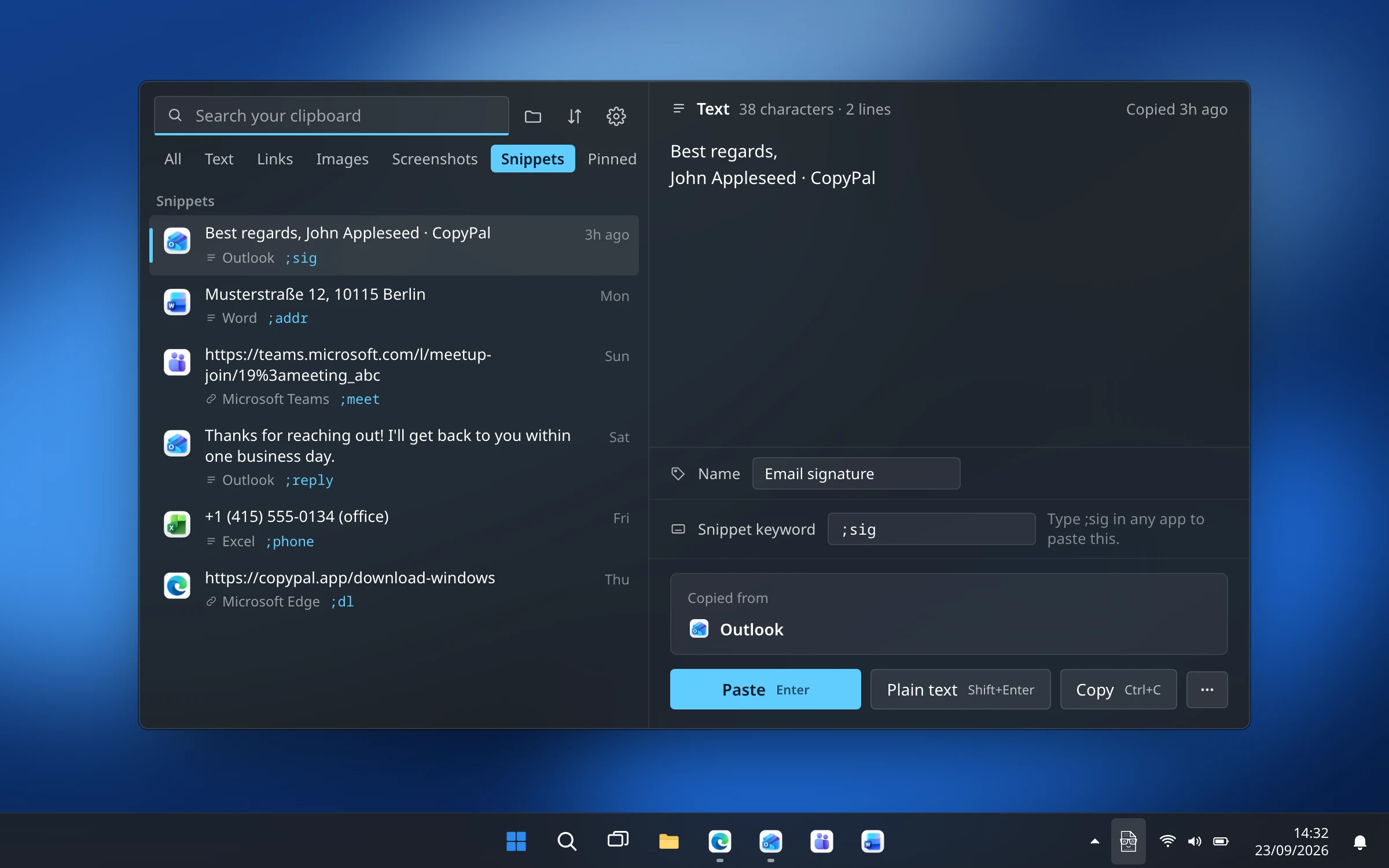
What it is not: a form builder or a team library. For fill-in fields or a shared library, TextExpander or PhraseExpress do more. Our Windows clipboard manager comparison covers the rest of CopyPal, and the Mac version of this guide is text shortcuts on a Mac.
Frequently asked questions
Does Windows 11 have text replacement like a Mac?
No. Windows 11 and 10 have no built-in list of your own text shortcuts that works in every app. Inside Word and Outlook, AutoCorrect does the job. Everywhere else you need a text expander such as AutoHotkey, Espanso or Beeftext, which are free.
What is the best free text expander for Windows?
AutoHotkey, Espanso and Beeftext are all free and open source. Beeftext is the easiest, with a normal settings window, though it is now in maintenance mode. Espanso is actively developed and uses a text file. AutoHotkey can do the most. PhraseExpress is free for personal use.
Does PowerToys have a text expander?
Not as of October 2026. The closest thing is Keyboard Manager, which can remap a key combination such as Ctrl+Alt+Shift+E to type a piece of text. You press a shortcut rather than type a keyword.
How do I make a keyboard shortcut that types text in Windows?
Install Microsoft PowerToys, open Keyboard Manager and choose Remap a shortcut. Press the key combination you want, choose Text under To send and type the text. It works as long as PowerToys is running.
Do Word AutoCorrect entries work in Outlook?
Yes, in the desktop apps. Microsoft shares the AutoCorrect list across the Office programs that support it, so an entry added in Word also works in Outlook. Outlook on the web uses AutoCorrect but does not let you add your own entries.
What is AutoText in Word?
A way to save a longer block of text, with formatting, and insert it again. Select the text, press Alt+F3 and give it a name. Insert it from Insert › Quick Parts › AutoText, or type its name and press F3. AutoText is not available in Word for the web.